1Turn on appeals
Open the audition, click Edit, and tick Appeals of results. It's off unless you turn it on. With it off, publishing works exactly as before and participants never see an appeal option.
2Publish provisional results
Close the round as usual. Before you click Publish results, tick Provisional: participants can appeal until a deadline and choose the date and time. It starts three days ahead at 5 pm, and can be from an hour to 60 days away.
Placements work the same way: tick the box before clicking Publish placements. A round's results and the placements each have their own deadline, so you can have appeals on one and not the other.
If you email everyone their result, the email adds that the results are provisional and gives the deadline.
3How participants appeal
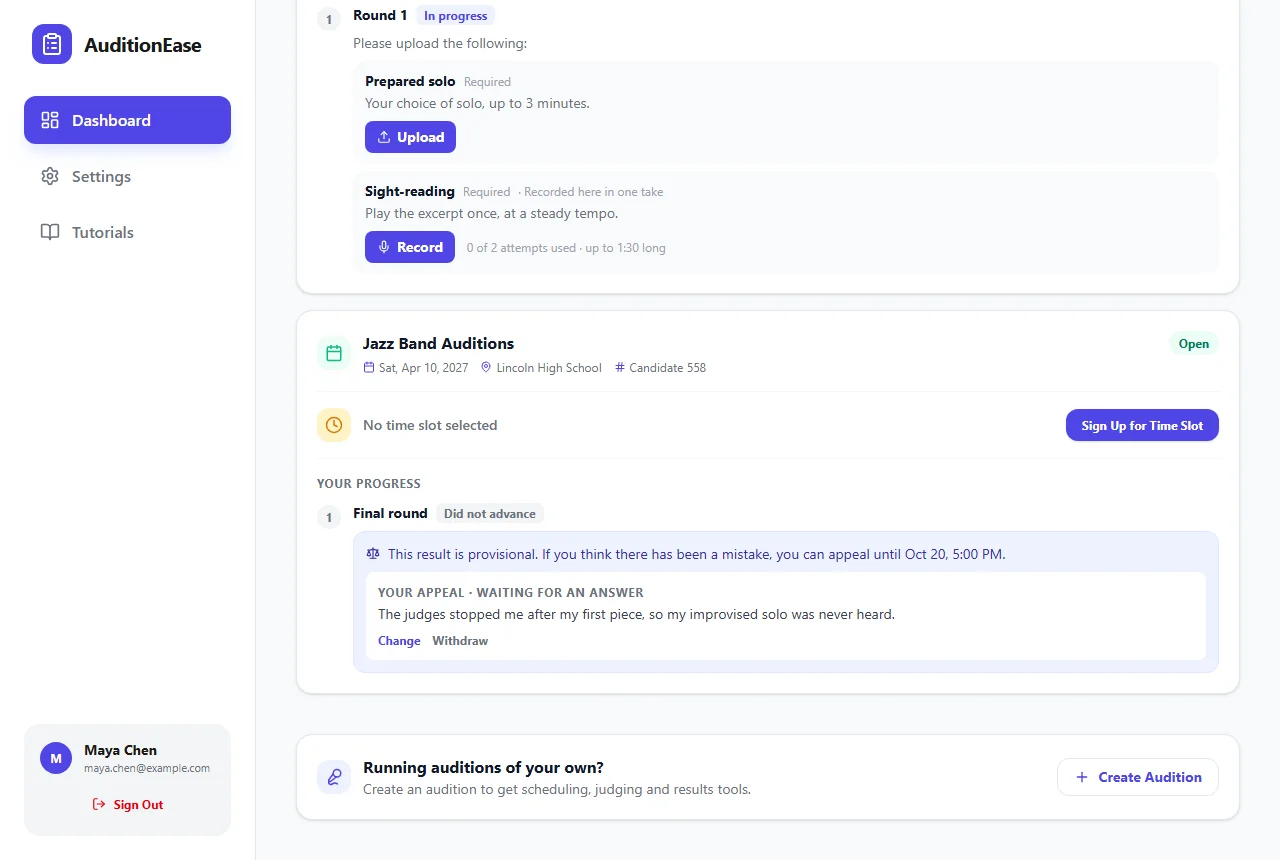
On their dashboard, a provisional result says so and shows the deadline. Participants click Appeal this result (or Appeal this placement), say why the result should be looked at again, and click Send appeal. School directors can appeal for their students the same way.
Each participant can appeal each result once. They can change or withdraw their appeal until you answer it or the deadline passes. You're emailed when someone appeals, at most once a day for each appeal.
4Answer appeals
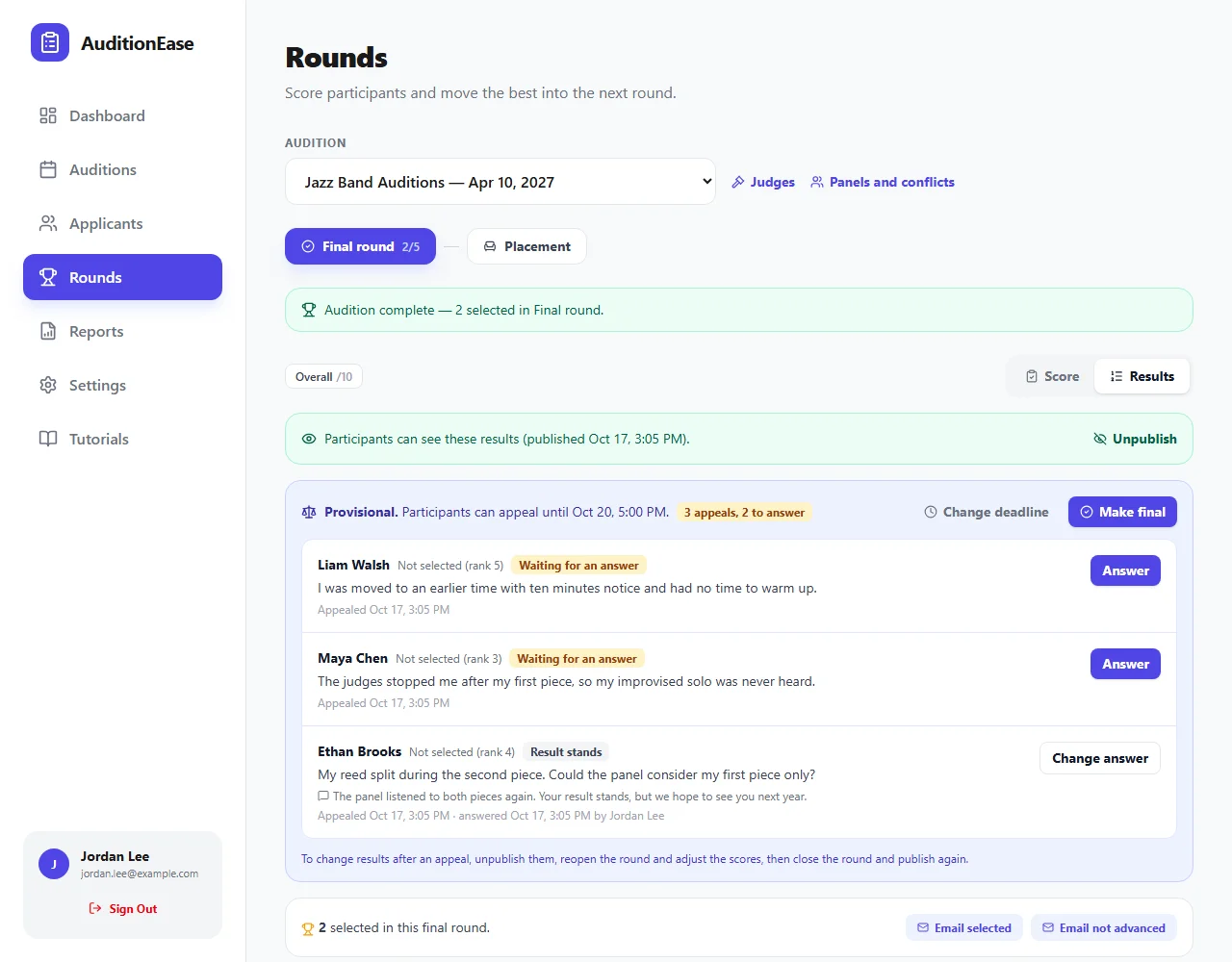
Appeals are listed under the published results on the round's Results tab, or under the placements. Each shows the participant, their result as it stands, and their reason. Appeals waiting for an answer are listed first.
Click Answer and choose Result changed or Result stands. Add a message if you like; the participant sees it on their dashboard. Leave Email them that their appeal was answered ticked to let them know. The email only asks them to sign in, so your answer isn't sent by email.
5Change a result
To change a round's results after an appeal, Unpublish them, reopen the round, adjust the scores, then close the round and publish again. You choose a new appeal deadline when you publish again, or publish as final. Appeals and your answers are kept.
To change placements, unpublish them, move people, and publish again.
6Make the results final
When you've answered the appeals, click Make final. Participants no longer see the results as provisional, and appeals close. After the deadline passes, participants can't appeal any more, but the results stay provisional until you make them final, so you have time to answer the last appeals.
Click Change deadline to give participants more time, or to close appeals sooner.