1Before you start
Placement needs two things:
- Sections: players are seated within their section, such as their instrument or voice part. Choose a section field in the audition's Edit form. See Custom sign-up fields.
- A finished audition: close your last round with Finish as final round. See Advancing.
Then a Placement step appears at the end of the round steps in Rounds.
2Set up your ensembles
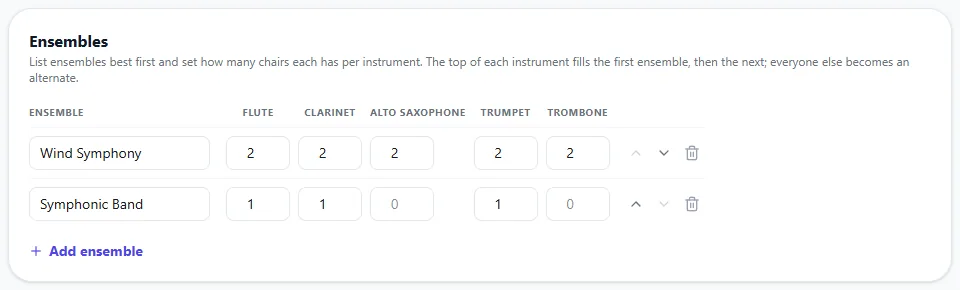
Under Ensembles, click Add ensemble for each group, top ensemble first. For each one, enter the number of chairs for every section. For example, a Wind Symphony might have 4 flutes, 6 clarinets and 4 trumpets. Put a 0 for any section it doesn't use.
Use the arrows to change the order. The ensemble at the top is filled first. Click Save ensembles.
3Seat participants
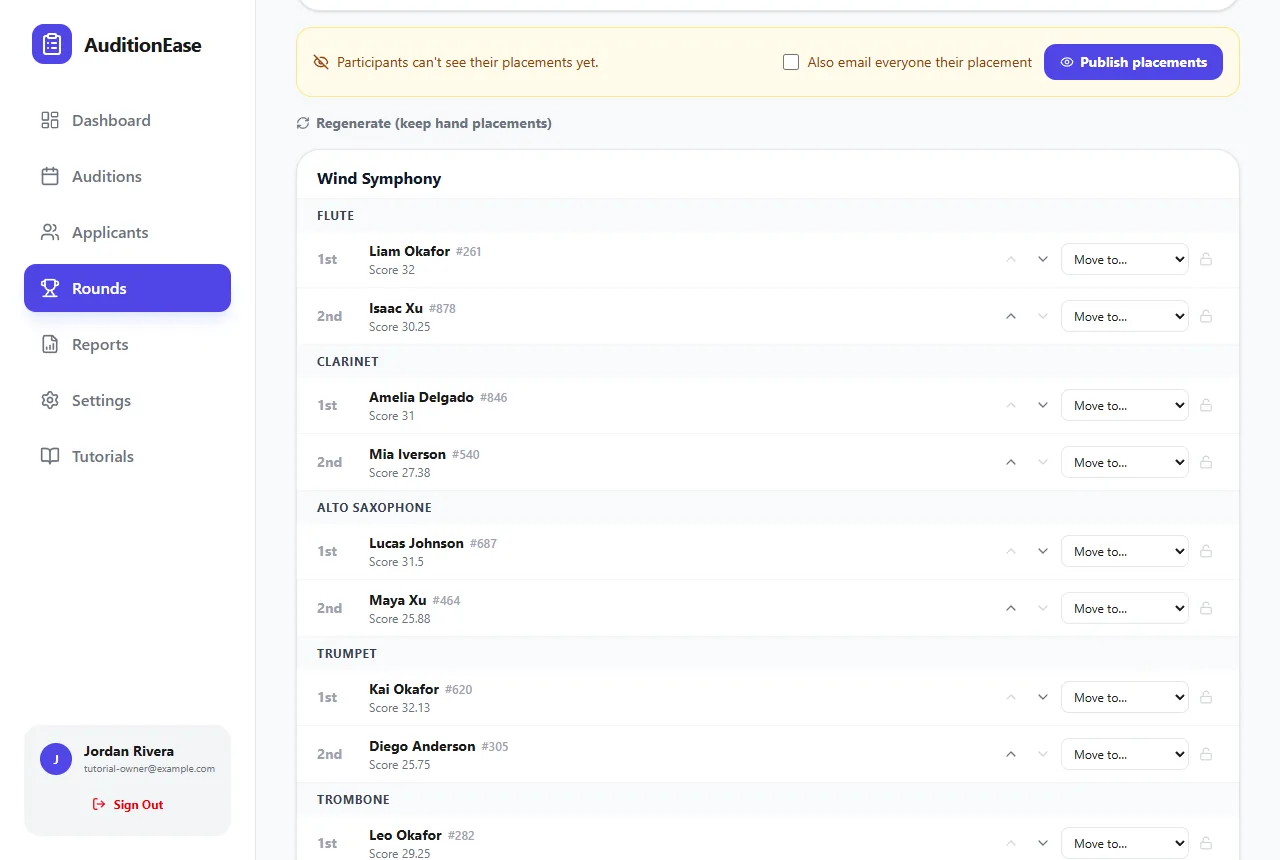
AuditionEase shows a preview of the seating, based on the final round's results. Within each section, the top scorer gets 1st chair in the top ensemble, the next gets 2nd chair, and so on. When the top ensemble's chairs are full, seating continues into the next ensemble. Anyone left over is listed as a numbered alternate.
Click Seat participants to save the seating.
4Move people by hand
Use a player's Move to… menu to put them in a different chair, ensemble or the alternates list. People you've moved are marked with a lock and stay put.
- Regenerate (keep hand placements) re-seats everyone else around your changes, e.g. after you add chairs.
- Start over from results throws away your changes and seats everyone by score again.
If the final round's selections change after you've seated people, you'll see a warning with Update placements.
5Publish placements
When the seating is final, tick Also email everyone their placement if you'd like each person emailed their ensemble and chair (or alternate position), and click Publish placements. You can Unpublish if you need to make changes.
For a printable version, run the Seating Chart report. See Reports.