1Add a field
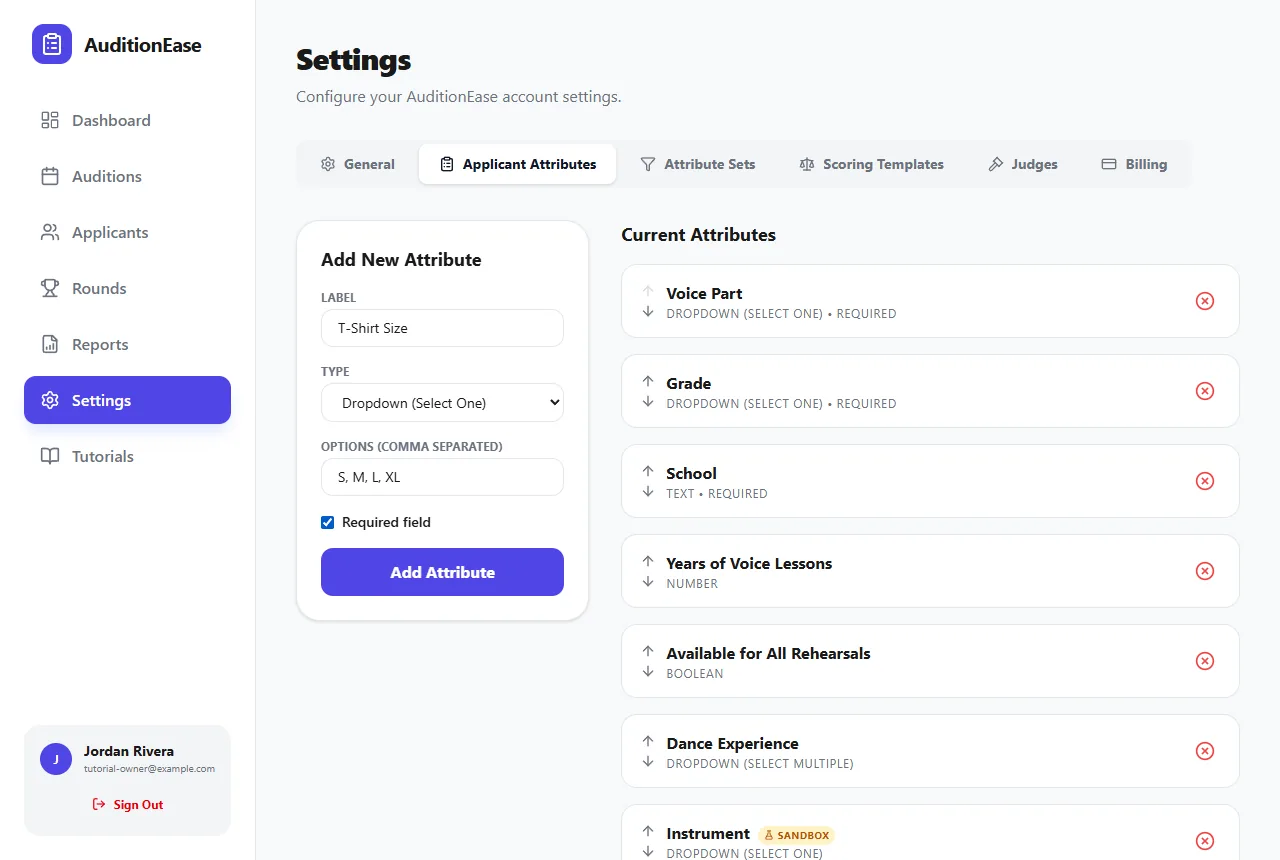
Go to Settings › Applicant Attributes. Under Add New Attribute:
- Enter a Label, which is the question participants see, like Instrument.
- Choose a Type.
- For dropdowns, list the choices under Options (comma separated), e.g.
Flute, Clarinet, Trumpet. - Tick Required field if participants must answer it.
- Click Add Attribute.
Your fields appear under Current Attributes. Use the arrows to change the order they appear in on the sign-up form.
2Pick the right field type
- Text: short free-form answers, like school name.
- Number: years of lessons, age.
- Date: date of birth, availability.
- Yes/No: a checkbox, e.g. "Available for all rehearsals".
- Dropdown (Select One): a single choice from your list. Use this for anything you want to group by, like instrument or voice part.
- Dropdown (Select Multiple): several choices, e.g. "Instruments you also play".
Planning to advance or seat by section? Make the grouping question a Dropdown (Select One). Only that type can be used for sections.
3Group fields into attribute sets
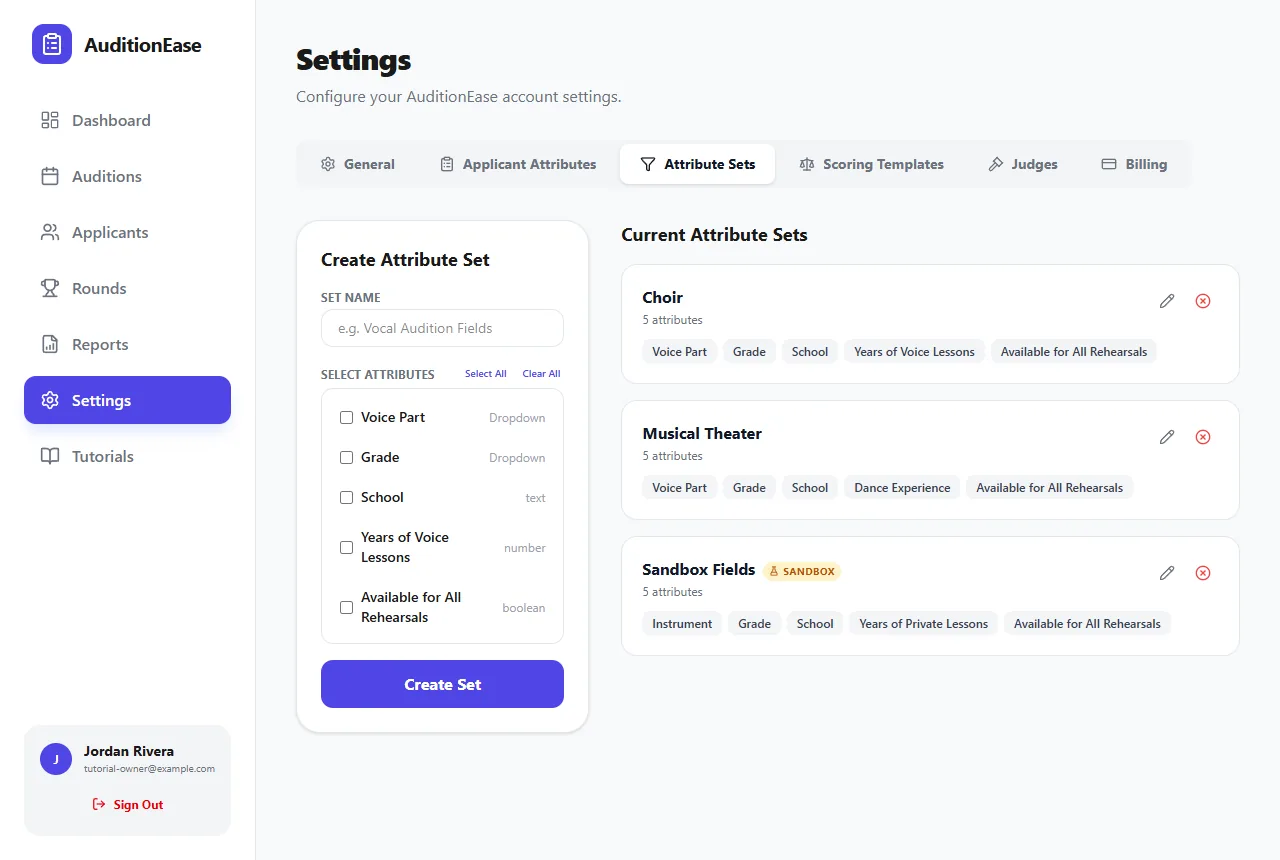
If you run different kinds of auditions, you probably ask different questions for each. An attribute set is a named group of fields, such as "Band" or "Choir", that you choose when creating an audition.
Go to Settings › Attribute Sets, enter a Set Name, tick the fields to include (or use Select All), and click Create Set. Use the pencil icon to change a set later.
4Use a set and sections in an audition
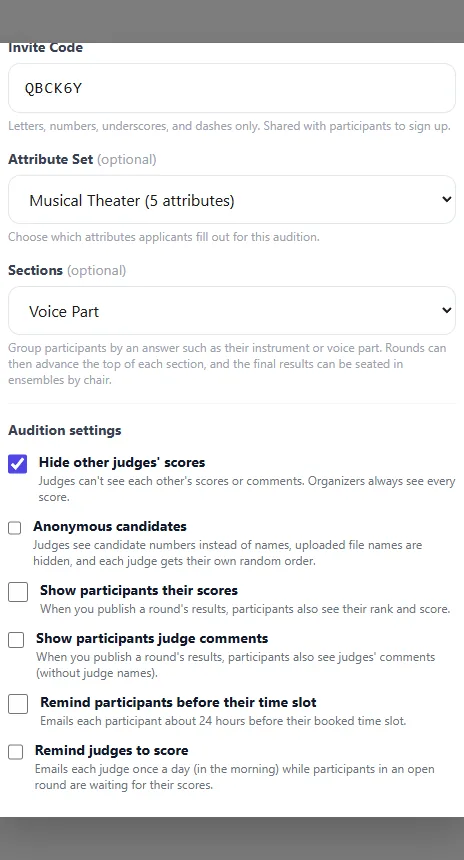
When you create or edit an audition, choose your set under Attribute Set. Participants who sign up will be asked exactly those questions.
Then, if you want to group participants, choose one of the set's dropdown fields under Sections. With sections, rounds can advance the top players in each section, and the final results can be seated in ensembles by chair.
In an organization, fields and sets belong to each division instead of to you. Division managers edit them from their dashboard under My Divisions. See Organizations & divisions.