1Start a new audition
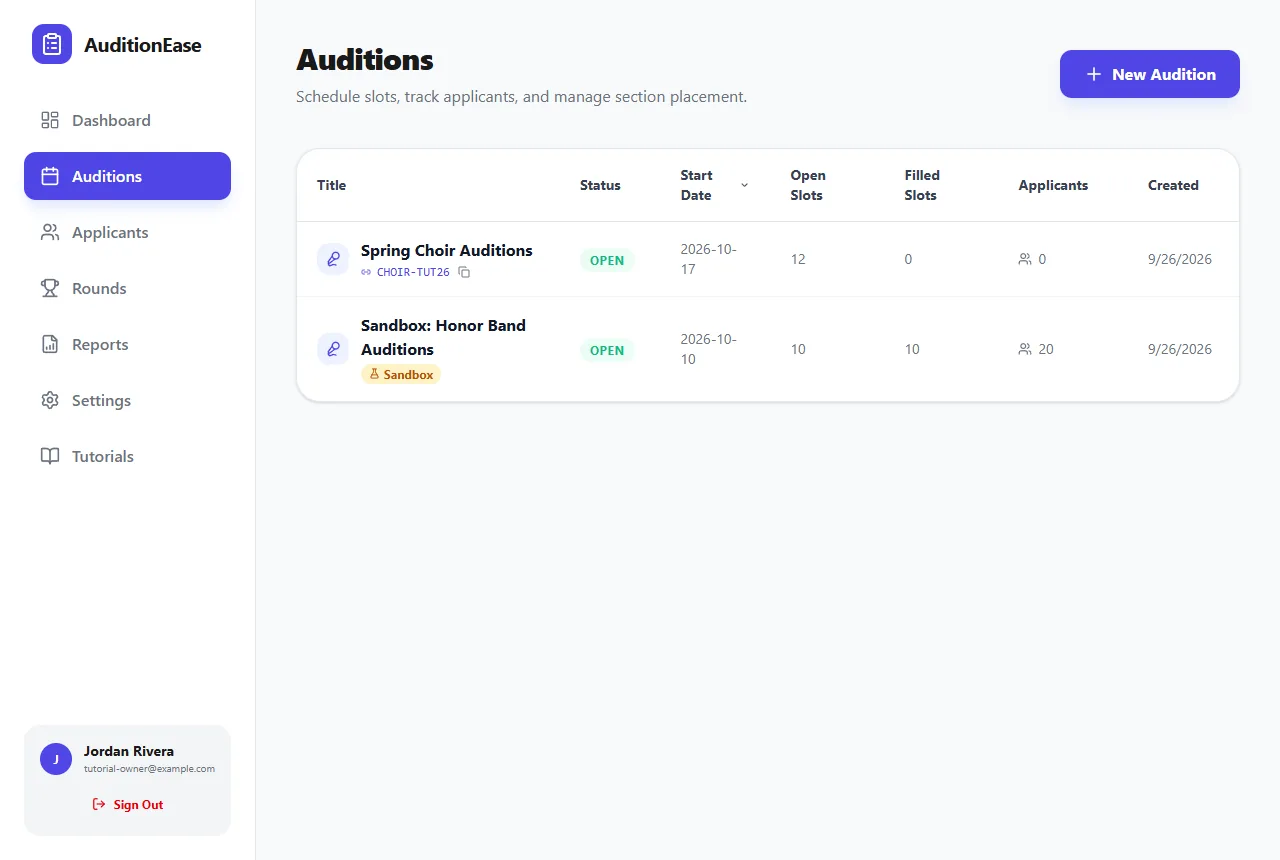
Click Auditions in the sidebar, then New Audition. The list shows every audition you run, with its status, start date, open and filled slots, and number of applicants. Click a column heading to sort.
2Fill in the details
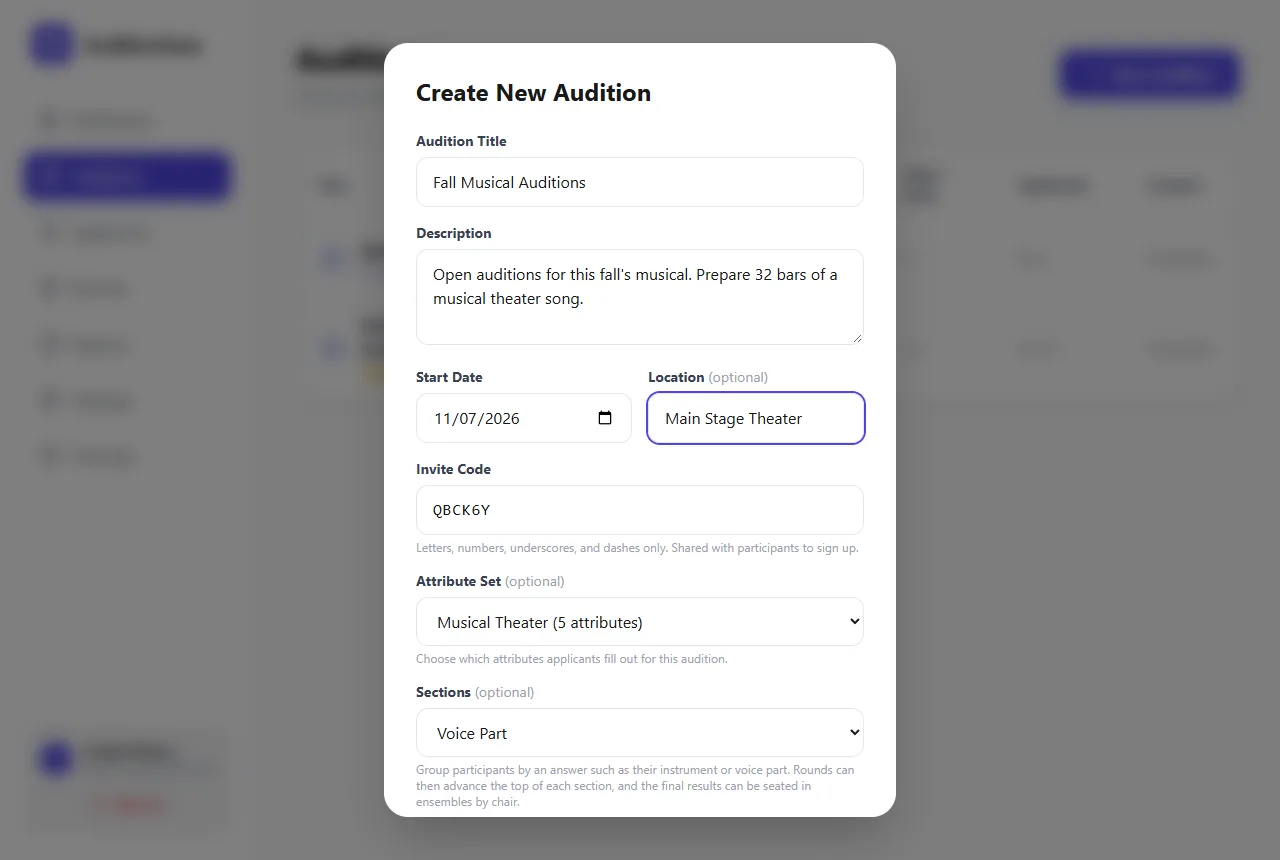
- Audition Title and Description: what participants see when they open your invite link.
- Start Date and Location (optional).
- Invite Code: generated for you. It becomes the end of your invite link. You can change it to something memorable, like
CHOIR26. Codes aren't case-sensitive. - Attribute Set (optional): which sign-up questions this audition asks. Leave it on All Attributes to ask every question you've set up. See Custom sign-up fields.
- Sections (optional): group participants by one of their answers, such as instrument or voice part. Sections let you advance the top players in each section and seat ensembles by chair. Only single-choice dropdown fields can be used.
- Division: if you belong to an organization, choose which division the audition belongs to.
3Choose the audition settings
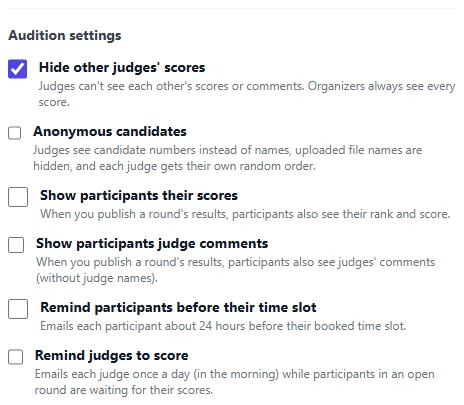
Under Audition settings, tick the options you want. You can change them later.
- Hide other judges' scores (on by default): judges can't see each other's scores or comments, so each judge scores independently. You, the organizer, always see every score.
- Anonymous candidates: judges see candidate numbers instead of names, uploaded file names are hidden, and each judge gets their own shuffled order. Use it for truly blind auditions.
- Show participants their scores: when you publish a round's results, participants also see their rank and score.
- Show participants judge comments: when you publish results, participants also see judges' comments, without judge names.
- Remind participants before their time slot: emails each participant about 24 hours before their booked slot.
- Remind judges to score: emails each judge once a morning while participants in an open round are waiting for their scores. The reminders stop after 2 days with no scoring or other activity in the round.
Click Create Audition when you're done.
Times in reminders use your time zone, which AuditionEase picks up from your browser when you save the audition.
4Share the invite link
Click your audition in the list to open it. At the top is its invite link. Click the copy button and share it by email, on your website or on social media. Anyone with the link can sign up. You can also copy the link straight from the Auditions list.
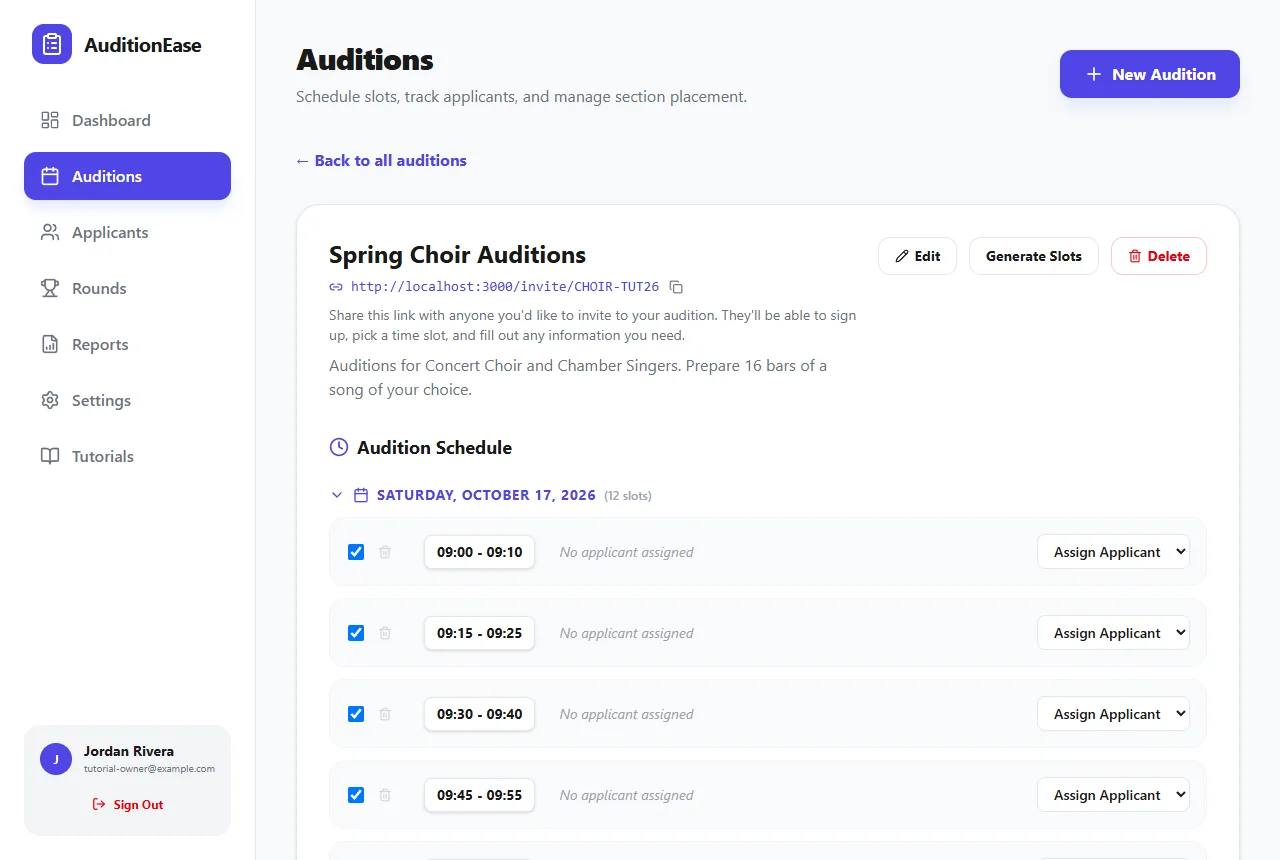
Next, add some time slots so participants can book a time. See Time slots & scheduling.
5Edit, close or delete an audition
On the audition's page:
- Edit reopens the form. It also lets you set the Status: Open, Closed or Completed. Participants can only book, change or cancel a time slot while the audition is Open, so switch it to Closed when your schedule is final.
- Delete permanently removes the audition and everything in it. To confirm, type
deleteand click Delete Audition.
The free Studio plan includes 3 auditions. If you reach your limit, AuditionEase offers to take you to the upgrade page.