1Generate time slots
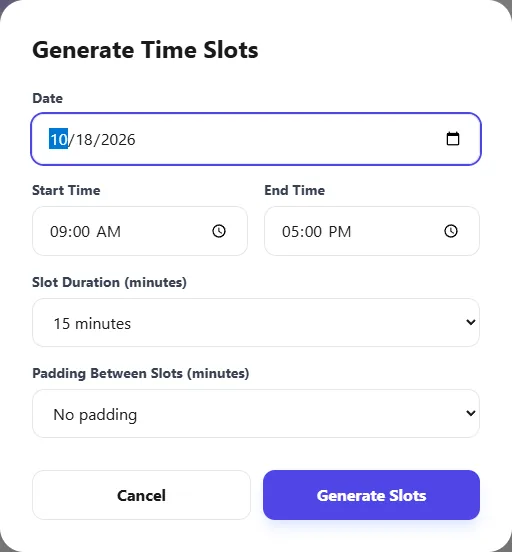
Open your audition from Auditions and click Generate Slots. Then set:
- Date, Start Time and End Time for the block of auditions.
- Slot Duration (minutes): how long each audition lasts. Choose Custom... for a length that isn't listed.
- Padding Between Slots (minutes): a break between auditions for changeover or notes.
Click Generate Slots. For example, 9:00 to 12:00 with 10-minute slots and 5 minutes of padding gives you 12 slots. Repeat for each day or block, such as a morning and an afternoon session.
2Read the schedule
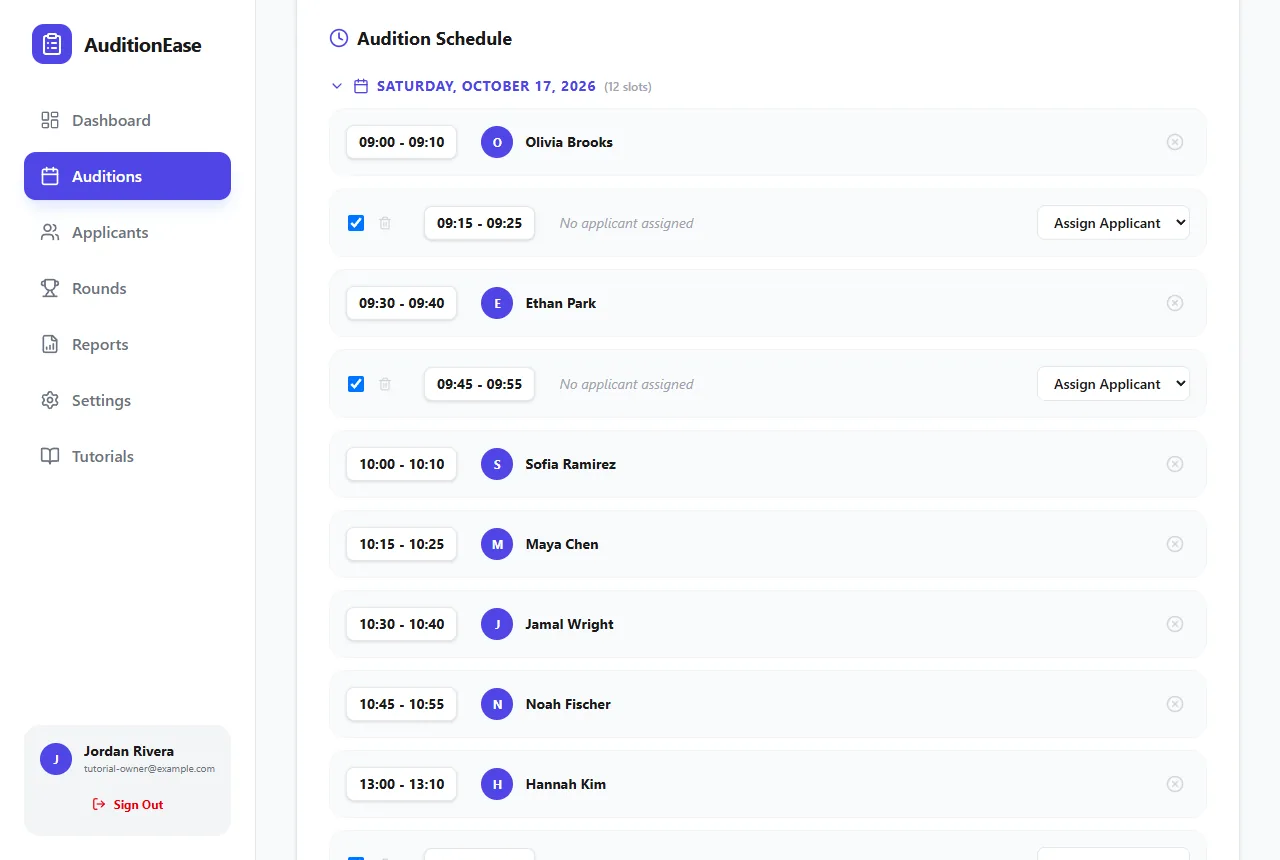
The Audition Schedule on the audition's page lists every slot, grouped by date. Click a date heading to collapse or expand it. Each slot shows who's booked, or that it's still open.
Participants who have signed up choose an open slot from their own dashboard. See Joining an audition.
3Assign, move or clear a booking
To book someone yourself, for example a participant who emailed you, use the Assign Applicant dropdown on an open slot and pick their name.
To free up a slot, click the clear-assignment button next to the booked name. The participant can then choose a different time, or you can assign them to another slot.
4Close or delete a slot
- Close a slot by unticking its checkbox. It stays on your schedule, but participants can't book it. Tick it again to re-open it. This is handy for lunch breaks.
- Delete a slot you don't need with the trash icon.
Turn on Remind participants before their time slot in the audition's settings, and everyone who books a slot gets an email reminder about 24 hours ahead.