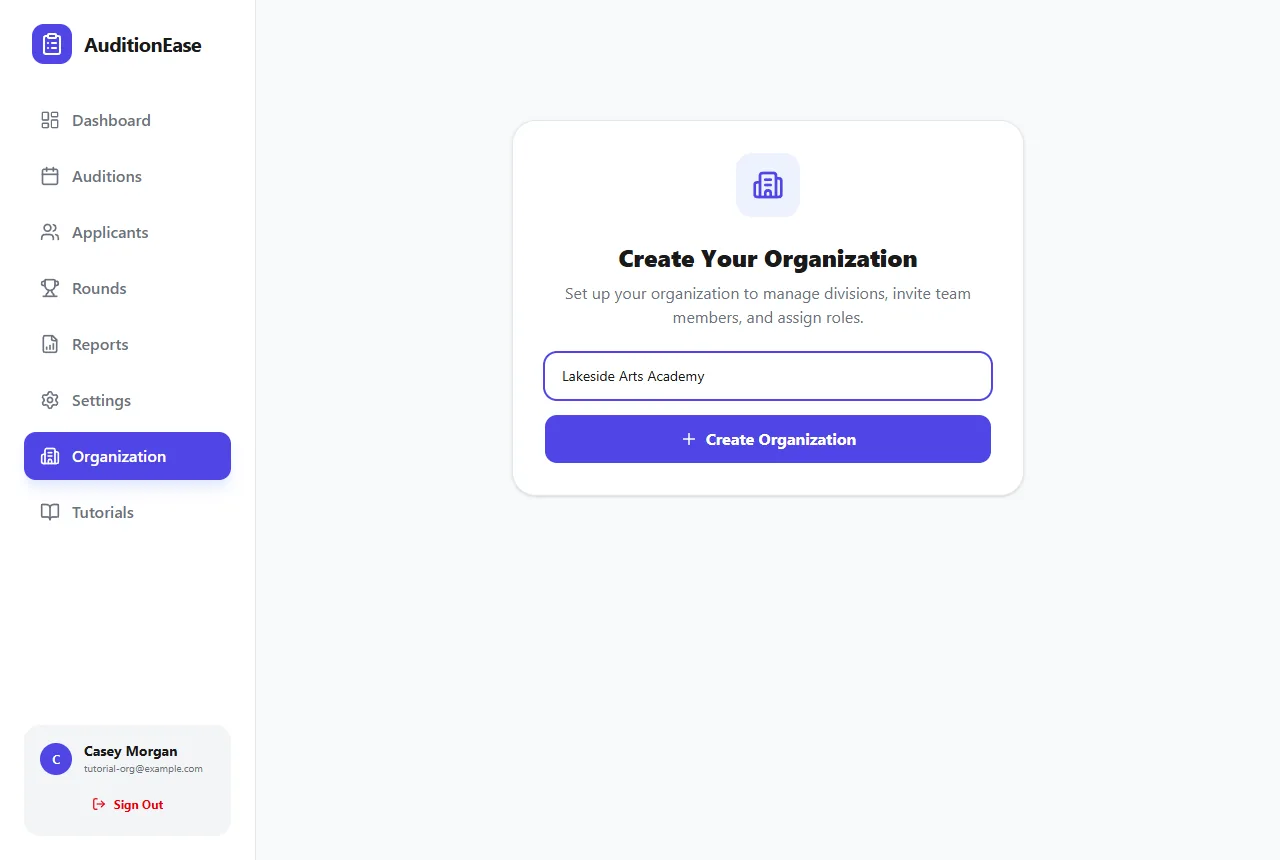
1Create your organization
On the Institution plan, an Organization item appears in the sidebar. Open it, enter your organization's name, and click Create Organization. You become its owner.
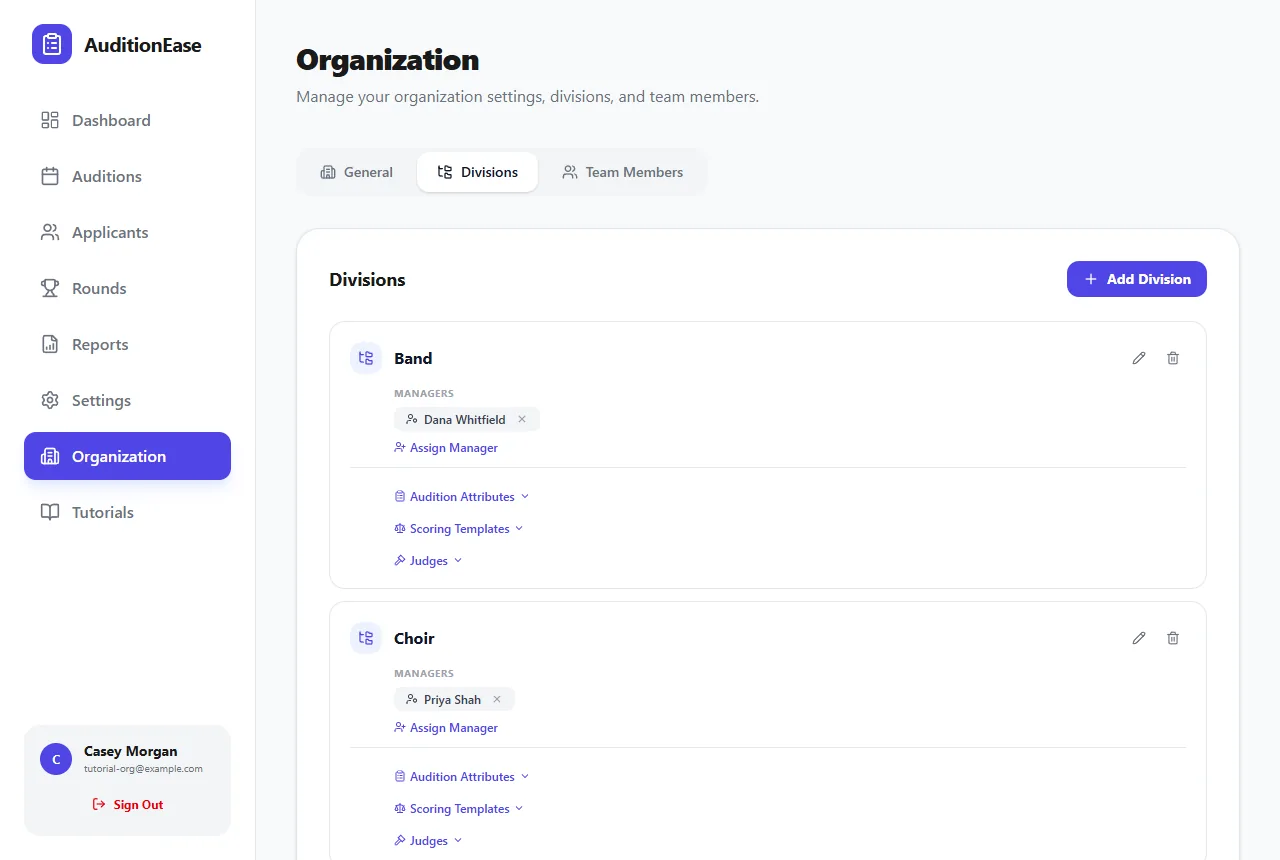
2Add divisions
A division is a department or program that runs its own auditions, such as Band, Choir, Orchestra or Theater. On the Divisions tab, click Add Division, type a name and click Add.
Assign one or more managers to each division with Assign Manager. They'll run that division's auditions.
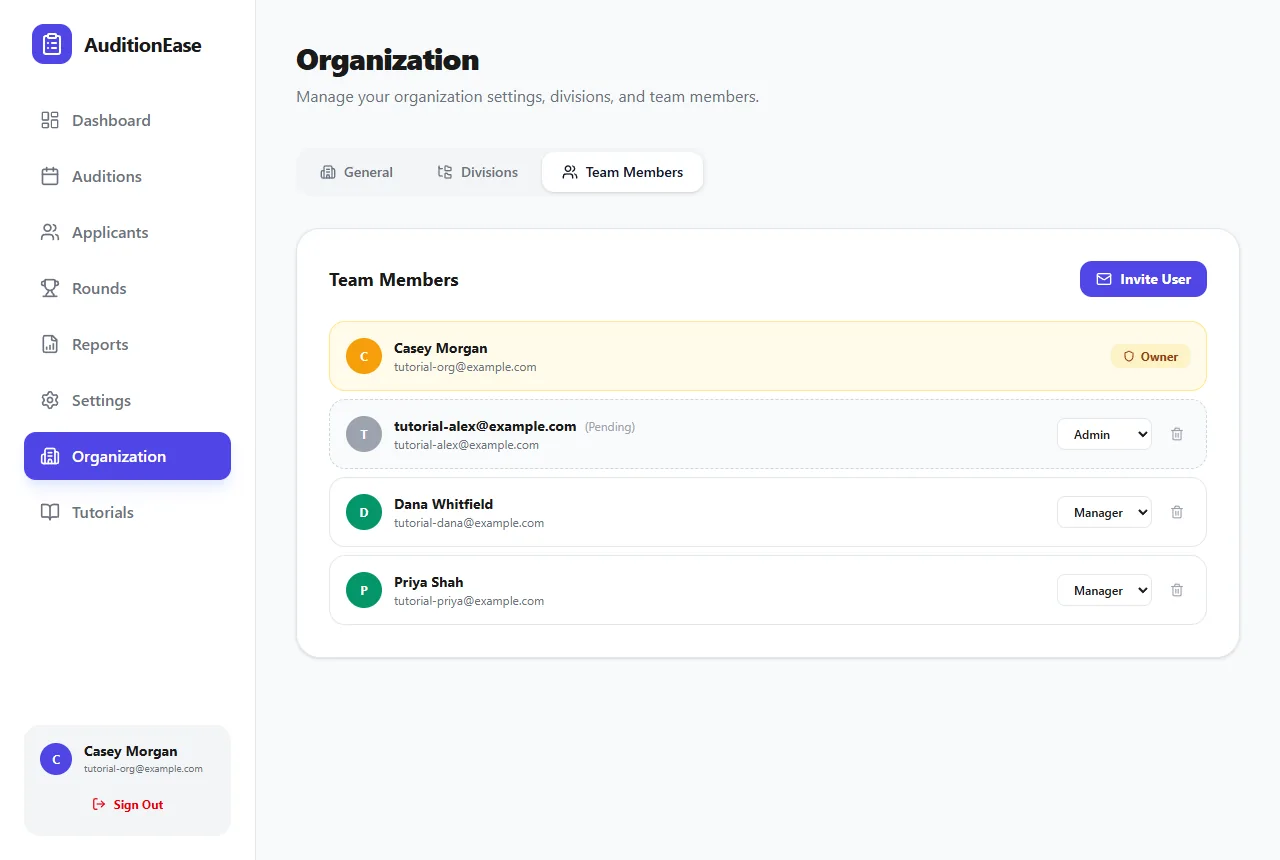
3Invite your team
On the Team Members tab, click Invite User, enter a colleague's email, choose Manager or Admin, and send the invitation. They get an email with a link. When they follow it and enter their name, they're signed in and part of your organization. Until then, they're listed as Pending.
You can change a member's role at any time from the same list.
4Understand the roles
- Owner: you. Sees and manages everything, including billing.
- Admin: sees every division's auditions and can manage divisions and team members.
- Manager: sees and runs only the auditions in the divisions they're assigned to. Managers don't see the Organization page. Their divisions appear on their dashboard under My Divisions instead.
When anyone in the organization creates an audition, they choose which Division it belongs to.
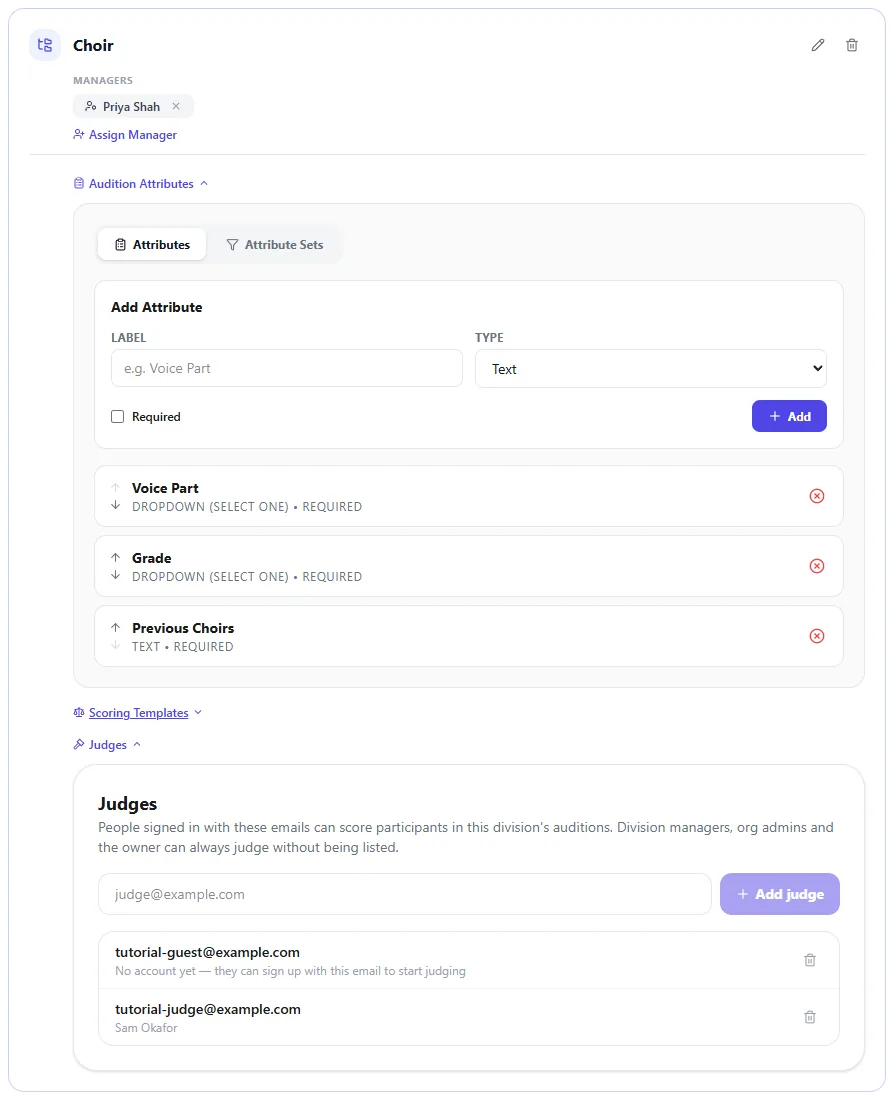
5Set up each division's fields, templates and judges
In an organization, sign-up fields, attribute sets, scoring templates and judges belong to each division, so the choir's voice-part question doesn't show up on band sign-ups. On the Divisions tab, expand a division to edit its:
- Audition Attributes: its sign-up fields and attribute sets. See Custom sign-up fields.
- Scoring Templates: use Copy to another division… to share a template.
- Judges: people who can score that division's auditions. See Judges.
Division managers can edit these for their own divisions from their dashboard.