1Add your judges
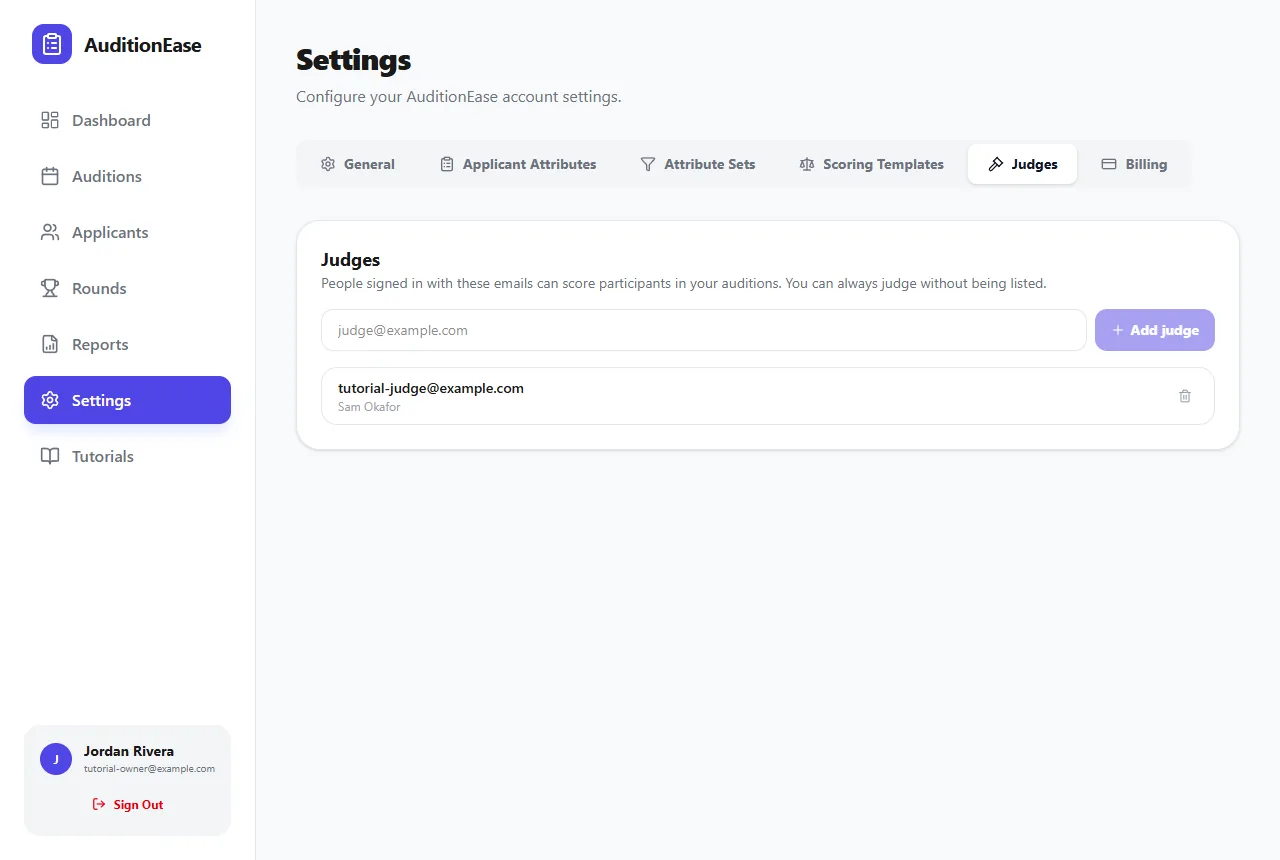
Go to Settings › Judges, type a judge's email address, and click Add judge. Anyone signed in with a listed email can score participants in all of your auditions. You can always judge your own auditions without being listed.
Already on the Rounds page? Click Judges next to the audition picker to add or remove judges without leaving scoring.
Adding a judge doesn't send them an email, so let them know yourself. They just go to AuditionEase and sign in (or sign up) with that email address.
Outside judges need the Ensemble or Institution plan. In an organization, each division has its own list of judges. See Organizations & divisions. Removing a judge keeps any scores they've already entered.
2What judges see
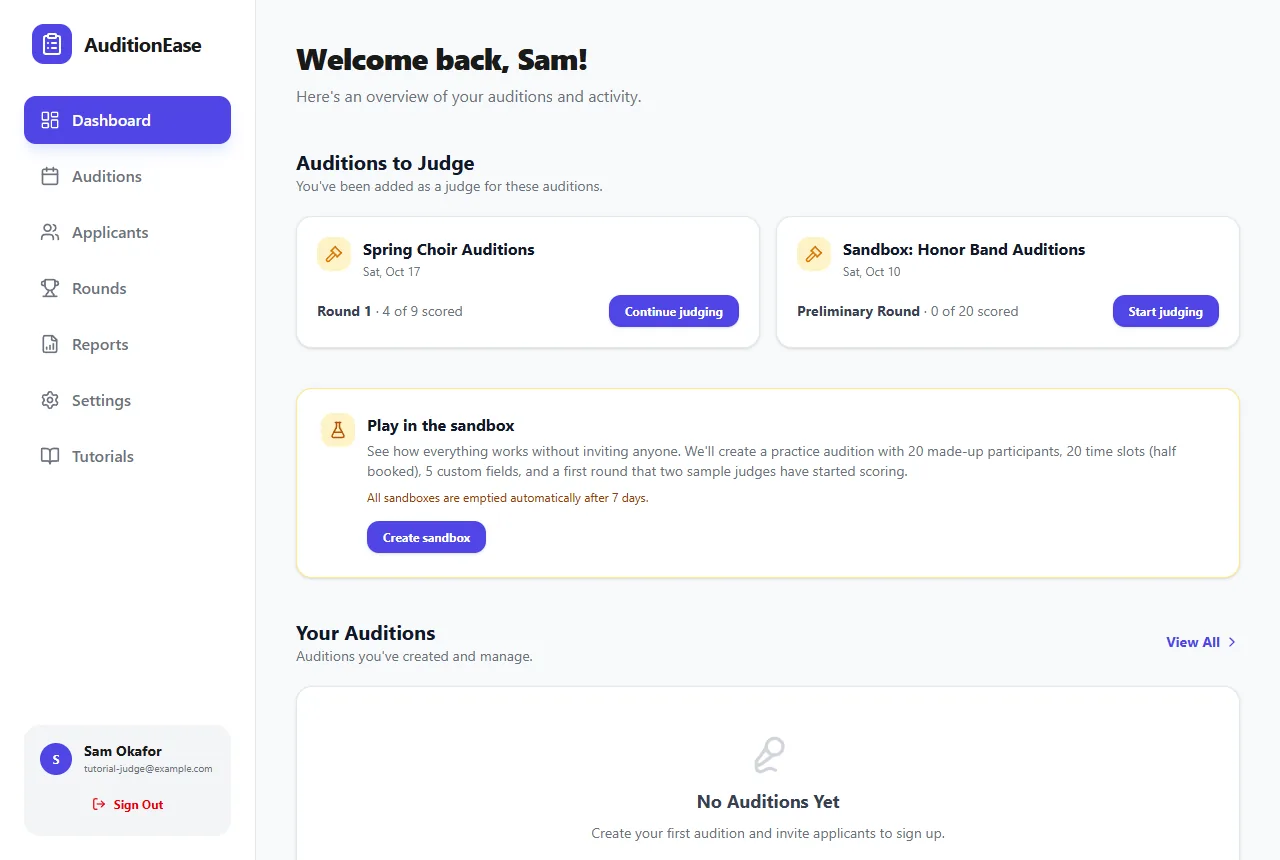
When a judge signs in, their dashboard shows Auditions to Judge, with the round that's open and how many participants they've scored. Clicking Start judging (or Continue judging) takes them straight to the scoring page.
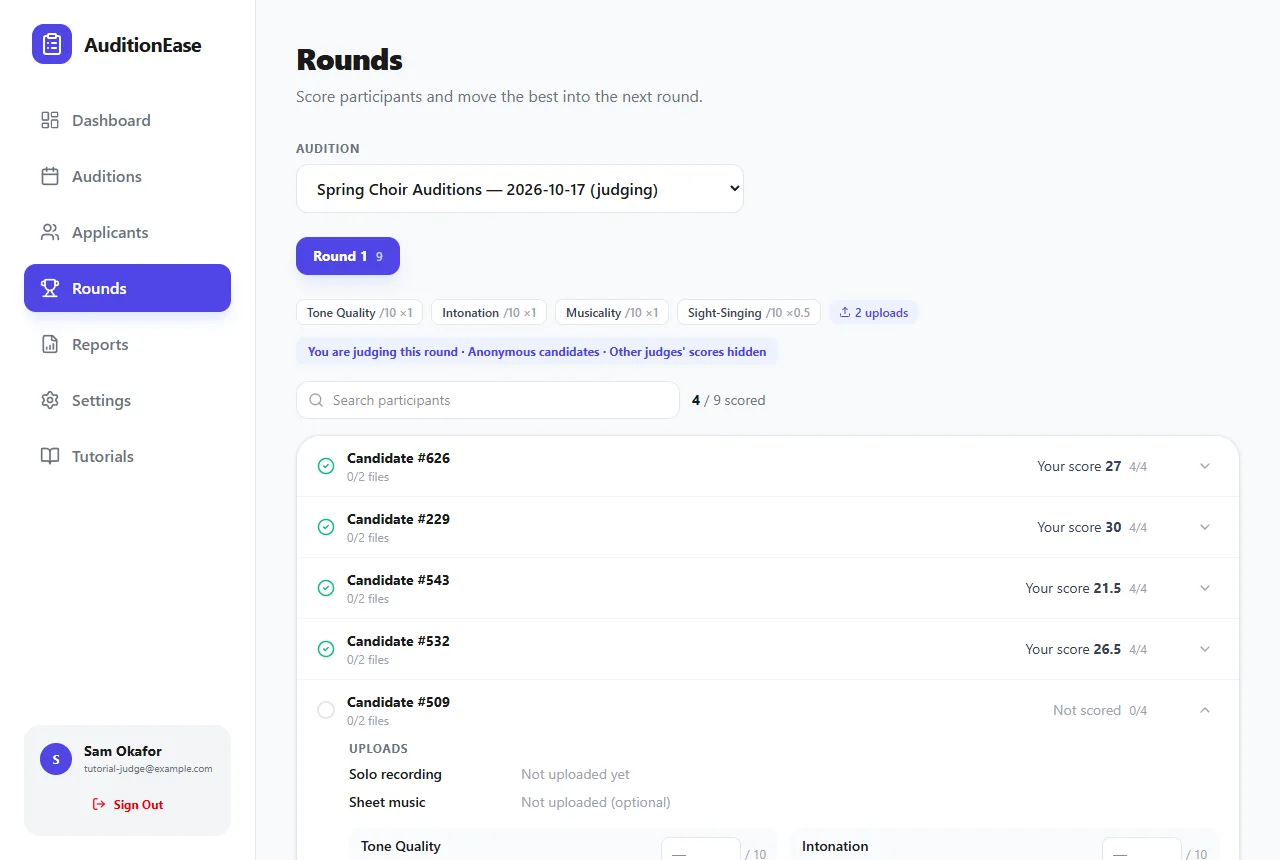
Judges score exactly as described in Rounds & scoring, but they can only change their own scores. They can't edit criteria, advance participants or publish results. A badge at the top reminds them which rules apply to the round.
3Blind judging
Hide other judges' scores is on for new auditions. Each judge sees only their own scores and comments, so nobody is swayed by anyone else. You, as the organizer, always see every judge's score and the average.
Turn it off in the audition's Edit form if you'd like your panel to see each other's scores, for example to discuss a close call.
4Anonymous candidates
Turn on Anonymous candidates in the audition's settings for truly blind auditions:
- Judges see Candidate # numbers instead of names, and no contact details.
- Uploaded file names are hidden, so a file called "Jane Smith - Excerpt 1" gives nothing away.
- Each judge gets their own shuffled order, so nobody can match numbers to a sign-up list.
You still see names alongside candidate numbers, so you can match a number to a person when needed.
5Keep track of judging
- Turn on Remind judges to score in the audition's settings, and judges get a morning email while participants are waiting for their scores (until the round has gone 2 days without any activity).
- Run the Judging Progress report to see how far each judge has got, or the Judge Scoresheet for every score and comment. See Reports.