1Start scoring
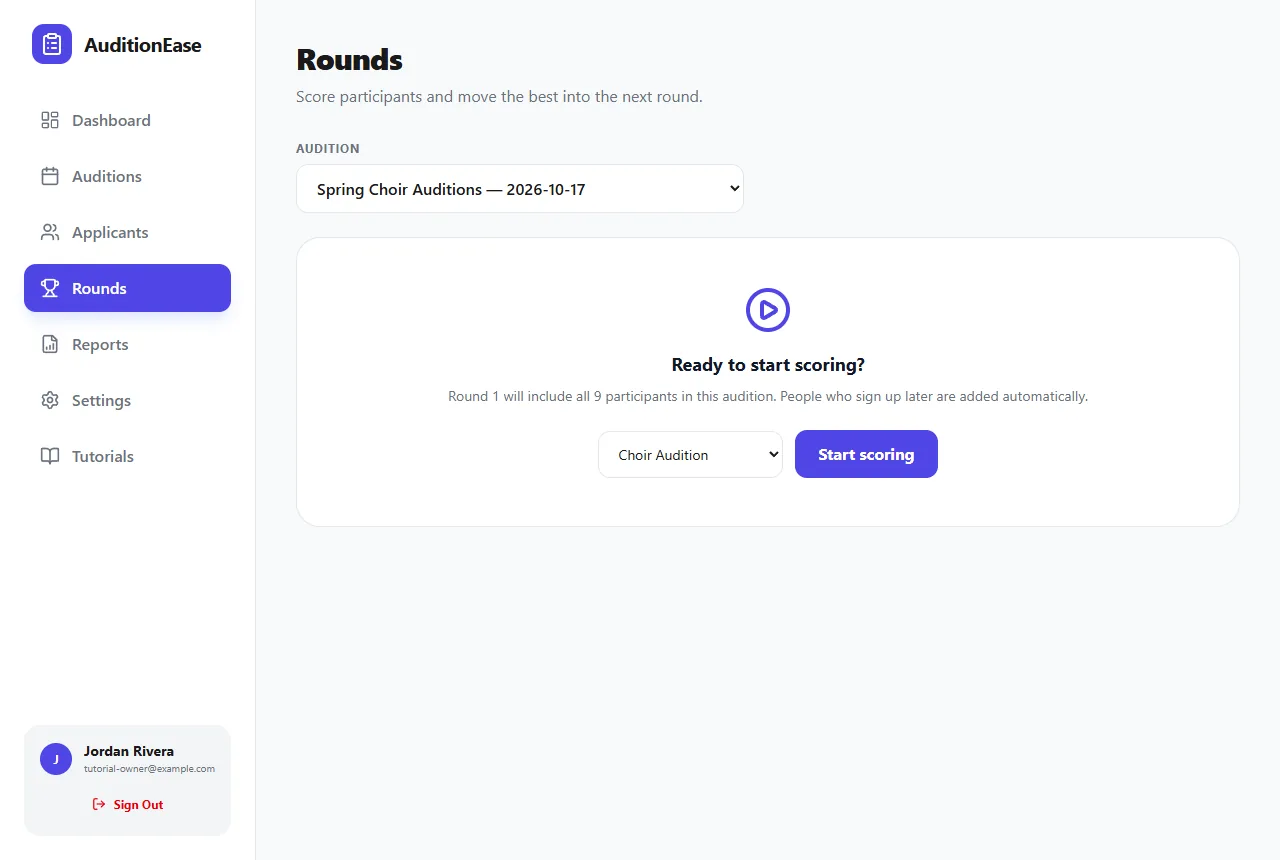
Click Rounds in the sidebar and choose your audition. If you haven't started yet, you'll see Ready to start scoring?
Pick how the first round is scored: Simple (Overall 1–10), a single overall score, or one of your saved scoring templates. Then click Start scoring.
Round 1 includes everyone who has signed up. People who sign up later are added automatically.
2Set the scoring criteria
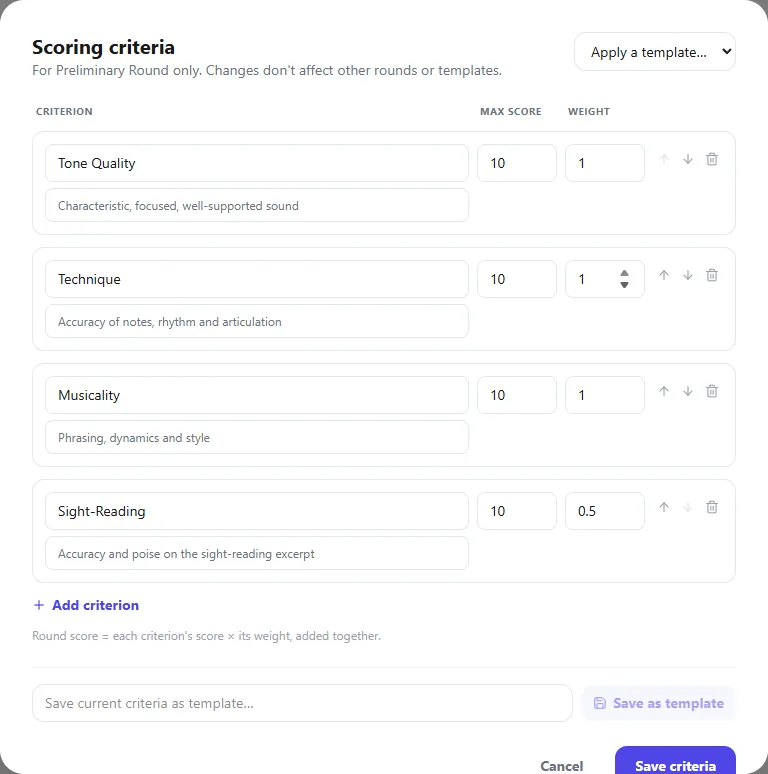
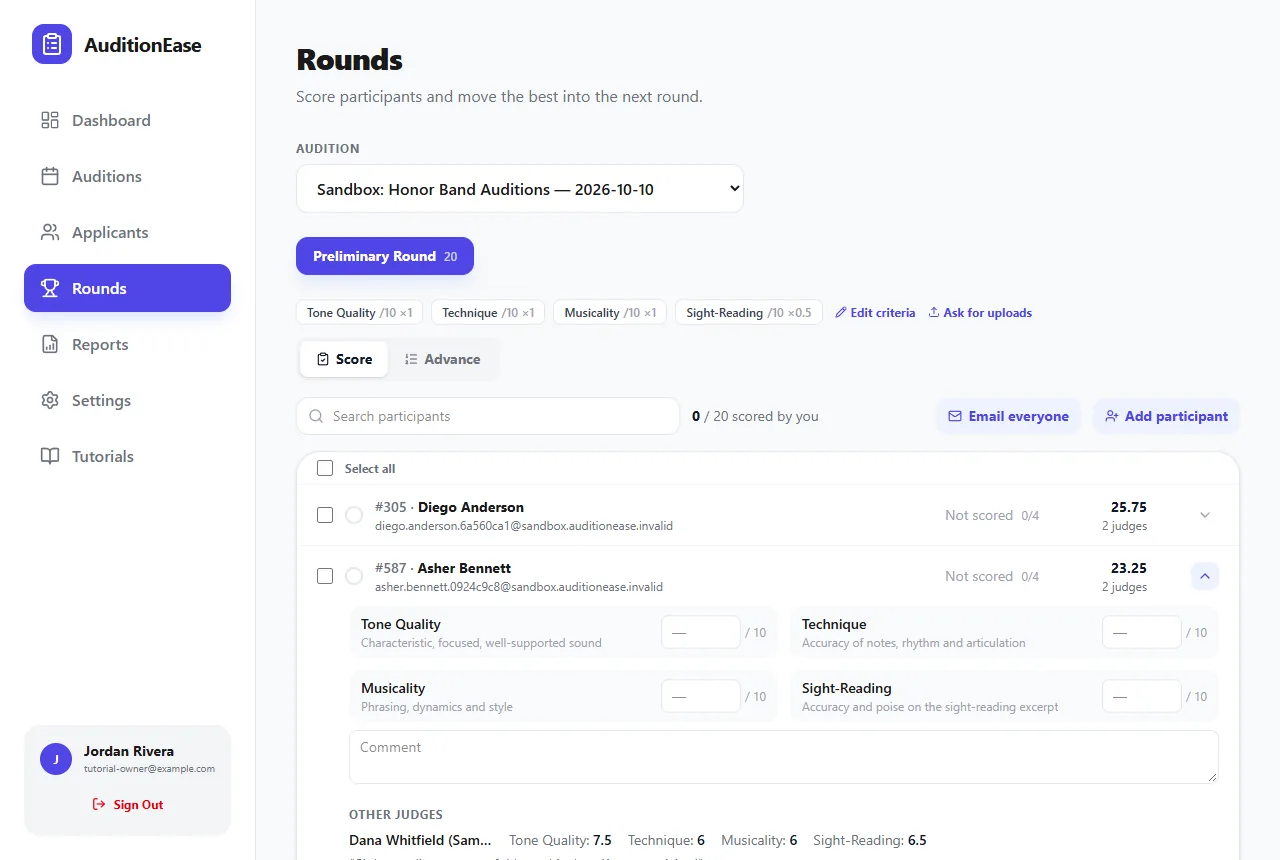
The round's criteria are shown at the top, each with its maximum score and weight. Click Edit criteria to change them. For each criterion, set:
- Criterion and an optional Description that judges can read, e.g. "Tone Quality: characteristic, focused, well-supported sound".
- Max: the highest score a judge can give.
- Weight: how much it counts. The round score is each criterion's score multiplied by its weight, added together. A weight of 0.5 counts half as much; 2 counts double.
Use Add criterion to add rows and the arrows to reorder them. Click Save criteria when you're done.
3Save criteria as a template
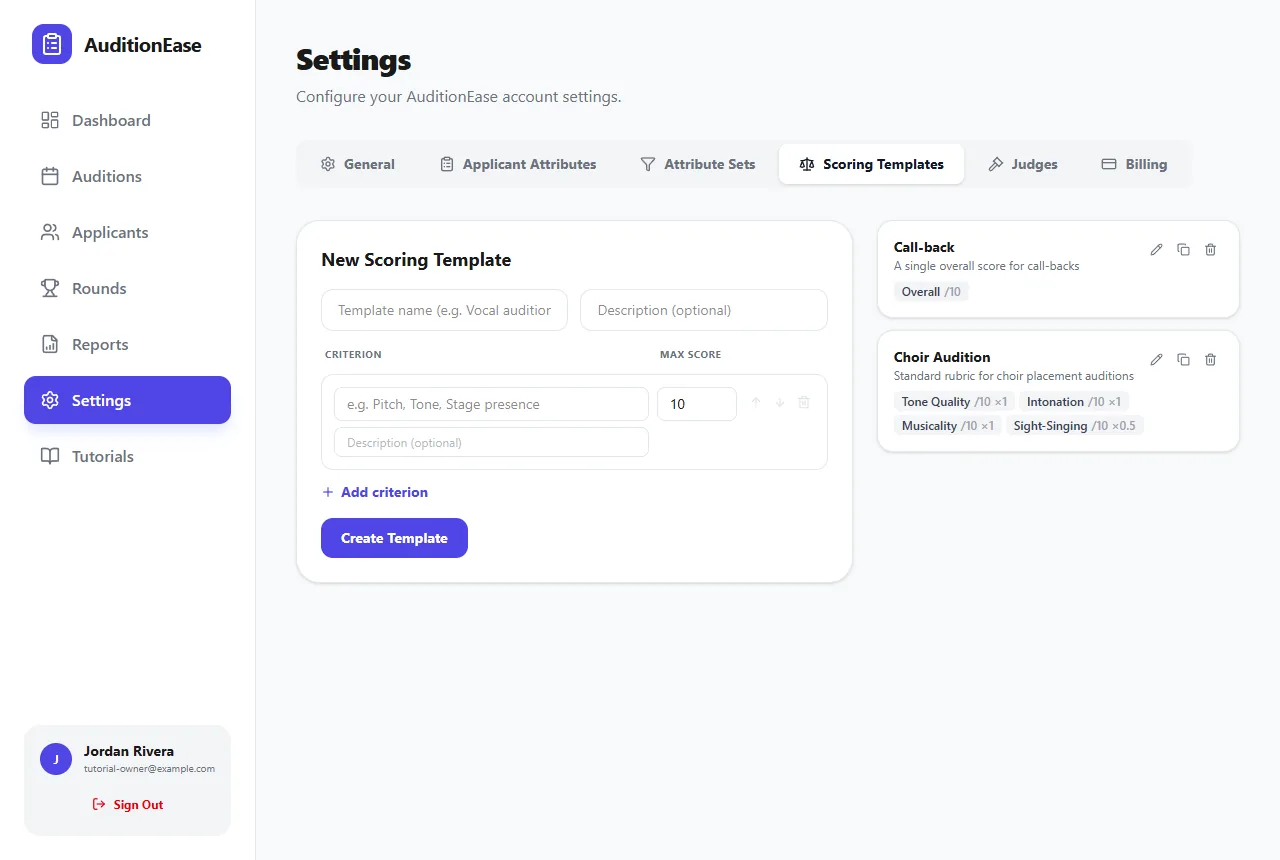
If you use the same criteria every year, save them once and reuse them. In the criteria editor, use Save current criteria as template…. Next time, choose the template when you start scoring, or use Apply a template… in the editor.
You can also create, edit and duplicate templates under Settings › Scoring Templates.
4Ask for recordings
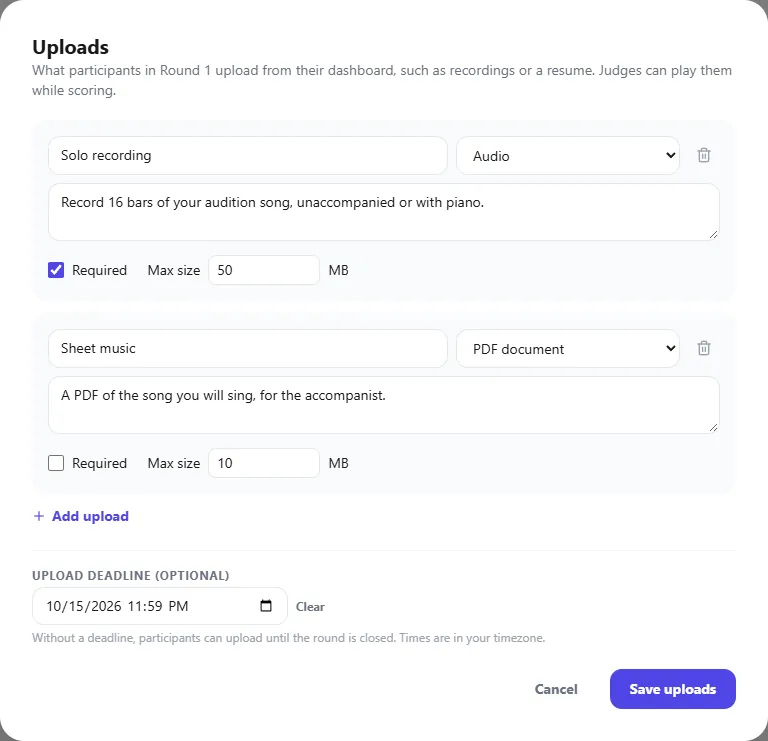
For a recorded pre-screen, or to collect sheet music, click Ask for uploads. Click Add upload for each item you need and set:
- A name, like "Excerpt 1", and instructions for participants.
- The file type: audio, video, PDF document, image, or any of those.
- Whether it's Required, and a maximum file size.
Add an optional Upload deadline and click Save uploads. Participants see the list, with your instructions and deadline, on their dashboard and upload from there (see Joining an audition). Judges can play each participant's files right next to where they score.
Let participants know with the Request recordings email template. See Emails & reminders.
5Score participants
On the Score tab, every participant in the round is listed with your score and how many you've scored so far.
- With one criterion, type the score straight into the box and add a comment if you like.
- With several criteria, click a participant to open their scoring card. Enter a score for each criterion, add a comment, and play any uploads. You'll also see their scheduled time and, unless scores are hidden, what the other judges gave.
Each score saves automatically when you click or tab out of its box. There's no save button. Use Search participants to jump to whoever is on stage.
6Add or remove participants
Use the Add participant dropdown to bring someone into the round, for example a late sign-up in a later round. Open a participant's card and choose Remove from round to take them out.
When everyone's scored, move on to Advancing & publishing results.