1Choose who to email
Emails are sent from a round in Rounds. There are a few ways to start one:
- On the Score tab, click Email everyone, or tick some participants and click Email selected.
- On a closed round's Results tab, click Email advanced or Email not advanced.
- Open a participant's card and click Email.
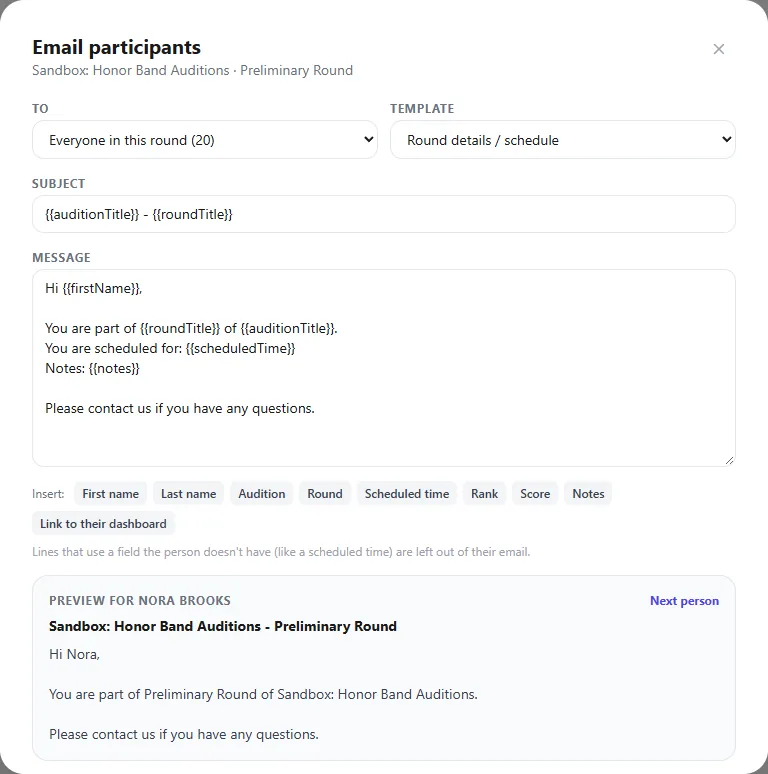
In the Email participants window, To shows who'll receive it. For a whole round, you can switch between Everyone in this round, Advanced, Did not advance and Not decided yet.
2Start from a template
Pick a Template to fill in the subject and message, then edit as much as you like:
- Round details / schedule: each person's scheduled time and any notes.
- Advanced to the next round and Did not advance.
- Selected (final round): congratulations for your final selections.
- Request recordings: asks for uploads, with the deadline.
- Audition time reminder.
- Placement templates for ensemble and chair, or alternate position.
- Blank message to write your own.
3Personalize with fields
Click a field under Insert: to add it to your message. Each person gets their own value. For example, Hi {{firstName}}, you're scheduled for {{scheduledTime}} becomes "Hi Maya, you're scheduled for Sat, Oct 10 · 9:40 AM".
The fields on offer depend on what you're sending. They include first and last name, audition, round, scheduled time, rank, score, notes and a link to their dashboard, plus the upload deadline when a round asks for uploads, and ensemble, section, chair and alternate position for placements.
If a line uses a field someone doesn't have, like a scheduled time for a person who hasn't booked, that line is left out of their email. You don't end up with blanks.
4Preview and send
The preview at the bottom shows exactly what one person will get. Click Next person to check a few more. When it looks right, click send and confirm.
Emails come from a no-reply address. Include your own contact details in the message if you'd like participants to be able to reach you.
5Turn on automatic reminders
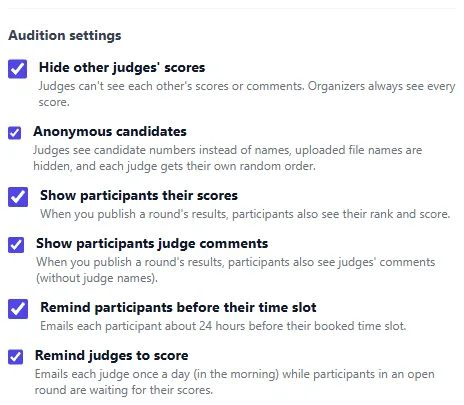
Two reminders can run by themselves. Turn them on in the audition's Edit form under Audition settings:
- Remind participants before their time slot: each participant with a booked slot gets an email about 24 hours before it.
- Remind judges to score: each judge gets one email a morning, while participants in an open round are still waiting for their scores. They stop after 2 days with no scoring or other activity in the round, so a round left open doesn't keep emailing judges.