1Choose who advances
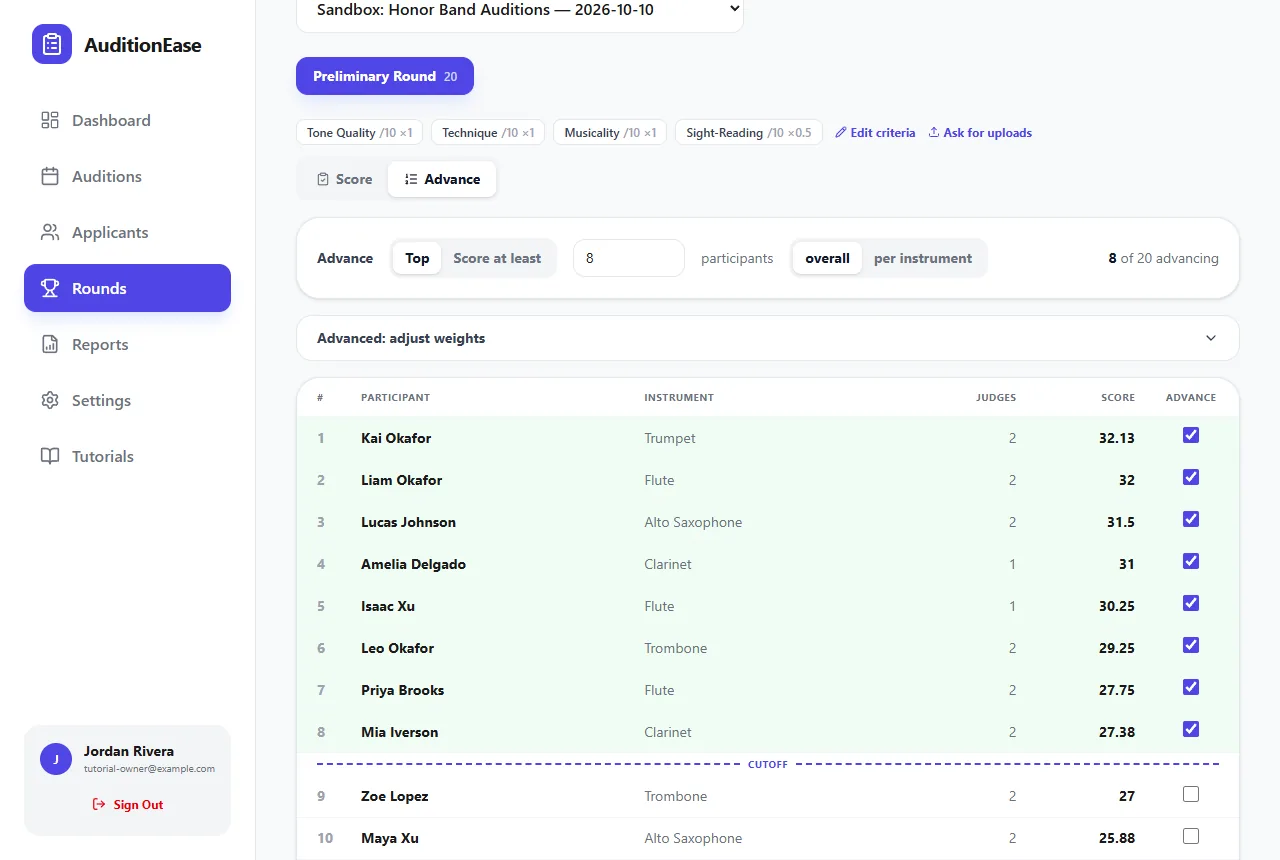
In Rounds, switch from Score to Advance. Everyone is ranked by their round score. With several judges, that's the average of their scores. Next to Advance, pick a rule:
- Top: advance a set number of people, e.g. the top 10. Anyone tied with the last place in is included.
- Score at least: advance everyone at or above a score.
A dashed Cutoff line shows where the rule falls, advancing rows are highlighted, and the count updates as you type, e.g. "10 of 42 advancing".
A warning icon marks anyone not fully scored yet. Missing scores count as zero, so finish scoring before you advance.
2Advance within each section
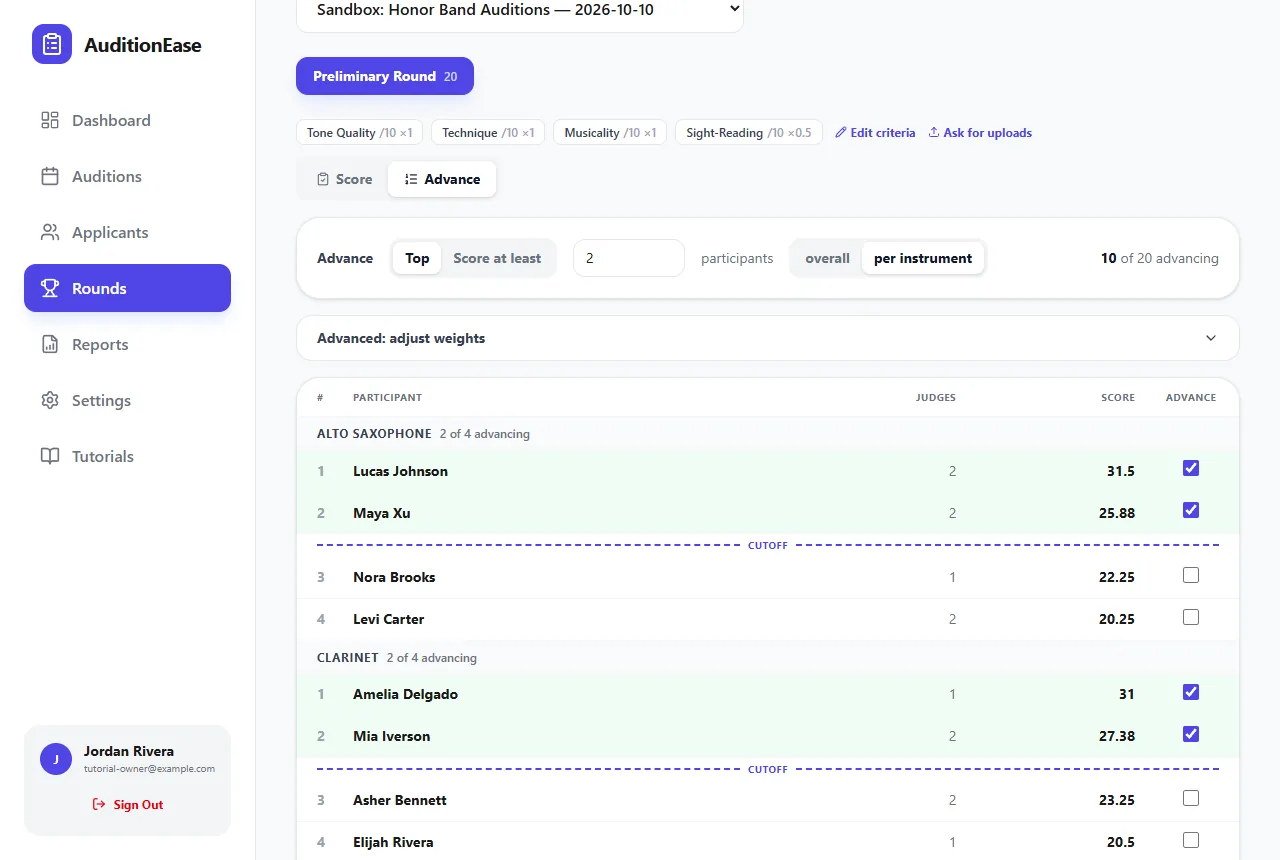
If your audition has sections (see Custom sign-up fields), a toggle appears next to the Top rule: overall or per section, e.g. per instrument. Per section advances the top players in each section, such as the top 2 flutes, top 2 clarinets and so on. The list is then grouped by section with its own cutoffs.
3Adjust by hand
The rule is a starting point. Tick or untick anyone's Advance box to override it, for example to bring in a strong player who had an off day. Hand-picked choices are marked with an M.
4Try different weights
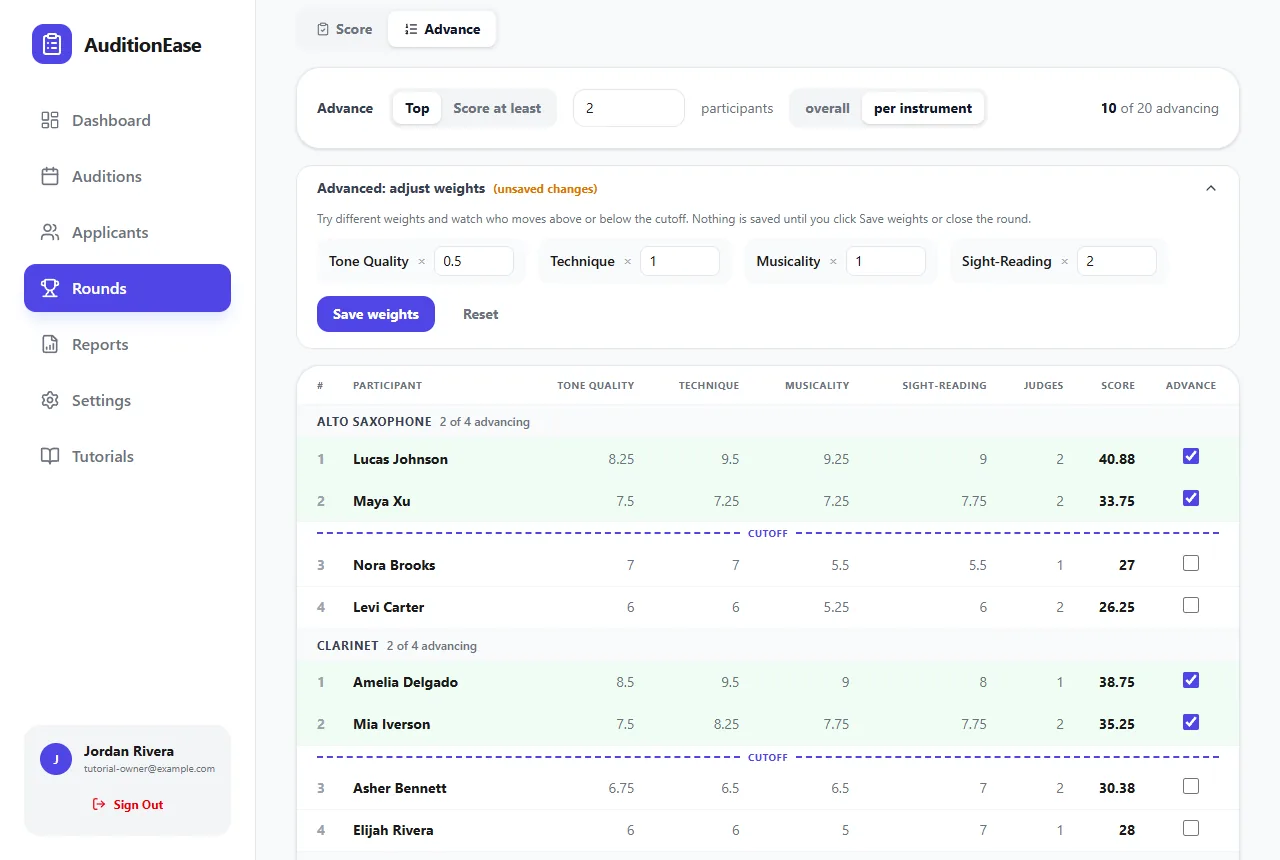
Scored on several criteria and wondering how much each one should count? Open Advanced: adjust weights and try different weights. The ranking updates live, and IN and OUT markers show who would move across the cutoff. Nothing changes until you click Save weights. Click Reset to go back.
5Close the round
Click Advance 10 to Round 2 (the button shows your count). This closes the round and starts the next one with the people who advanced.
Click Options first to:
- Name the next round, e.g. "Call-backs" or "Finals".
- Choose the next round's scoring: the same criteria, or one of your templates.
- Finish as final round: end the audition here. The people advancing become your final selections.
Changed your mind? A closed round can be reopened with Reopen round, as long as its results aren't published and the next round hasn't got under way.
6Publish the results
Closing a round doesn't tell participants anything yet. On the round's Results tab you'll see "Participants can't see these results yet." When you're ready:
- Tick Also email everyone their result if you'd like each participant emailed whether they advanced.
- Click Publish results. Participants then see whether they advanced on their dashboard.
Whether participants also see their rank, score and judges' comments depends on the audition's settings. See Create an audition. You can Unpublish later, but emails already sent can't be recalled.
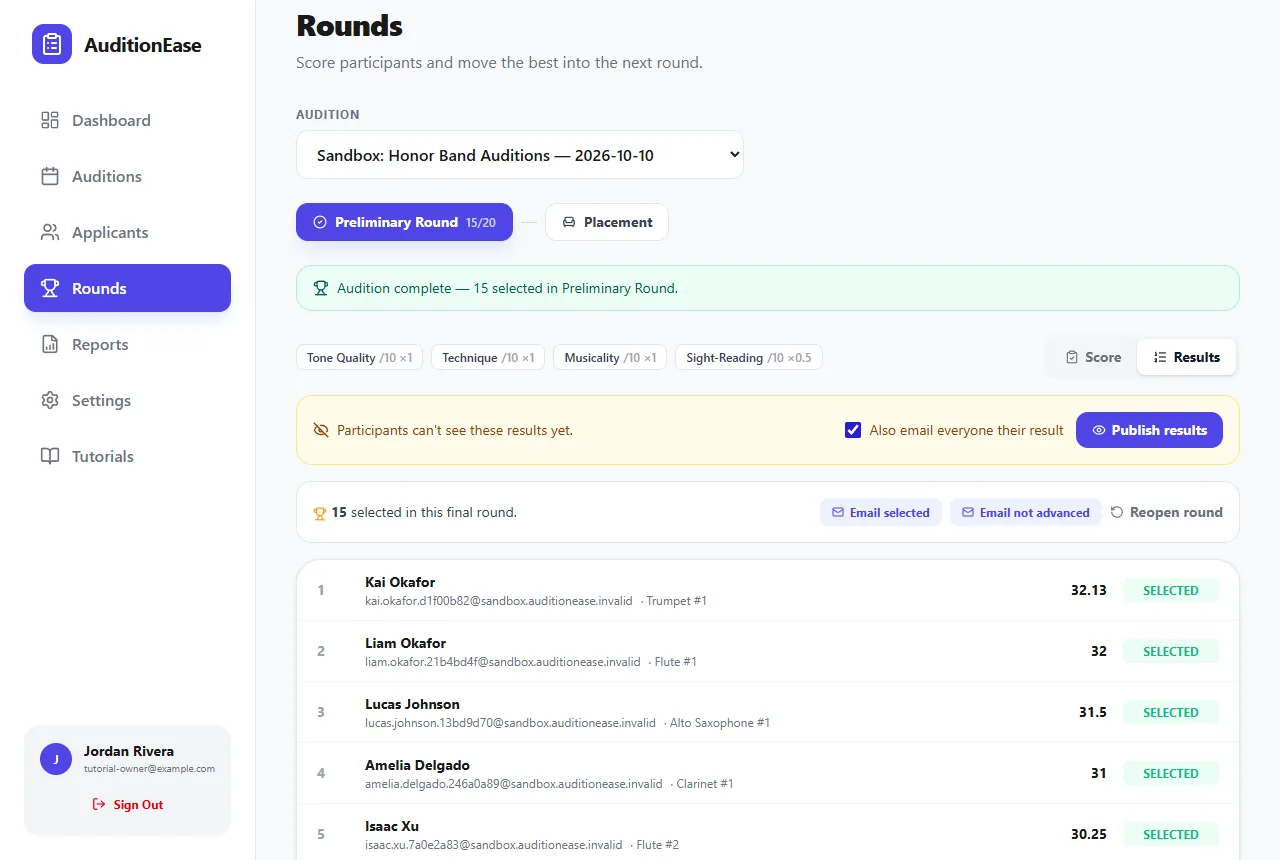
To write your own message instead, use Email advanced or Email not advanced. See Emails & reminders. After the final round, you can seat your selections into ensembles. See Ensembles & chair placement.