1Run a standard report
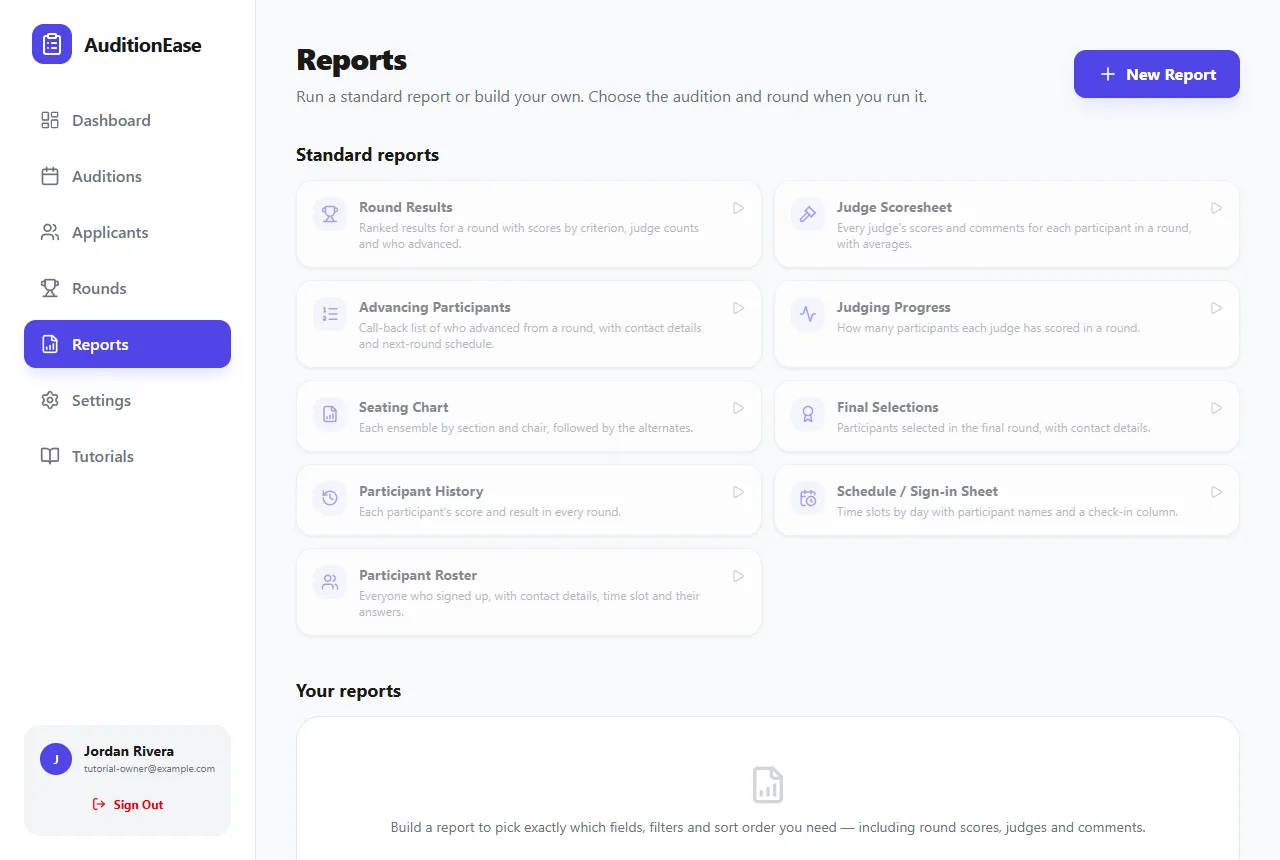
Click Reports in the sidebar. Under Standard reports, click the one you want, choose the Audition (and Round, for round reports), and click Run.
2Which report do I need?
Before the audition
- Schedule / Sign-in Sheet: time slots by day with names and a check-in column. Print it for the front desk.
- Participant Roster: everyone who signed up, with contact details, time slot and answers.
During judging
- Judging Progress: how many participants each judge has scored.
- Judge Scoresheet: every judge's scores and comments for each participant, with averages.
After a round
- Round Results: the ranked results with scores by criterion and who advanced.
- Advancing Participants: a call-back list with contact details and next-round schedule.
- Participant History: each participant's score and result in every round.
At the end
- Final Selections: everyone selected in the final round, with contact details.
- Seating Chart: each ensemble by section and chair, then the alternates.
3Build your own report
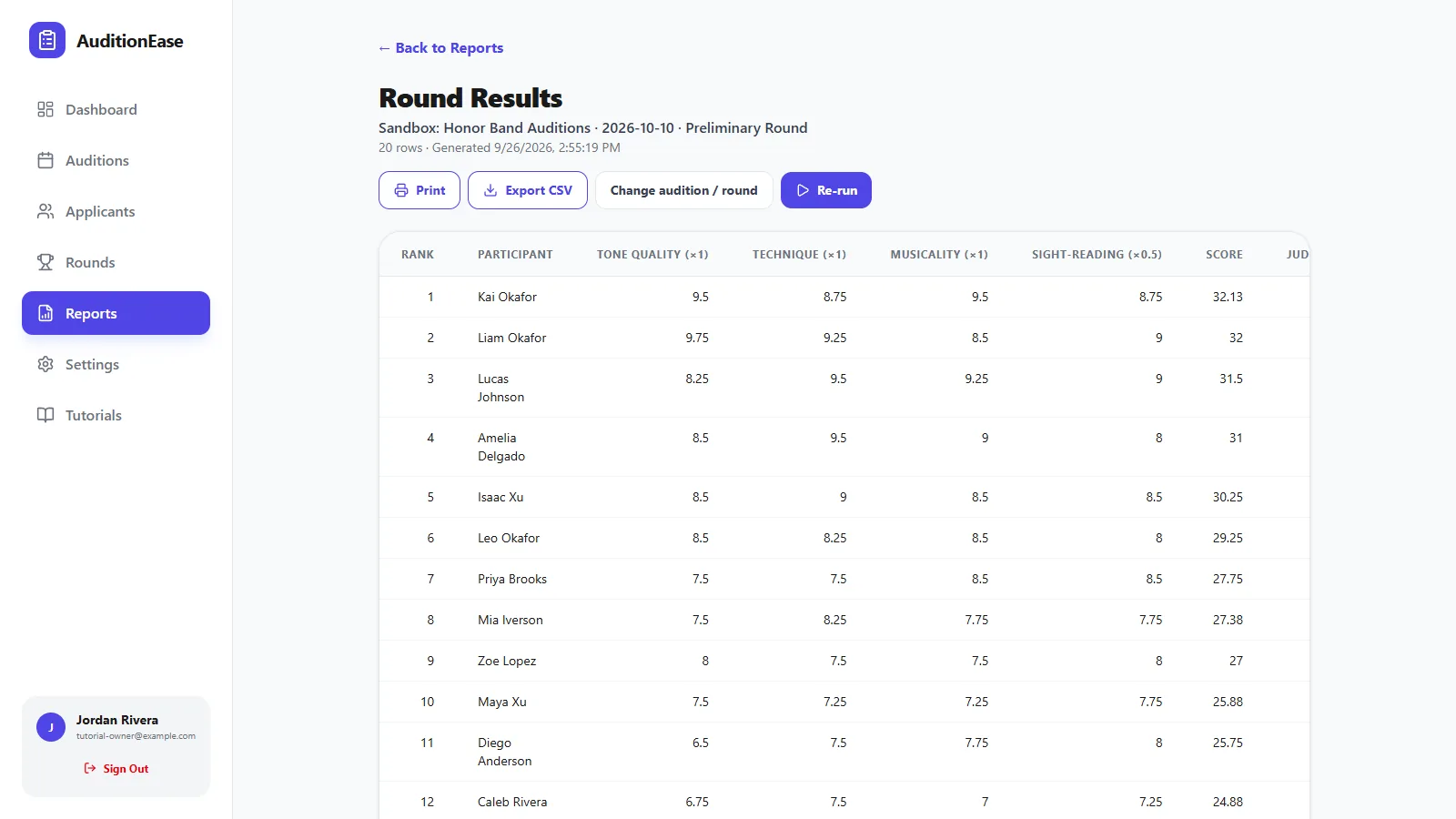
Under Your reports, click New Report:
- Give it a Report Name.
- Add filters if you only want some people, e.g. Where Instrument is Trumpet AND Grade is 12.
- Pick the columns from Available Fields. These include participant details, your sign-up questions, time slots and round scores, down to individual criteria.
- Choose how to sort, and save.
You choose the audition and round each time you run it. Custom reports can also run across All auditions, or use the Latest round each participant reached.
4Print or export
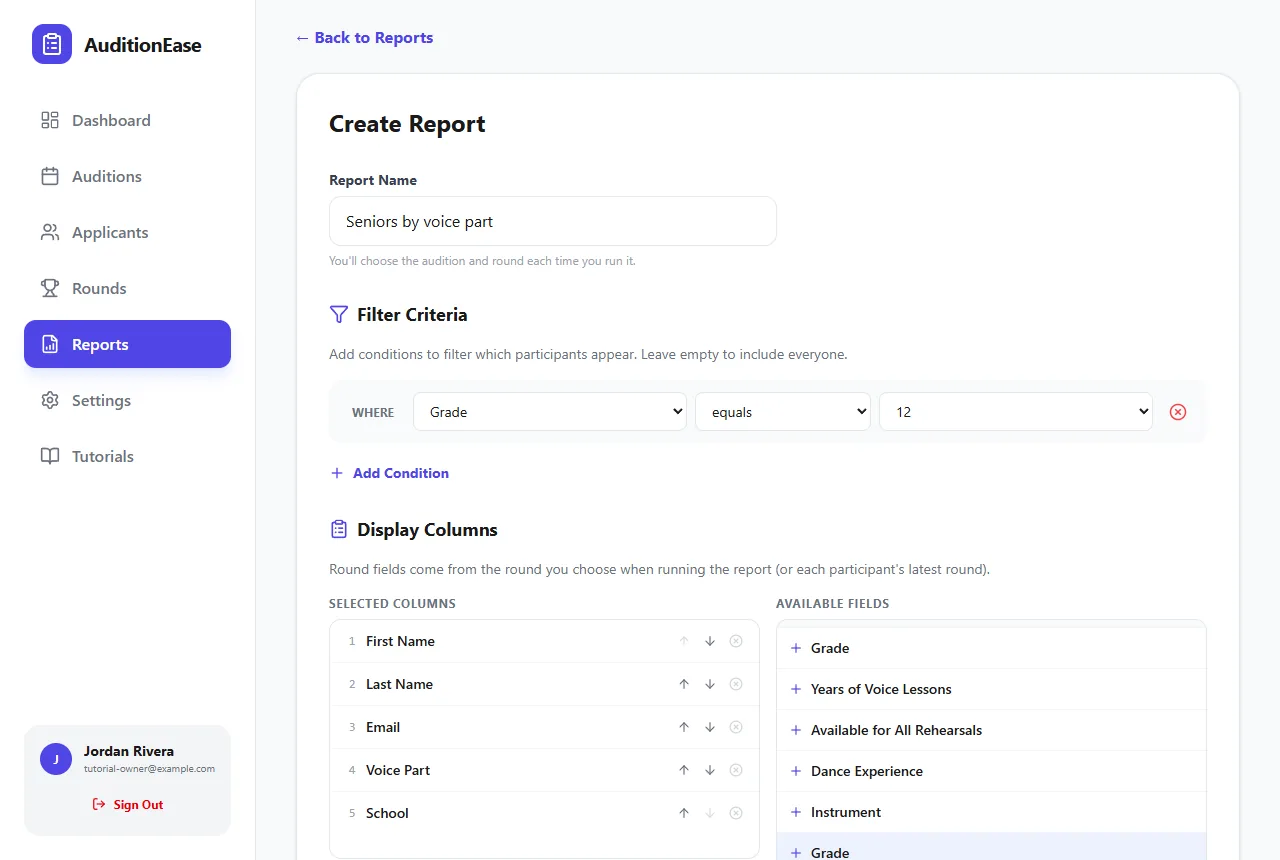
From any report's results, click Print for a clean printed page, with column headings repeated on every page. On the Ensemble and Institution plans, click Export CSV to open the report in Excel or Google Sheets.