1Create your account
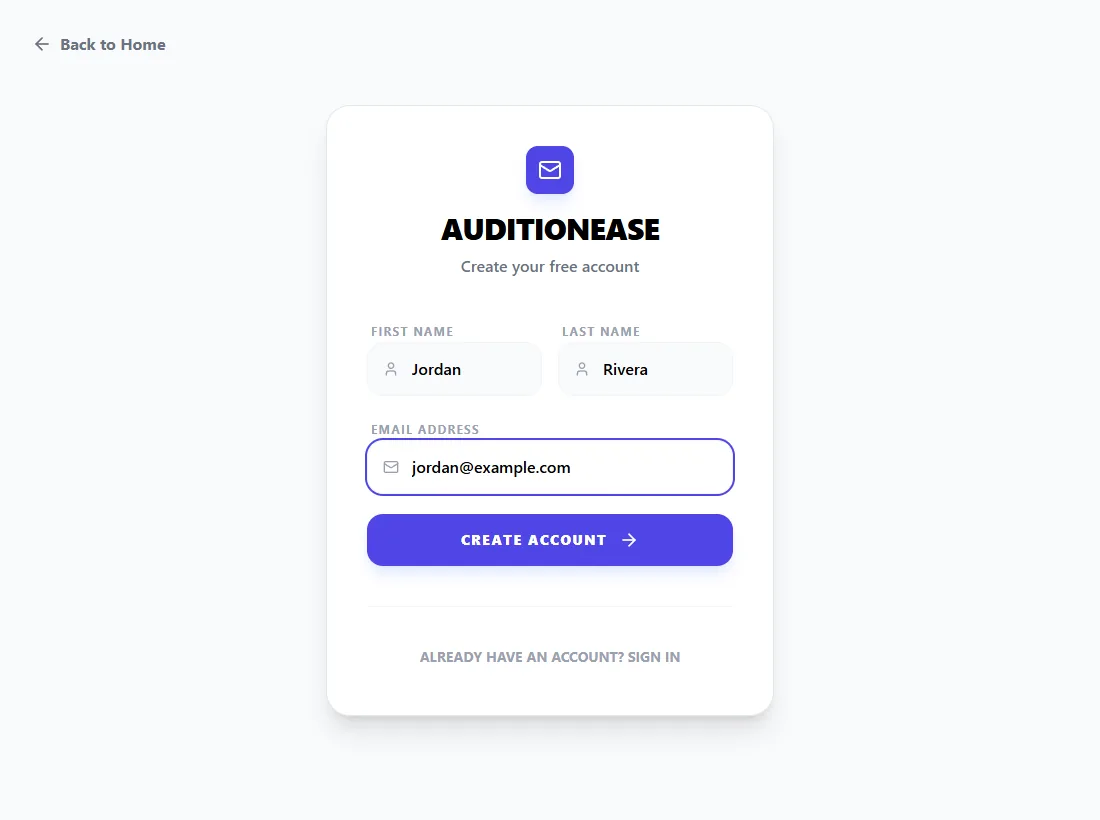
From the home page, click Get Started. Enter your first name, last name and email address, then click Create Account.
AuditionEase doesn't use passwords. Instead, we email you a 6-digit code every time you sign in, so there's nothing to remember or reset.
Joining someone else's audition? You don't need to create an account first. Use the invite link you were sent. See Joining an audition.
2Sign in with an email code
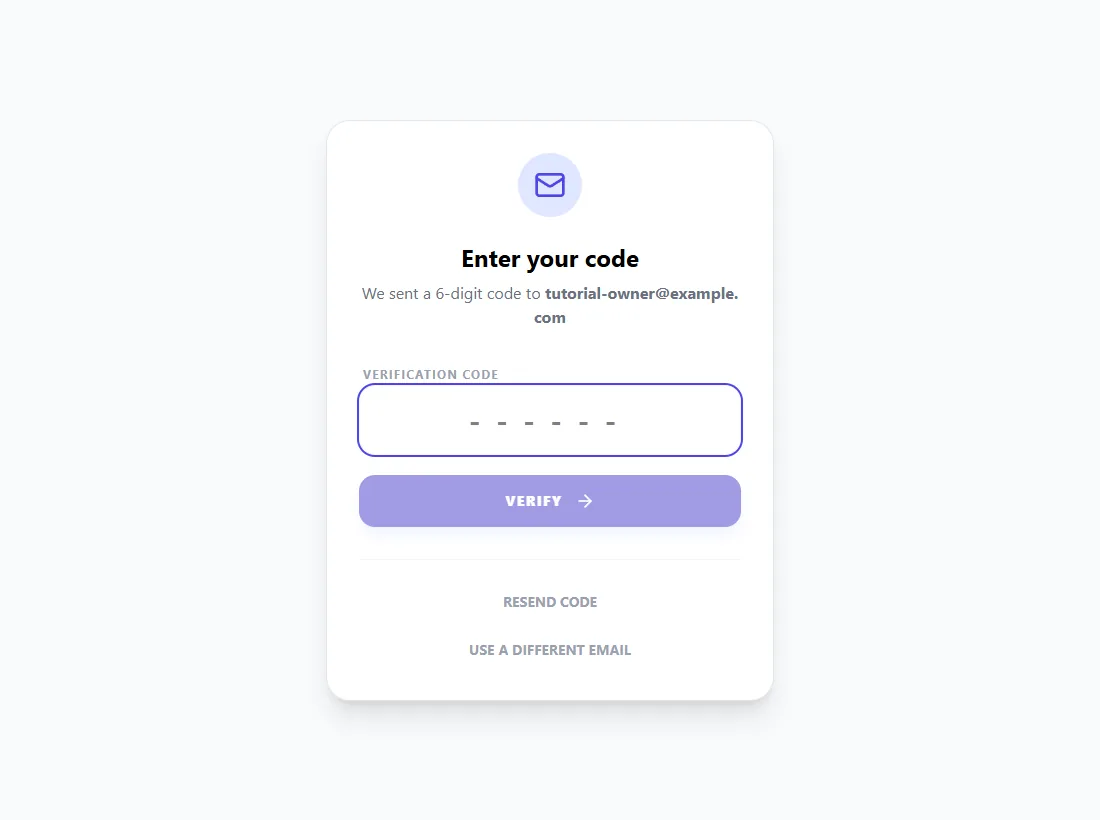
Check your inbox for an email with a 6-digit code, type it into Verification Code, and you're in. Codes expire after 15 minutes. If yours doesn't arrive, check your spam folder or click Resend code.
Next time, click Log In on the home page, enter your email, and click Send Login Code.
3Tour the dashboard
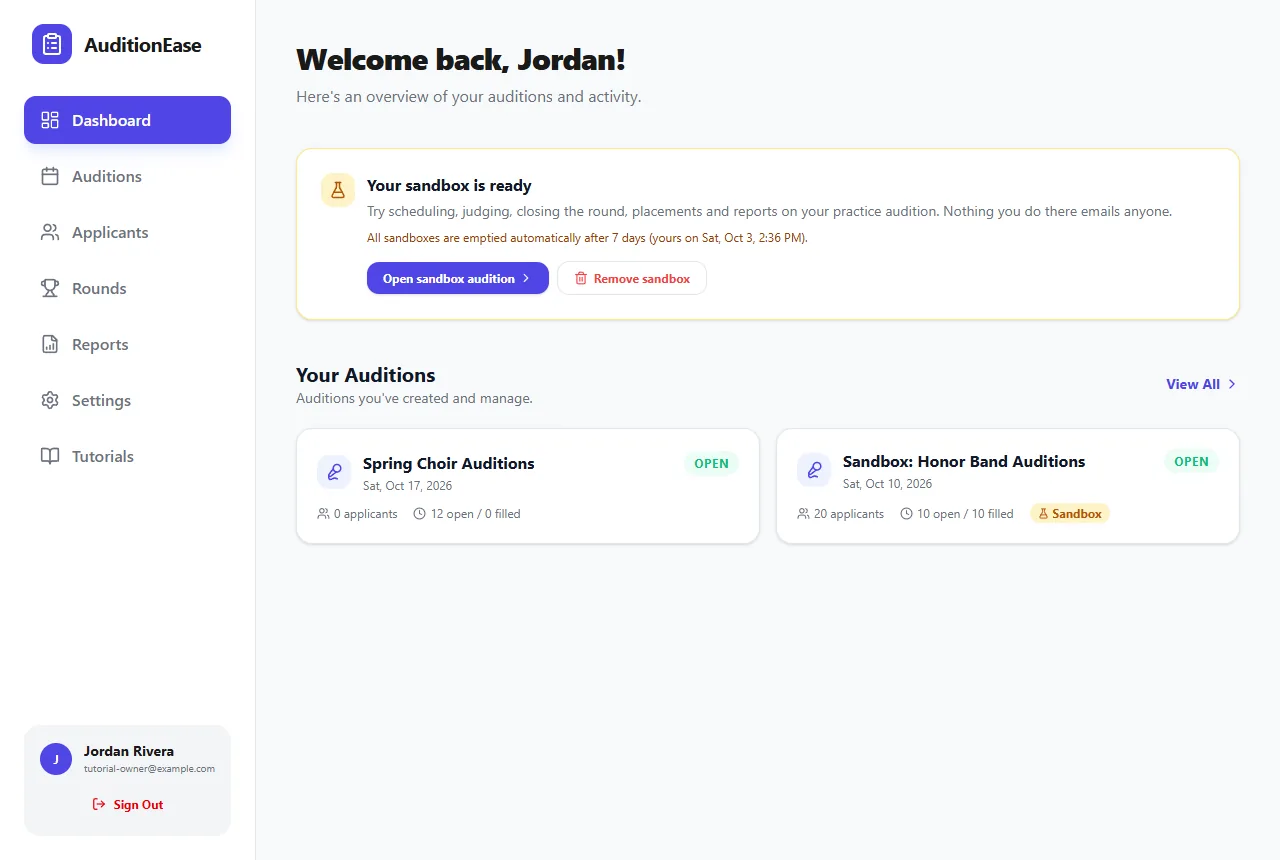
The dashboard is your home screen. What you see depends on how you use AuditionEase:
- Your Auditions shows the auditions you run, with applicant counts and how many time slots are open or filled.
- Auditions to Judge appears when someone has added you as a judge. It shows the round that's open and how many participants you've scored, with a Start judging button.
- Auditions You've Joined appears when you've signed up to audition. It shows your time slot, anything you need to upload, and your results once they're published. If you've only signed up to audition, you'll see just this and a simpler menu.
- Play in the sandbox lets you create a practice audition full of sample data. It's the fastest way to see how everything works.
4Find your way around
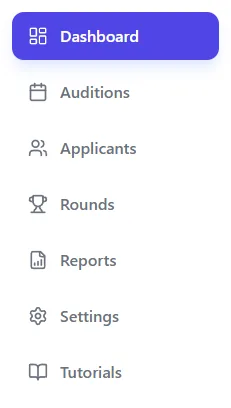
The sidebar on the left (or the menu button on a phone) takes you to each part of the app:
- Auditions: create auditions, share invite links and manage time slots.
- Applicants: a searchable directory of everyone who signed up.
- Rounds: score participants, advance them, publish results and seat ensembles.
- Reports: results, scoresheets, seating charts, sign-in sheets and your own reports.
- Settings: your name and email, sign-up fields, scoring templates, judges and billing.
- Organization: appears on the Institution plan, for managing divisions and team members.
- Tutorials: opens these guides in a new tab.
5Choose a plan
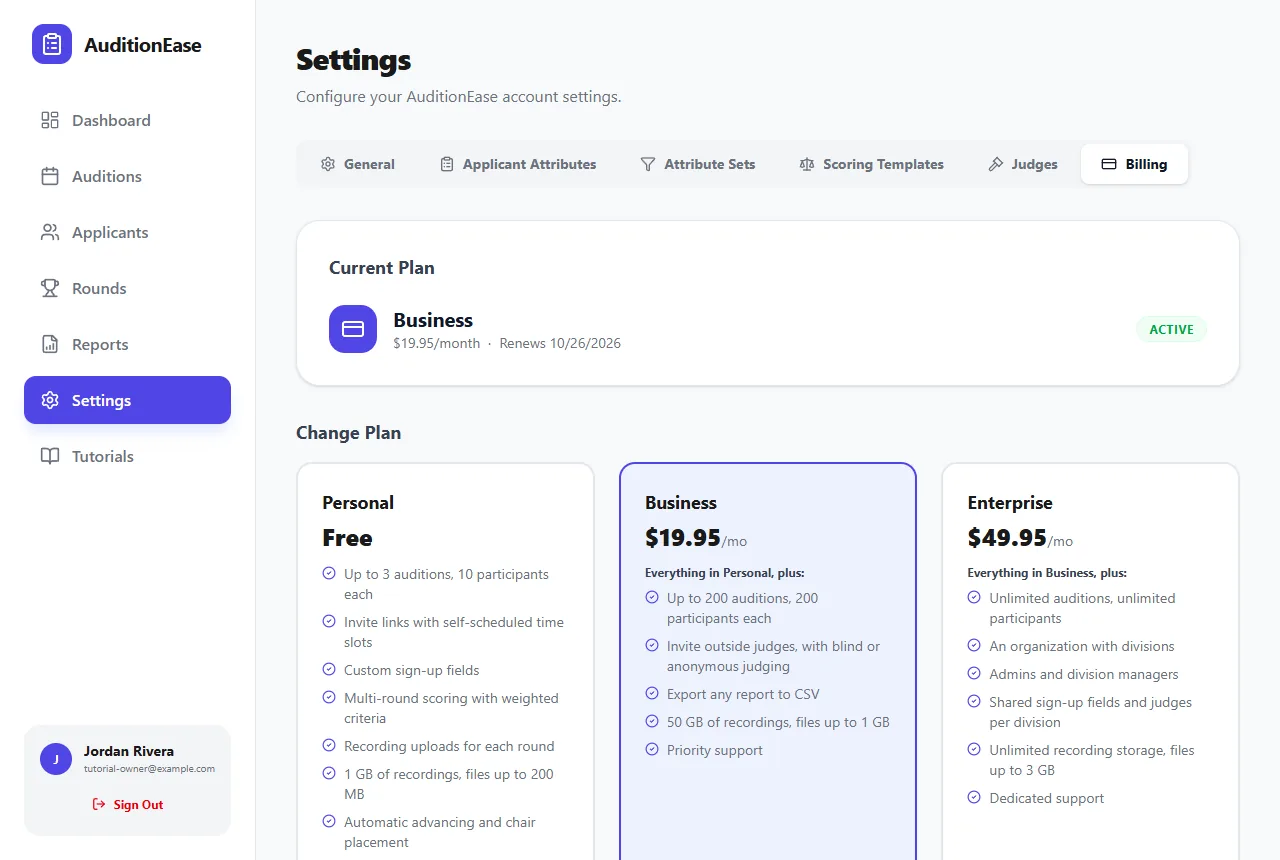
Everyone starts on the free Studio plan, which includes up to 3 auditions with 10 participants each. Upgrade when you need more:
- Ensemble: up to 200 auditions with 200 participants each, outside judges, and CSV export of reports.
- Institution: unlimited auditions and participants, plus an organization with divisions, admins and managers.
To change plans, go to Settings › Billing and choose Upgrade to Ensemble or Upgrade to Institution. Payment is handled securely by Stripe. You can switch or downgrade from the same page.