1Ask for a recording
Click Rounds in the sidebar, choose the audition, then click Ask for uploads (or Edit uploads). Click Add upload and give it a name, such as "Sight-reading" or "Scales".
Change They upload a file to They record it here, and choose Audio or Video. Participants then record it in their browser instead of choosing a file.
You can mix both kinds in one round, for example two uploaded excerpts and a recorded sight-reading. Learn more about uploads in Rounds & scoring.
2Attempts and time limit
- Attempts: how many takes each participant gets, from 1 to 20. Leave it empty for unlimited. Starting a take uses up an attempt, even if they throw it away.
- Time limit: in minutes, like 2 or 1.5. Recording stops by itself when time runs out. Leave it empty for no limit.
Each take is recorded in one go: there's no pause button and no way to edit. A take has to be sent soon after it's recorded, so participants can't upload a file they recorded somewhere else.
3Attach music and hide it for sight-reading
Click Attach music (PDF or image) to add the music, up to 20 MB. Then tick Hide it until they start recording (sight-reading). Participants won't see it until they start an attempt.
Set a Look-over time in seconds, such as 30, to give them time to study the music. A countdown runs, then recording starts by itself. They can also start sooner. With no look-over time, recording starts as soon as the music appears.
Without ticking the box, the attachment is visible on their dashboard the whole time the round is open, which suits excerpts they should prepare. You can attach a file to an ordinary upload the same way, such as a list of excerpts to record.
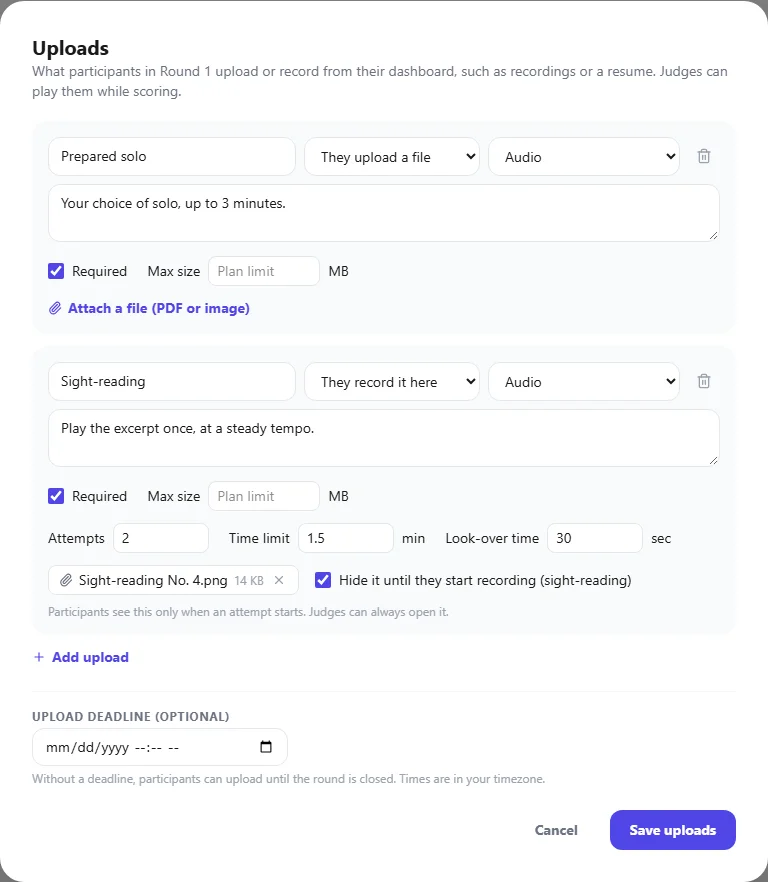
Judges and organizers can always open the attached music while scoring, so they can follow along.
4What participants do
On their dashboard, participants see each recording under the round, with your instructions and how many attempts they've used.
- They click Record and allow the browser to use their microphone (and camera, for video).
- A checklist explains the rules: one take per attempt, how many attempts are left, when the music appears and the time limit. When they're ready, they click Start attempt.
- Any hidden music appears, the look-over countdown runs, and recording starts. They click Stop when they've finished.
- They listen back, then click Send this take, or Throw it away and try again if they have attempts left.
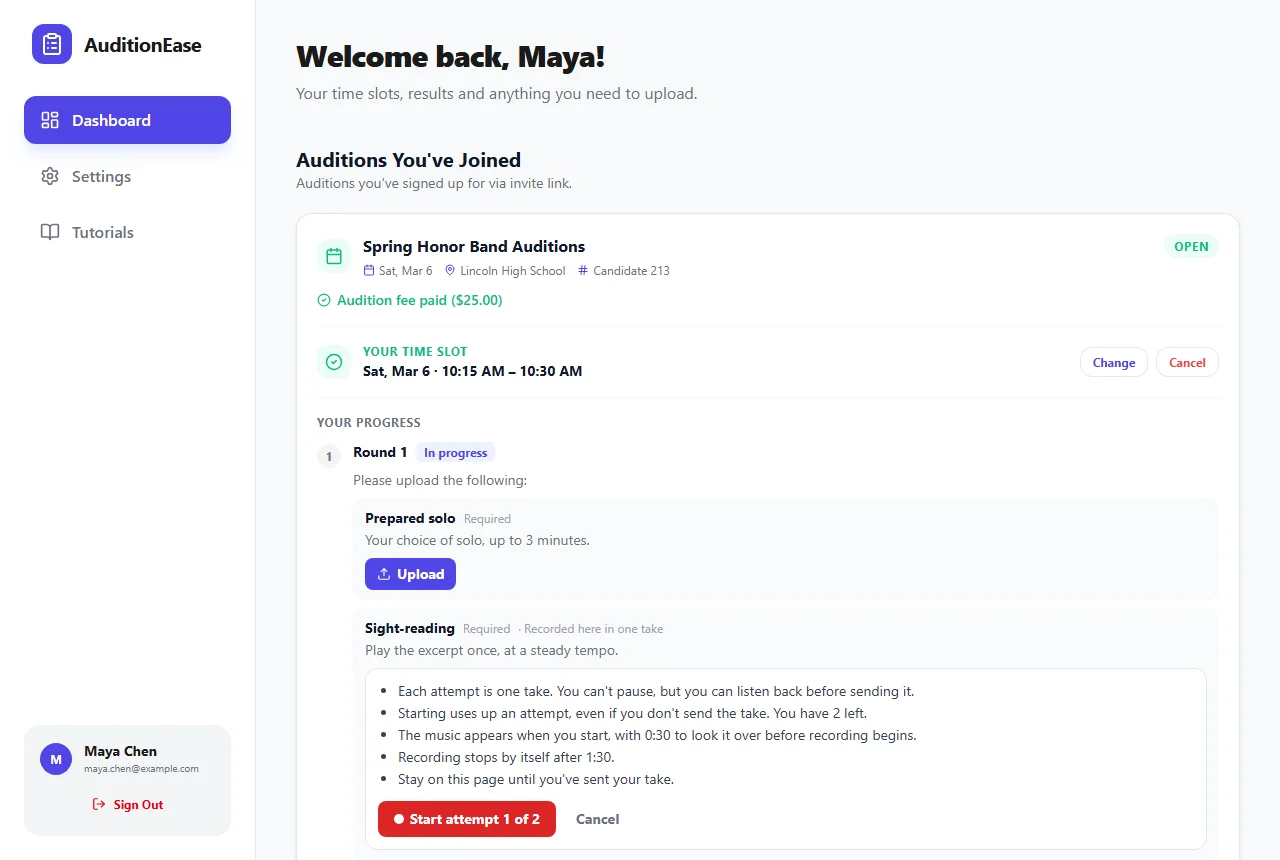
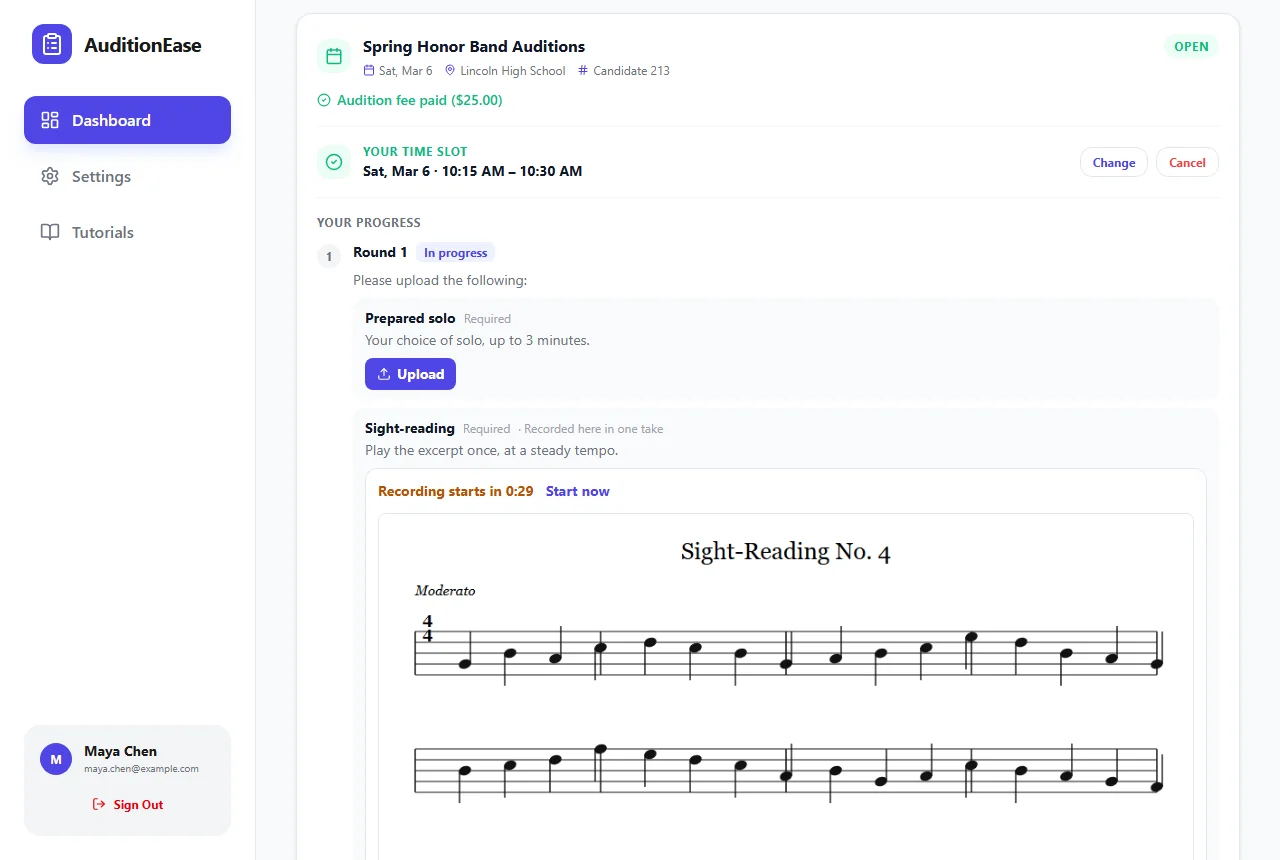
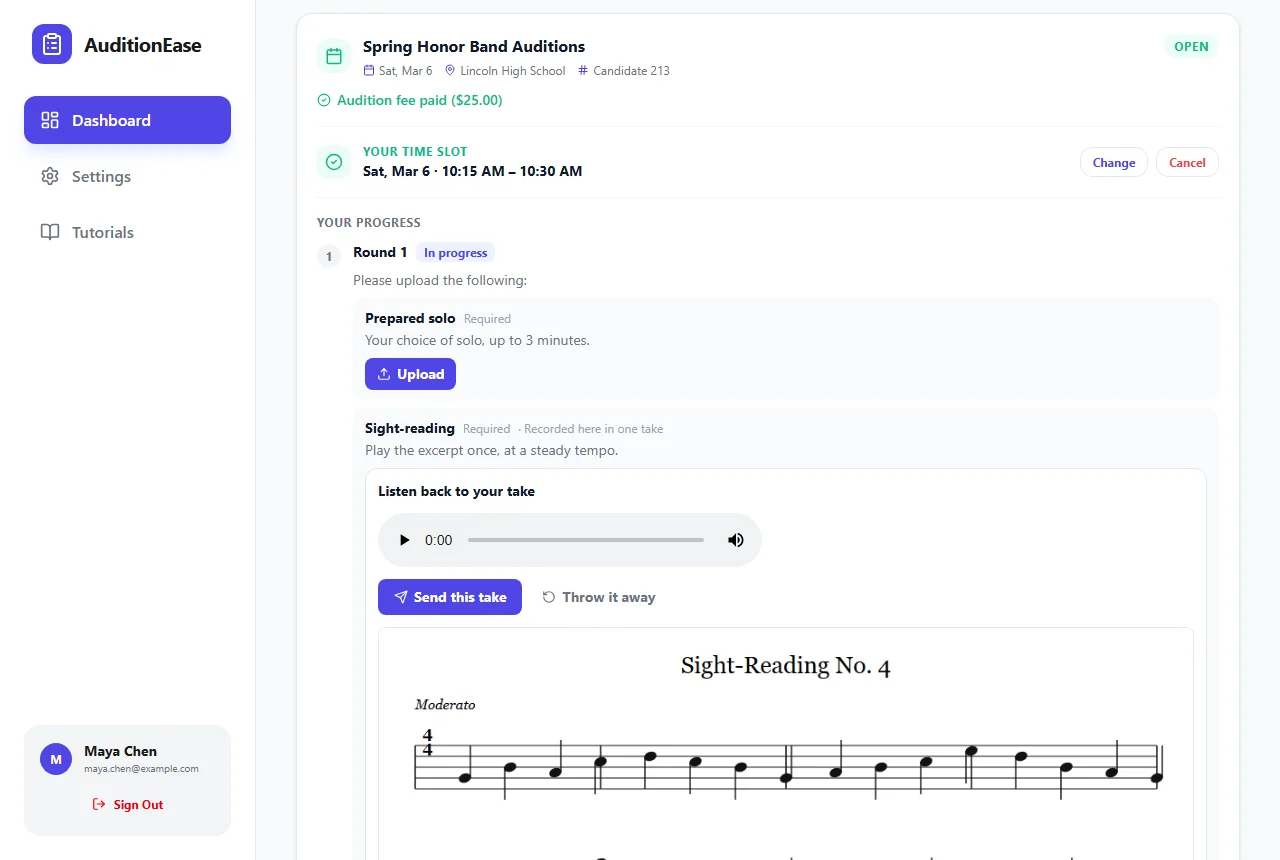
Recording works in up-to-date Chrome, Edge, Firefox and Safari, on computers, phones and tablets. Recordings keep the full sound, without the noise reduction browsers use for video calls, so quiet passages and long notes come through as played.
Leaving the page during an attempt loses the take, and the attempt still counts. Tell participants to use a quiet room, a steady connection and a charged device.
5Review recordings and give another attempt
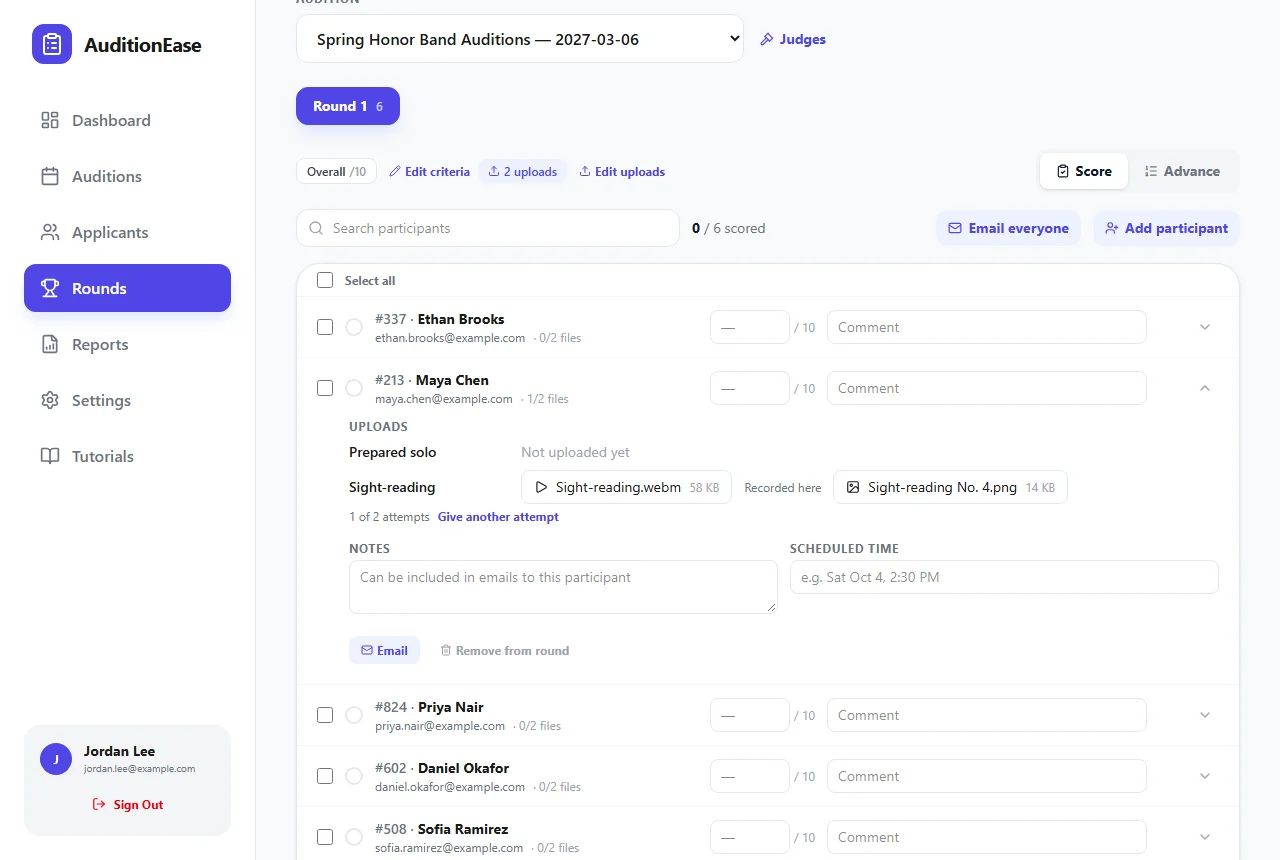
On the Score tab, open a participant to play their recording. Recordings made on AuditionEase are labelled Recorded here, and organizers also see how many attempts each participant used, such as 2 of 3 attempts.
If someone had a technical problem, such as a phone call cutting in, click Give another attempt. Their latest attempt stops counting, and anything they've already sent stays.
When you copy an audition with Round 1 scoring ticked, its recordings and attached music are copied too.