1Change your name or email
Go to Settings › General. Under Account:
- Name: click Change, edit your first and last name, and click Save.
- Email: click Change, type the New Email Address and click Send Verification Code. Enter the 6-digit code sent to the new address and click Verify & Update Email. From then on, sign-in codes go to the new address.
Participants and judges can change their own name and email the same way.
2What each plan includes
- Studio (free): up to 3 auditions with 10 participants each, 1 GB of recordings, and files up to 200 MB.
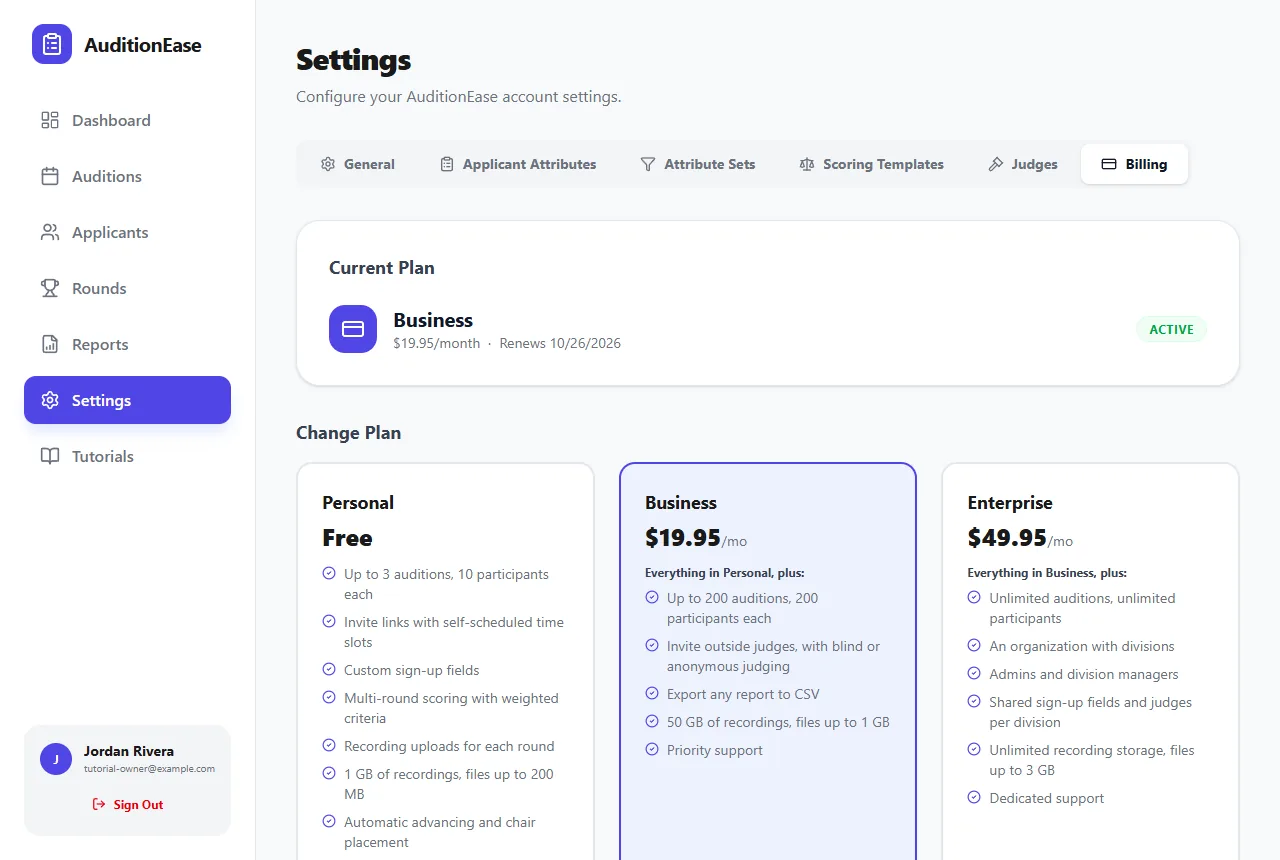
- Ensemble ($19.95 a month): up to 200 auditions with 200 participants each, 50 GB of recordings, files up to 1 GB, outside judges, and export of reports to Excel, PDF or CSV.
- Institution ($49.95 a month): unlimited auditions and participants, 1000 GB of recordings, files up to 3 GB, and an organization with divisions, admins and managers. Storage is shared by your own auditions and every audition in your organization.
The sandbox doesn't count toward your audition limit, and neither do organization auditions. The Studio card in Settings › Billing shows how many of your 3 auditions you've used.
When you hit a limit, such as a full audition or a judging panel on Studio, AuditionEase explains what's blocked and offers to upgrade you, with Compare plans or Not now. See When an audition fills up.
3Upgrade, downgrade or cancel
Go to Settings › Billing. Payment is handled securely by Stripe. Every paid plan can be cancelled anytime and comes with a 7-day money-back guarantee.
- Upgrade with Upgrade to Ensemble or Upgrade to Institution. If you already pay for a plan, the upgrade starts right away and you're charged the difference for the rest of the billing period.
- Downgrade with Downgrade to Ensemble. To cancel, click Downgrade to Studio. Either way, you keep your current plan until the end of the billing period, and the Billing page shows the date it changes.
- Changed your mind? Before that date, click Keep Ensemble or Keep Institution to cancel the change.
Once a downgrade takes effect, auditions beyond your new plan's limit are hidden, oldest first, so Studio keeps your 3 newest. Leaving Institution also hides your organization, with its divisions and their auditions, from you and your team. Hidden auditions stop taking sign-ups and sending reminders. Upgrade again within 45 days to get everything back; after that, hidden data may be permanently deleted.
In an organization, only the owner sees Billing. The owner's plan covers everyone in the organization.
4Pay yearly
Paying yearly gets you 2 months free: $199.50 a year for Ensemble, or $499.50 for Institution. Use the Monthly / Yearly switch above the plans before you subscribe.
Already paying monthly? The Billing page shows Switch to yearly billing and get 2 months free. Click Switch to yearly. You're charged for the year today, minus credit for the unused part of this month.
A yearly plan can't be switched back to monthly directly. Downgrade to Studio, and once that takes effect, subscribe again monthly.
5Recording storage
Files participants upload or record count toward your plan's storage. Audition material you post doesn't. Settings › General shows Recording Storage: how much you've used of your plan's total. The bar turns amber at 75% and red at 90%.
To make room, click Clean up storage. Tick the auditions whose uploads you no longer need, or Select all, and click Delete files. Only uploaded recordings and files are deleted. Everything else in those auditions, including scores and comments, is kept. This can't be undone.
If you clean up an audition that's still running, judges can no longer play the deleted files, and participants have to upload again.
When storage is full, new uploads are refused and participants are asked to contact you. You get an email about it, at most once a day, with a link to clean up storage. Upgrading also adds room.
In an organization, the owner's storage is shared by every division, and only the owner sees Recording Storage.
6Free trials
If AuditionEase has given you a free trial of a paid plan, the Billing page shows a Free trial badge and the date it ends. No card is needed. When the trial ends, your account goes back to Studio unless you subscribe.
To keep the plan, click Subscribe to Ensemble or Subscribe to Institution, whichever your trial is for. Subscribing ends the trial and starts your paid plan.