1Connect Stripe to take card payments
Card payments go into your own Stripe account, so the money never passes through AuditionEase. You'll see the payments, payouts and refunds in your Stripe dashboard.
- For your own auditions, go to Settings › General and click Connect Stripe under Audition fees.
- For an organization's auditions, the organization's owner goes to Organization › General Settings and clicks Connect Stripe. All of the organization's divisions are paid into that account.
Stripe asks for your details and bank account, then sends you back to AuditionEase. Once Stripe has checked everything, you'll see Taking card payments through Stripe.
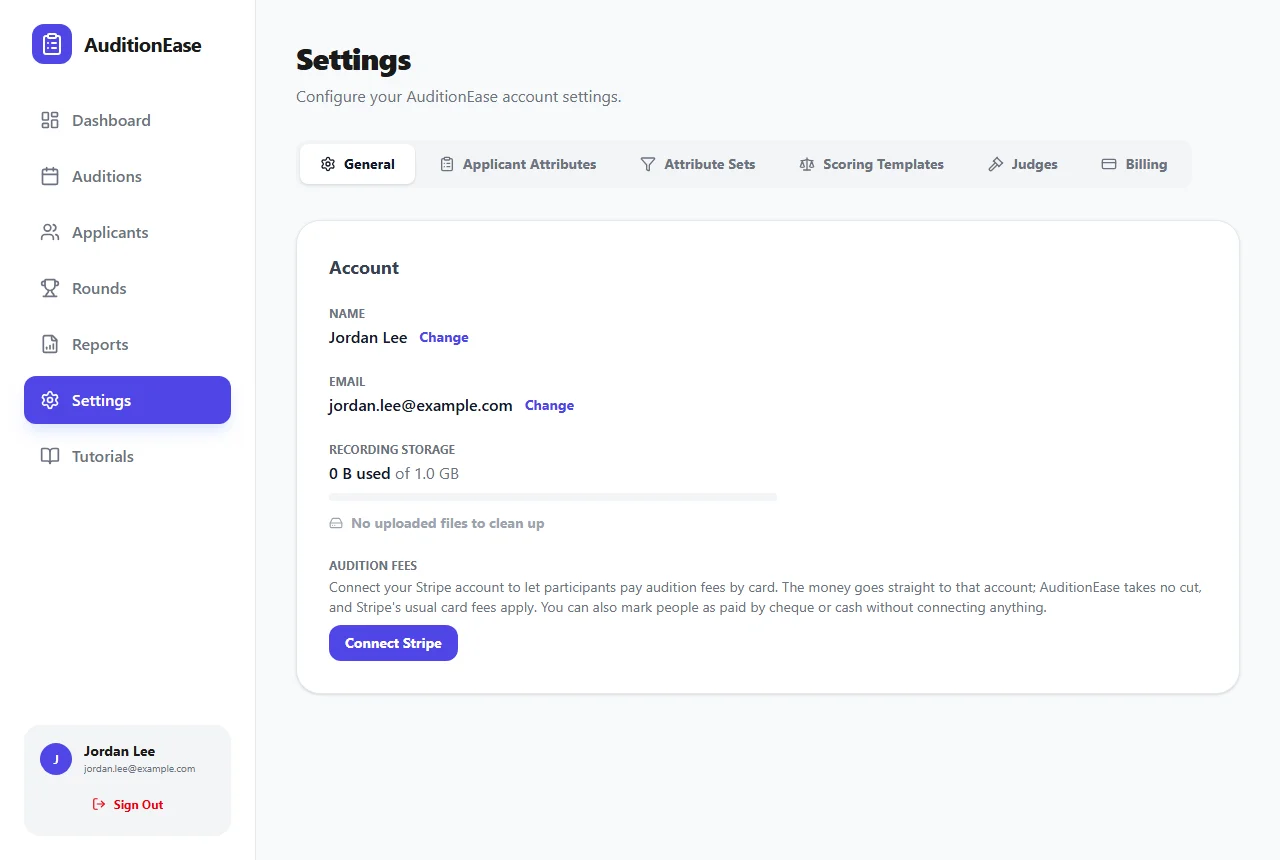
AuditionEase takes no cut of your fees. Stripe charges its usual card processing fee, which comes out of each payment.
Don't want card payments? You can skip this step. Set a fee anyway and mark people as paid when their cheque or purchase order arrives (see step 5).
2Set the fee
Open the audition from Auditions. Under the schedule, the Audition Fee panel has:
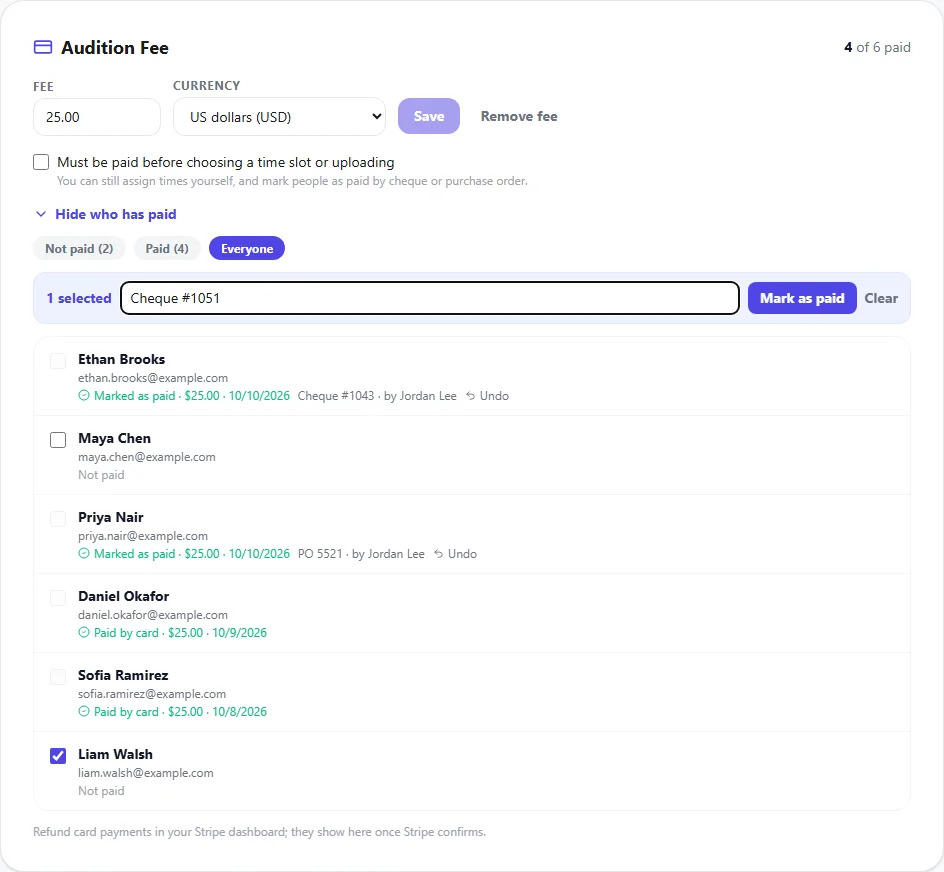
- Fee: the amount, like 25.00. Leave it empty for no fee.
- Currency: US, Canadian, Australian or New Zealand dollars, British pounds or euros.
- Must be paid before choosing a time slot or uploading: until they've paid, participants can't book a time or send recordings. You can still assign times to them yourself.
Click Save. To stop charging, click Remove fee. Payments already made stay on record.
When you copy an audition with Details and settings ticked, the fee is copied too.
3How participants pay
After signing up, participants see the fee on their dashboard. If you've connected Stripe, they click Pay now and pay by card on Stripe's secure checkout page. The dashboard shows Audition fee paid as soon as they're back.
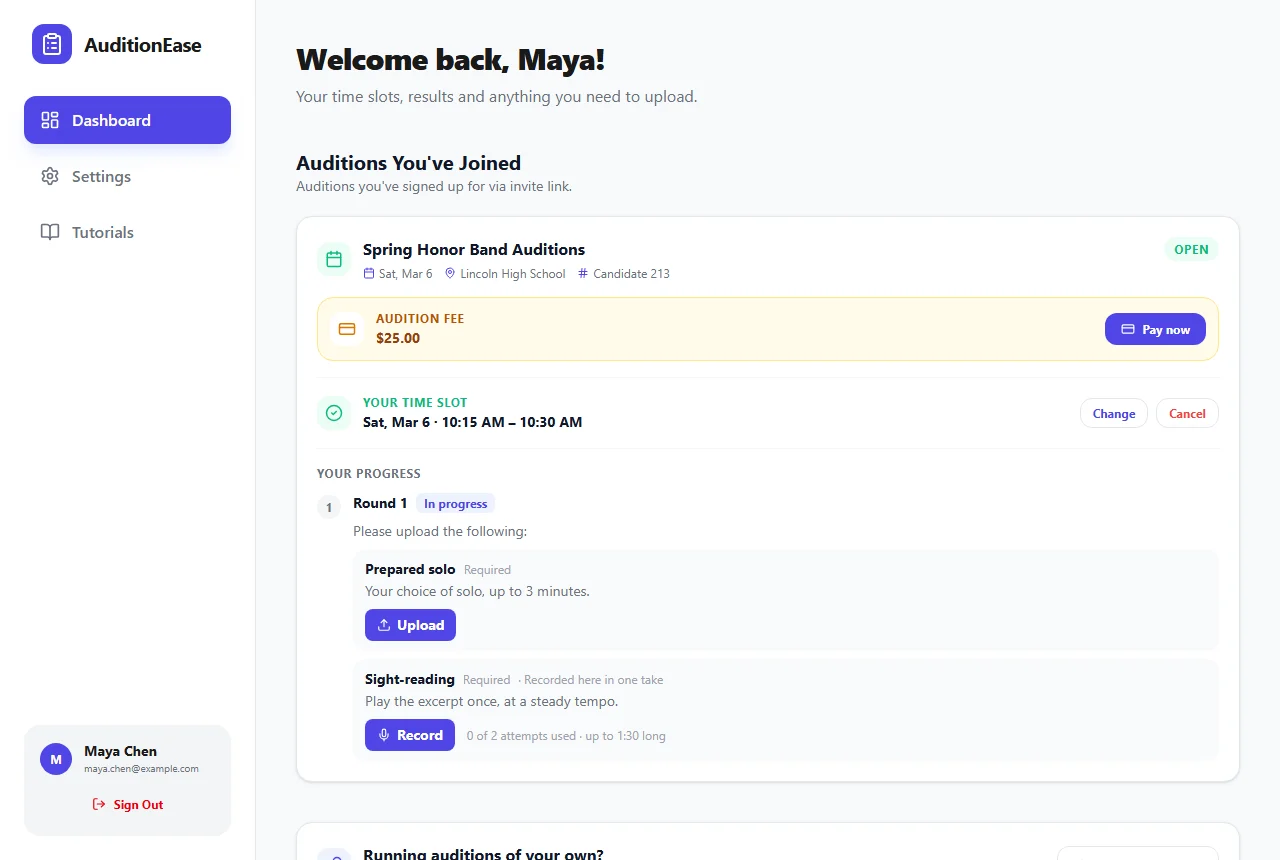
If you haven't connected Stripe, the dashboard asks them to contact you about paying.
To have Stripe email participants a receipt, turn on receipts for successful payments in your Stripe settings.
4See who has paid
The Audition Fee panel shows how many participants have paid, such as 4 of 6 paid. Click Show who has paid for the list, then filter it by Not paid, Paid or Everyone. Each payment shows whether it was by card or marked as paid, the amount and the date.
Reports can include the fee too. The Participant Roster report adds a Fee column when the audition has a fee, and custom reports can use the Fee Paid and Fee Payment fields, for example to list everyone who hasn't paid. See Reports.
5Mark cheques and purchase orders as paid
Many schools pay by cheque or purchase order. In the list, tick everyone who has paid, add a note such as "Cheque #1234" or "PO 5521", and click Mark as paid. The note and your name are kept with the payment.
Made a mistake? Click Undo next to the payment.
6Refunds
Refund card payments from your Stripe dashboard (the Stripe dashboard link is next to your connected account). Once Stripe confirms a full refund, the participant shows as Refunded and no longer counts as paid.
For payments you marked as paid yourself, return the money however you received it, then click Undo.