1Ask for a parent at sign-up
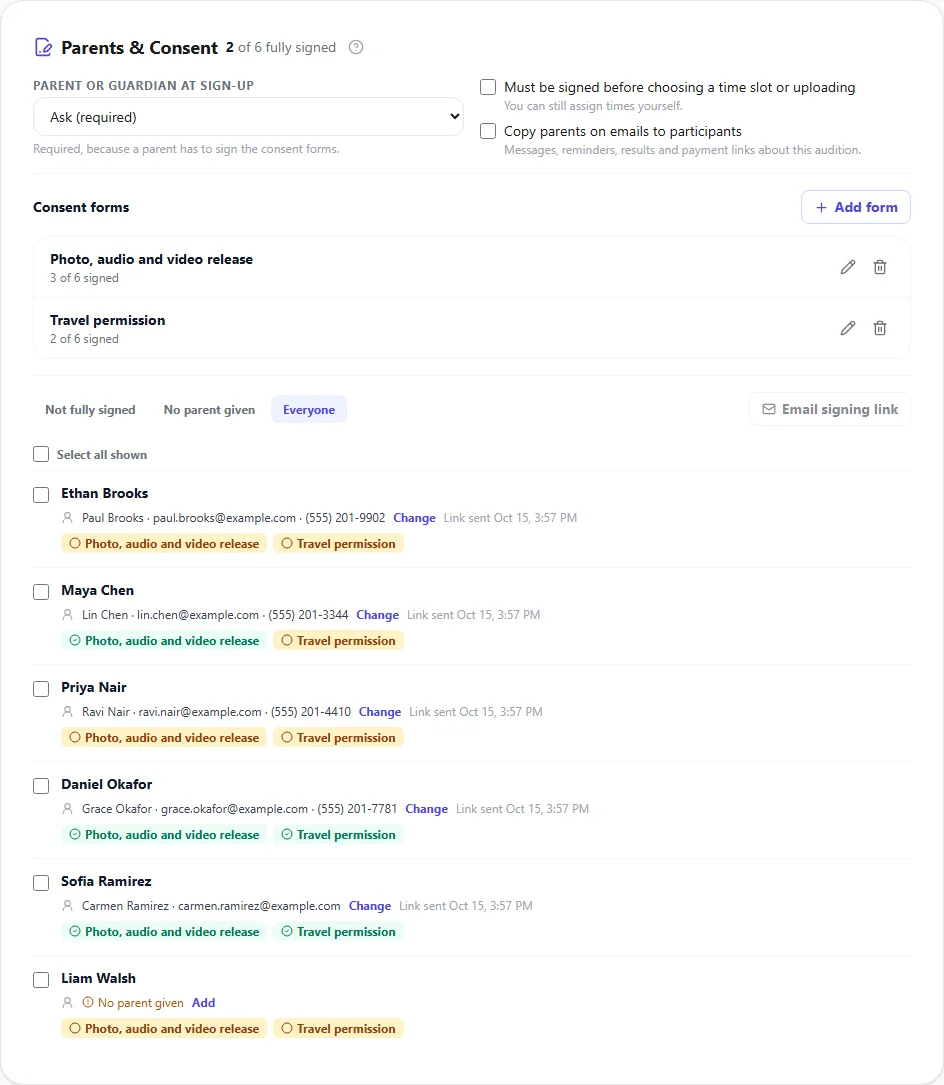
Open the audition from Auditions and click its Consent tab. Under Parent or guardian at sign-up, choose Ask (optional) or Ask (required). The sign-up form then has a Parent or Guardian section for their name, email and phone.
Participants can add or change their parent later from their dashboard. The details are kept with this audition only, and filled in for them the next time they sign up for another one.
2Add consent forms
Click Add form. Start from a blank form, or from a template you can edit: a photo, audio and video release, permission to take part, or travel permission. Give the form a title and write what the parent agrees to. Replace anything in [brackets], such as your organization's name, with your own details.
Templates are a starting point, not legal advice. Check the wording with your school or organization before you use it.
Once an audition has a consent form, a parent is required at sign-up, since someone has to sign it. Everyone who already signed up with a parent's email is sent the link when you click Email signing link (see step 4). Anyone who signs up from now on has the link sent to their parent straight away.
You can change a form after parents have signed it. They keep the wording they agreed to, and their signature is marked earlier wording. To ask them to sign the new wording, clear their signature and send the link again.
3How parents sign
The parent gets an email with a link. The page shows the participant's name and each form in full. The parent ticks that they are the parent or legal guardian and agree, types their full name, and clicks Sign. Their typed name, the date and time, and the exact wording are kept as their signature.
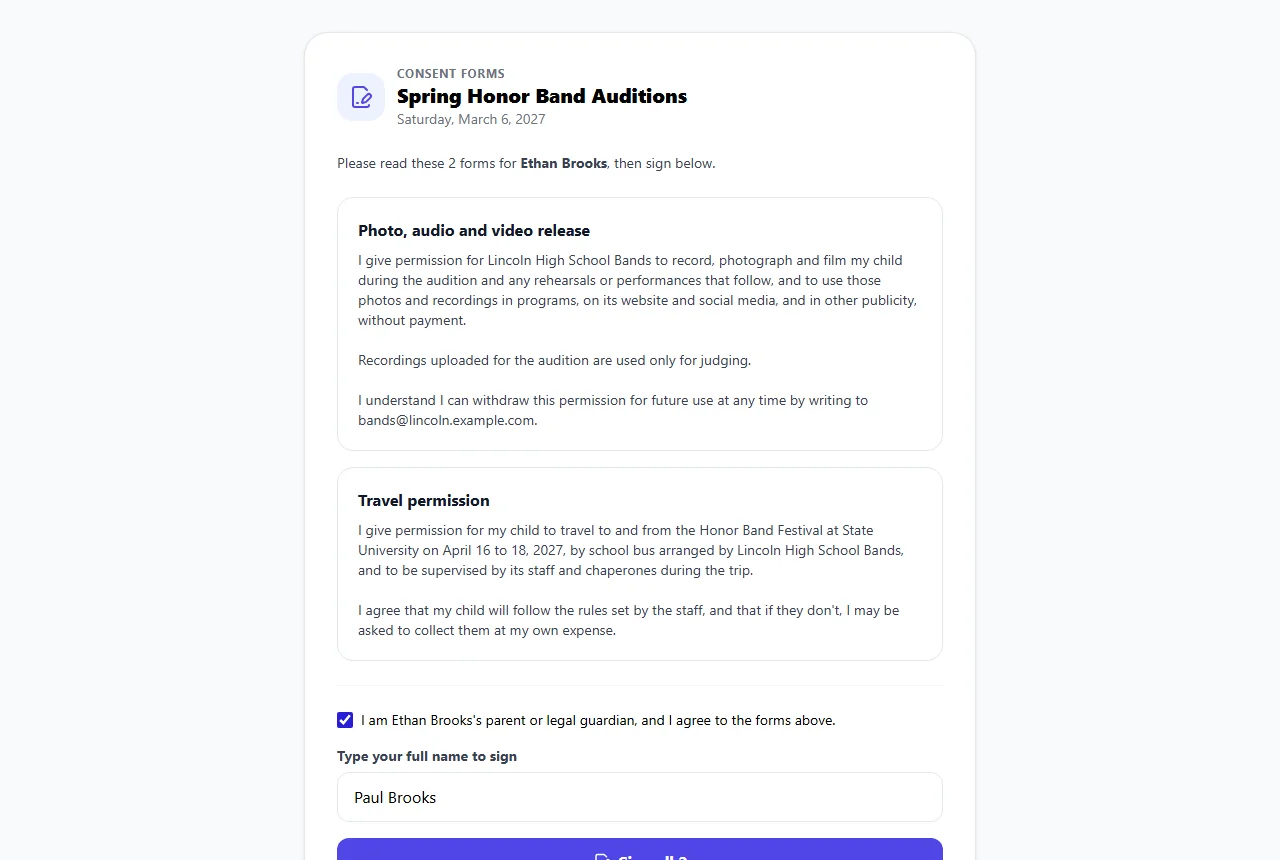
The page only shows the participant's name and the forms, never anyone's contact details. If the link is lost, the participant can click Send the link again on their dashboard.
4See who has signed
The tab shows how many participants still have forms to sign, such as 3 to sign. In the panel, each participant shows their parent and a badge for each form: green when signed, amber when not. Filter the list by Not fully signed, No parent given or Everyone.
- To send reminders, tick participants and click Email signing link. Parents who have signed everything, or who we have no email for, are skipped.
- To add or fix a parent's details, for example from a paper form, click Add or Change next to the parent. A new email address is sent the link.
- Click a green badge to see exactly what was signed, by whom and when, or to clear the signature and ask again.
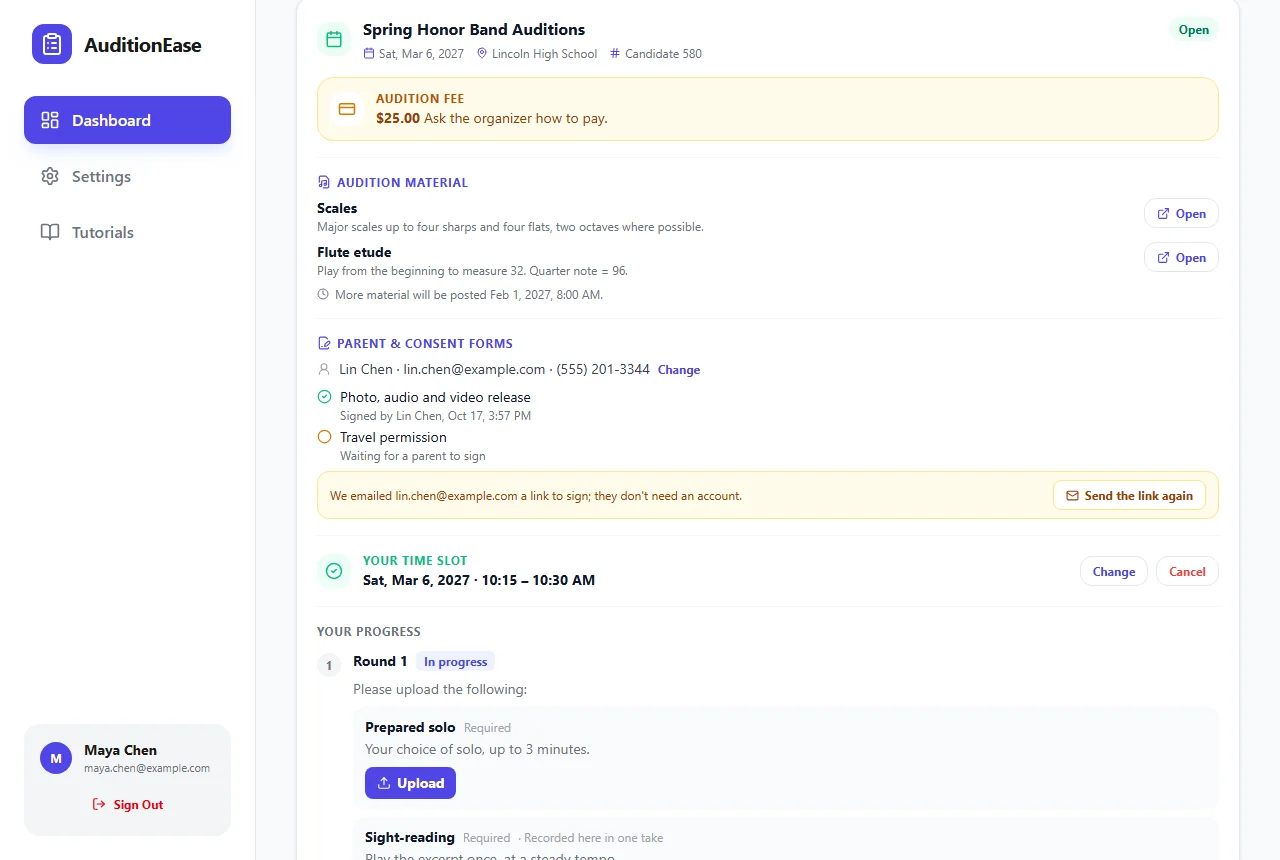
Participants see the same on their dashboard: their parent, each form, and who signed it.
5Make signing come first
Tick Must be signed before choosing a time slot or uploading to make participants wait until their parent has signed every form. Their dashboard explains why the buttons are off. You can still assign time slots yourself.
6Copy parents on emails
Tick Copy parents on emails to participants to send each parent a copy of the emails about this audition: your messages, reminders, results and payment links. The copy says it's for the parent of that participant. Sign-in codes are never copied.
7Directors, reports and copying
- School directors see how many forms each student's parent has signed, and can add or change a student's parent from the student's page. See Schools & directors.
- Reports can include Parent Name, Parent Email, Parent Phone and Consent Forms (all signed or not), for example to list everyone still waiting. See Reports.
- Copying an audition with its settings copies the consent forms. Copying its participants copies their parents, but not signatures, so parents sign again for the new audition.