1Turn on accommodation requests
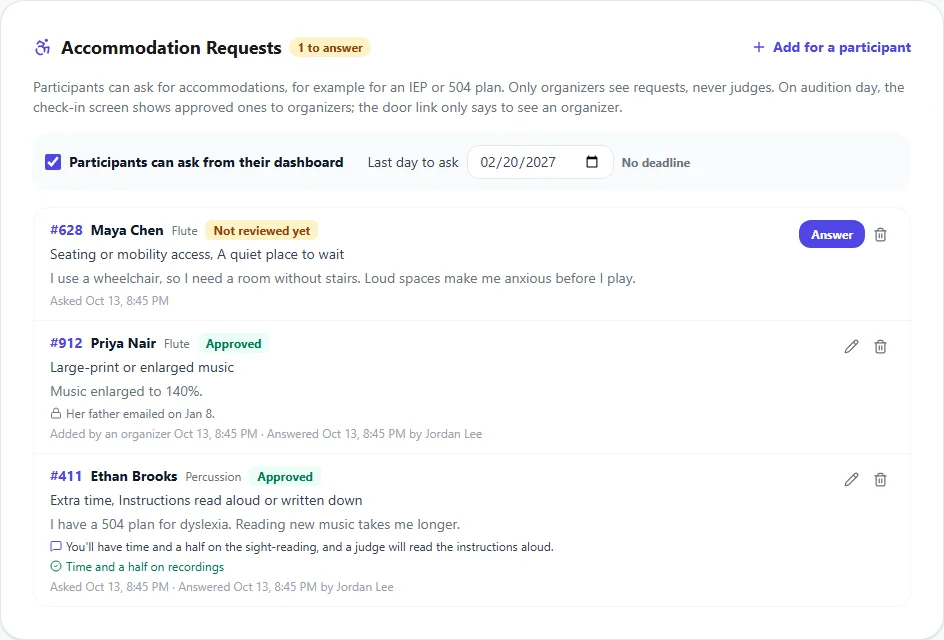
Open the audition from Auditions. Near the bottom, the Accommodation Requests panel lists every request. Tick Participants can ask from their dashboard. You can also turn it on with Accommodation requests in the audition's Edit form.
If you need requests by a certain date, for example to book an interpreter, set Last day to ask. After that day, participants can still see their request and your answer, but can't make a new one, change it or withdraw it. Click No deadline to remove the date.
2How participants ask
Each audition on a participant's dashboard has an Accommodations section. They click Ask for an accommodation, tick what they need, add details, and click Send request. A parent signed in as the participant can do this for them.
They can choose from:
- Extra time
- Rest breaks
- Seating or mobility access
- Large-print or enlarged music
- Sign language interpreter
- Instructions read aloud or written down
- A quiet place to wait
- Something else (they describe it in the details)
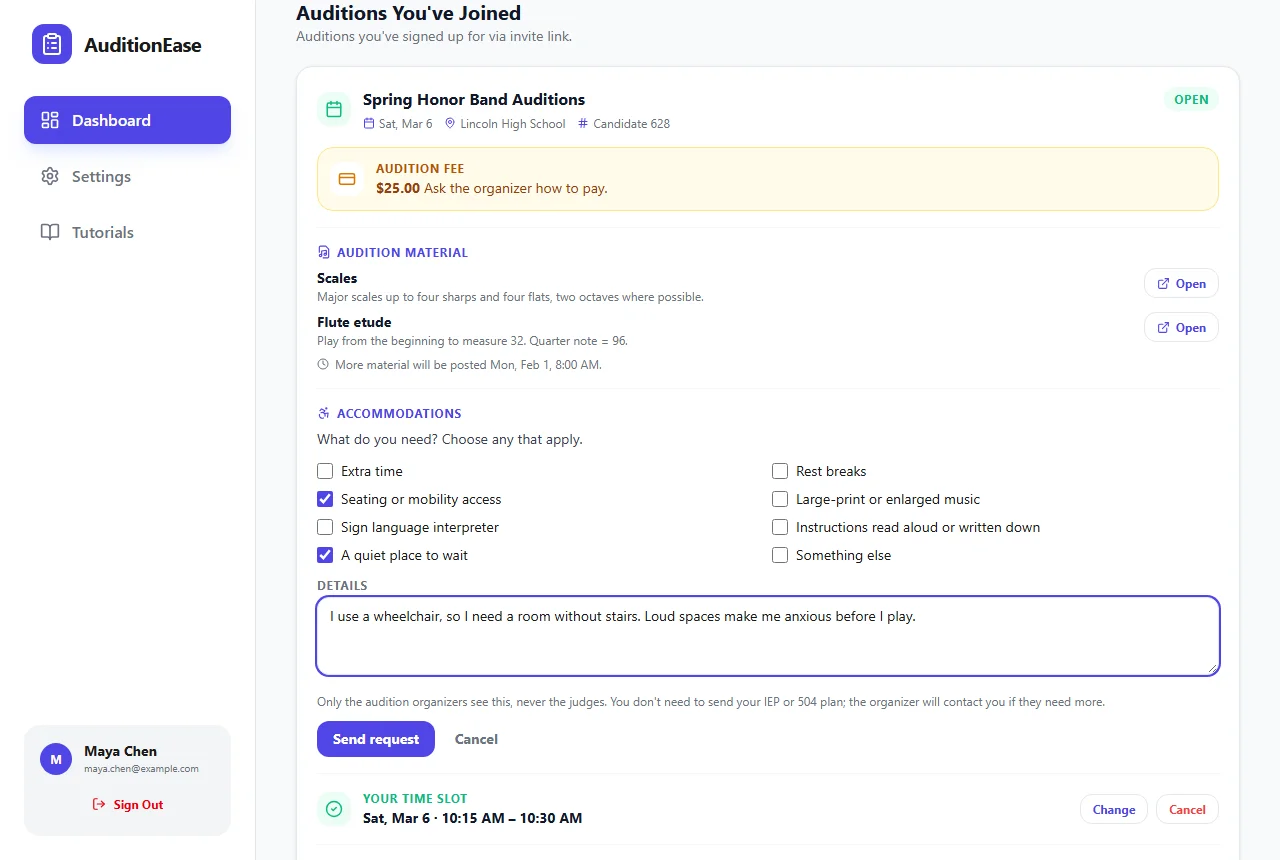
You get an email when someone asks or changes their request: at most one a day for each participant. Participants don't upload their IEP or 504 plan. If you need more information, contact them.
3Answer a request
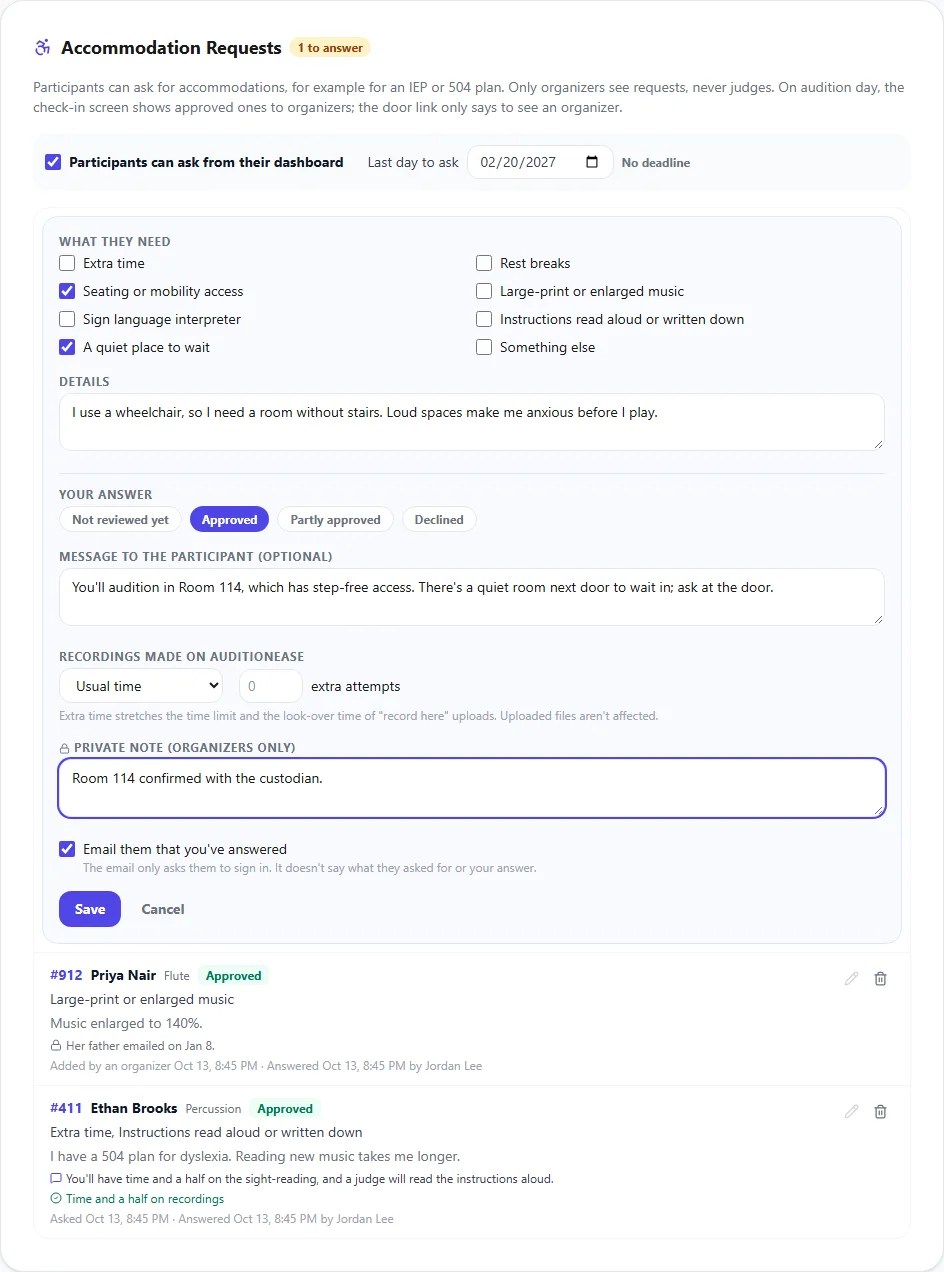
Click Answer next to the request, then:
- Your answer: Approved, Partly approved or Declined. Not reviewed yet leaves it waiting.
- Message to the participant (optional): what you've arranged, or why you can't do something. They see it on their dashboard.
- Recordings made on AuditionEase: for approved and partly approved requests, give more time and extra attempts on recordings made in the browser. Time and a half on a 90-second sight-reading allows 135 seconds, and the time to look over the music is longer too. See Recording & sight-reading.
- Private note: only organizers see it, for example how you checked the request.
- Email them that you've answered: sends a short email asking them to sign in.
Click Save. You can also change what they asked for, if they told you something different by phone or email.
Extra time and attempts apply only while the request is approved or partly approved. On the Rounds page, a participant's attempts show their own limit, such as "1 of 3 attempts (with accommodation)". Uploaded files aren't affected.
4What participants see
The participant sees your answer, your message, and any extra recording time or attempts. Their recording screens already include the extra time and attempts.
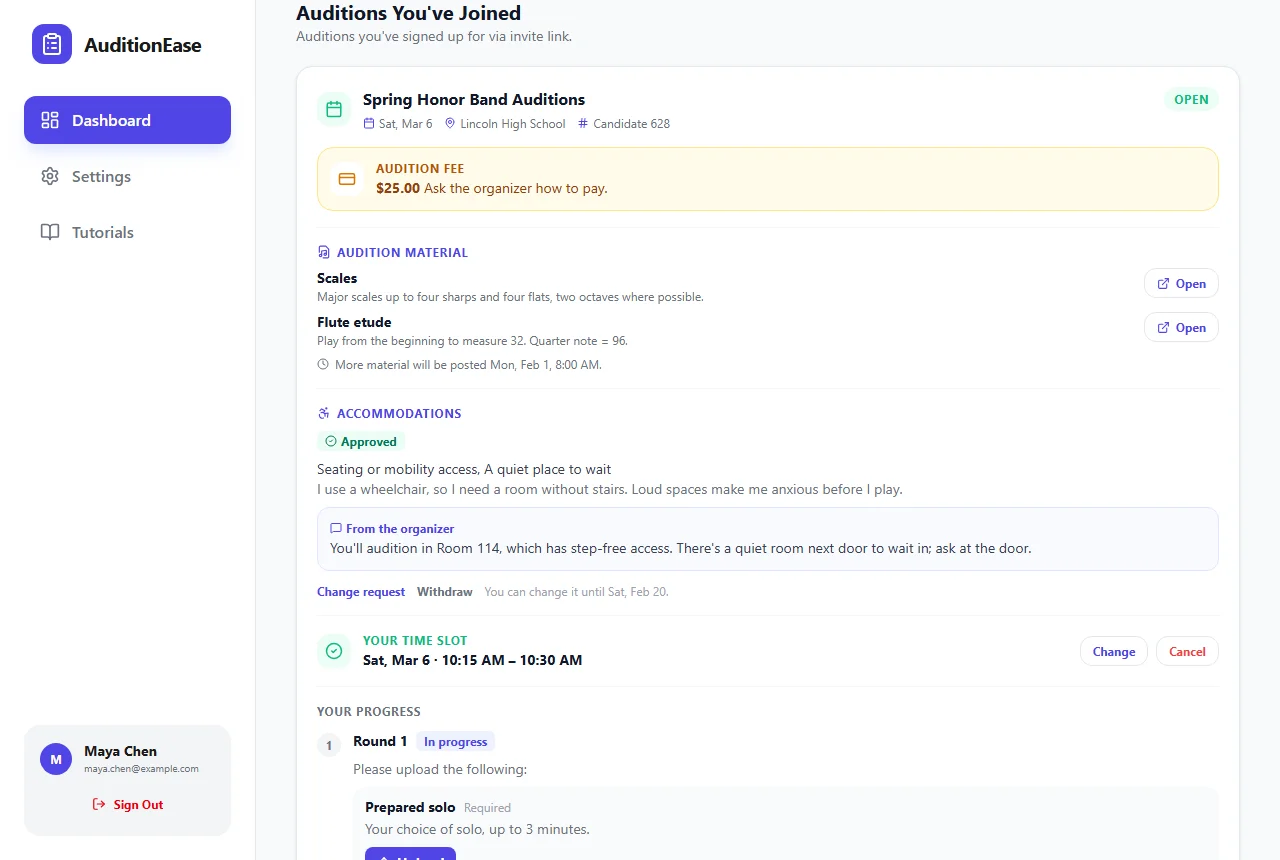
Until the deadline, they can click Change request or Withdraw. A changed request goes back to Not reviewed yet. Your earlier answer, including any extra recording time, stops applying until you answer again.
5Add a request for a participant
If a parent or school sends a request by email or phone, click Add for a participant, choose the participant, and fill in the request and your answer. It's marked as added by an organizer. Each participant has at most one request per audition. To change one, click the pencil next to it.
To remove a request, click the bin. Anything you approved, such as extra recording time, stops applying.
6On audition day
On the check-in screen, approved and partly approved requests are shown under each participant's name, so whoever checks them in knows what to arrange.
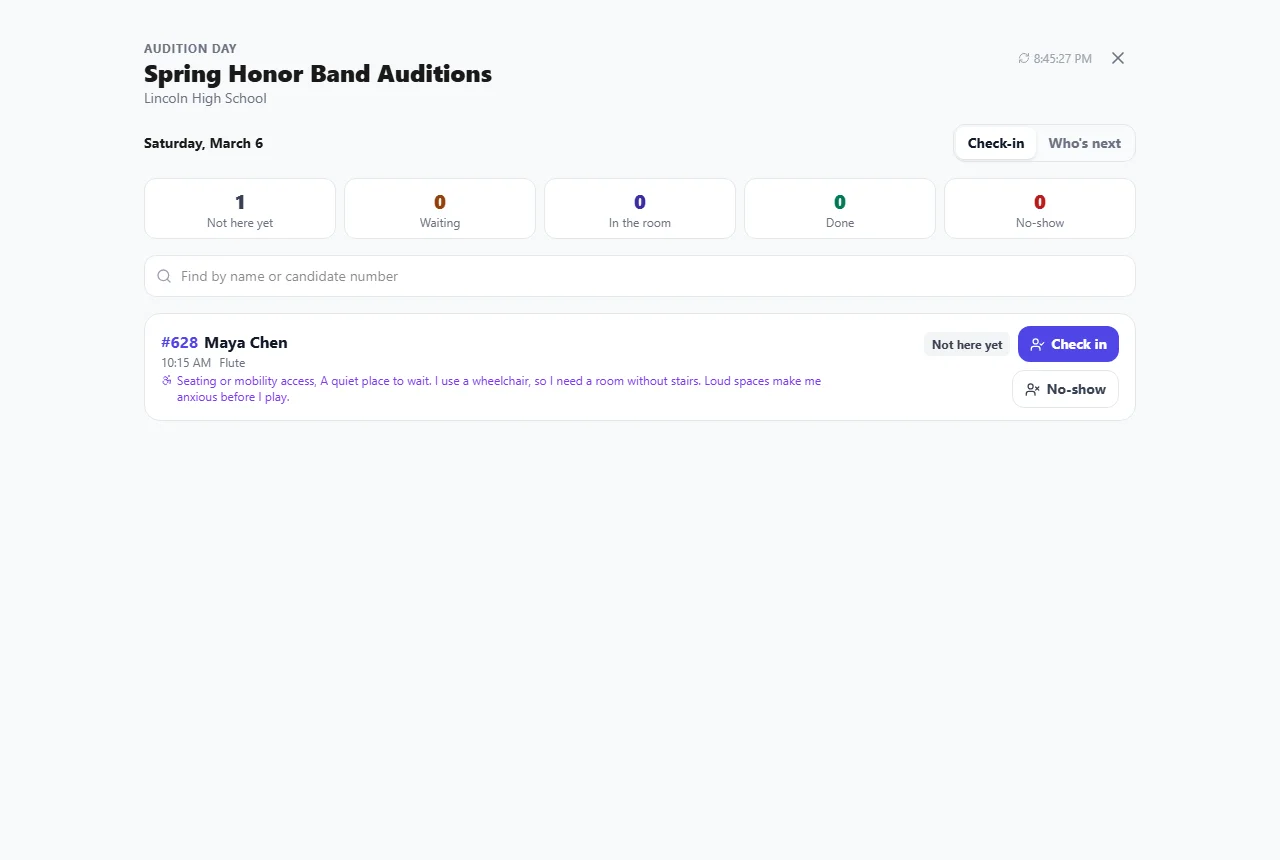
Volunteers using the door check-in link only see Accommodation: see an organizer, not the details. See Audition day.
7Who can see requests
- Organizers of the audition see everything, including private notes.
- Judges never see requests, and can't tell who has one. That includes judges' room lists on audition day.
- Volunteers with the door check-in link only see that someone has an approved request.
- The participant sees their own request, your answer and message, but not your private note.
- Emails never say what was asked for or what you answered, only to sign in.
Copying an audition doesn't copy accommodation requests, since needs change from one audition to the next. Deleting an audition, or removing a participant, deletes their request.