1Give time slots a room
When you click Generate Slots, list one or more Rooms, separated by commas. You get the same times in each room. For example, 9:00 to 12:00 in Room 114, Band room makes two parallel schedules. The rooms of your judge panels are suggested, so you can click to add them.
You can also type a room into any slot in the Audition Schedule, or change it there.
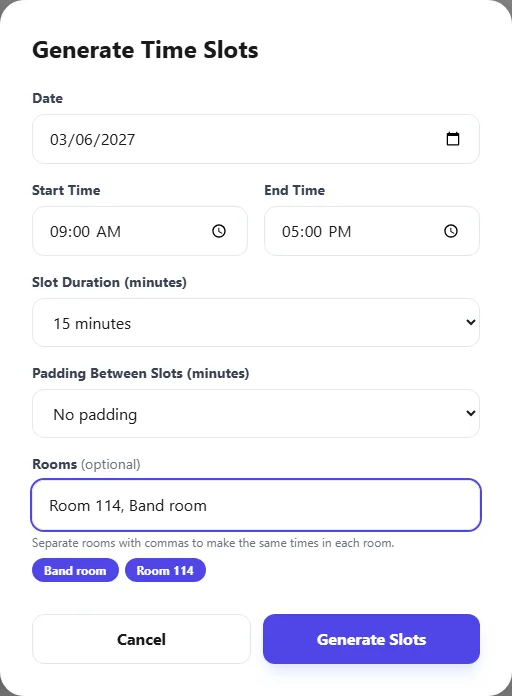
If a room belongs to judge panels that hear certain sections, only participants in those sections can book it. A violinist isn't offered the brass room, for example. Rooms that no panel uses are open to everyone.
2Check people in
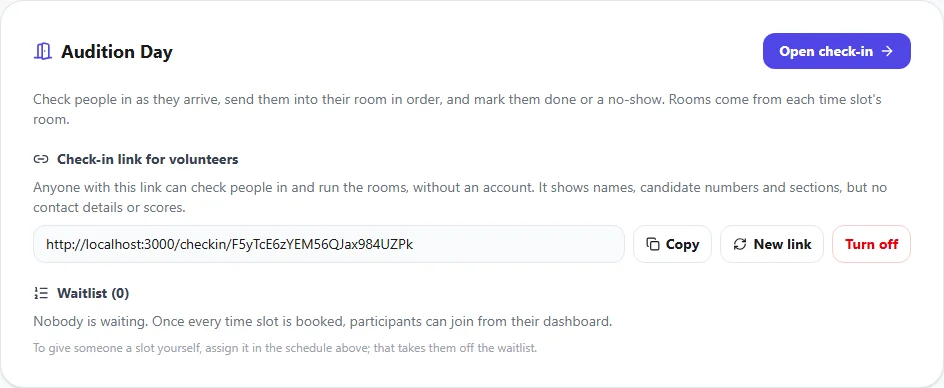
On the audition's page, find the Audition Day panel and click Open check-in. It opens on today's schedule, or the next day that has slots. If your audition runs over several days, pick the day at the top.
The Check-in view lists everyone booked that day, in time order. Find someone by name or candidate number, then click Check in when they arrive. Anyone past their start time who hasn't arrived is marked Late. If someone doesn't come, click No-show. If they turn up later, you can still check them in.
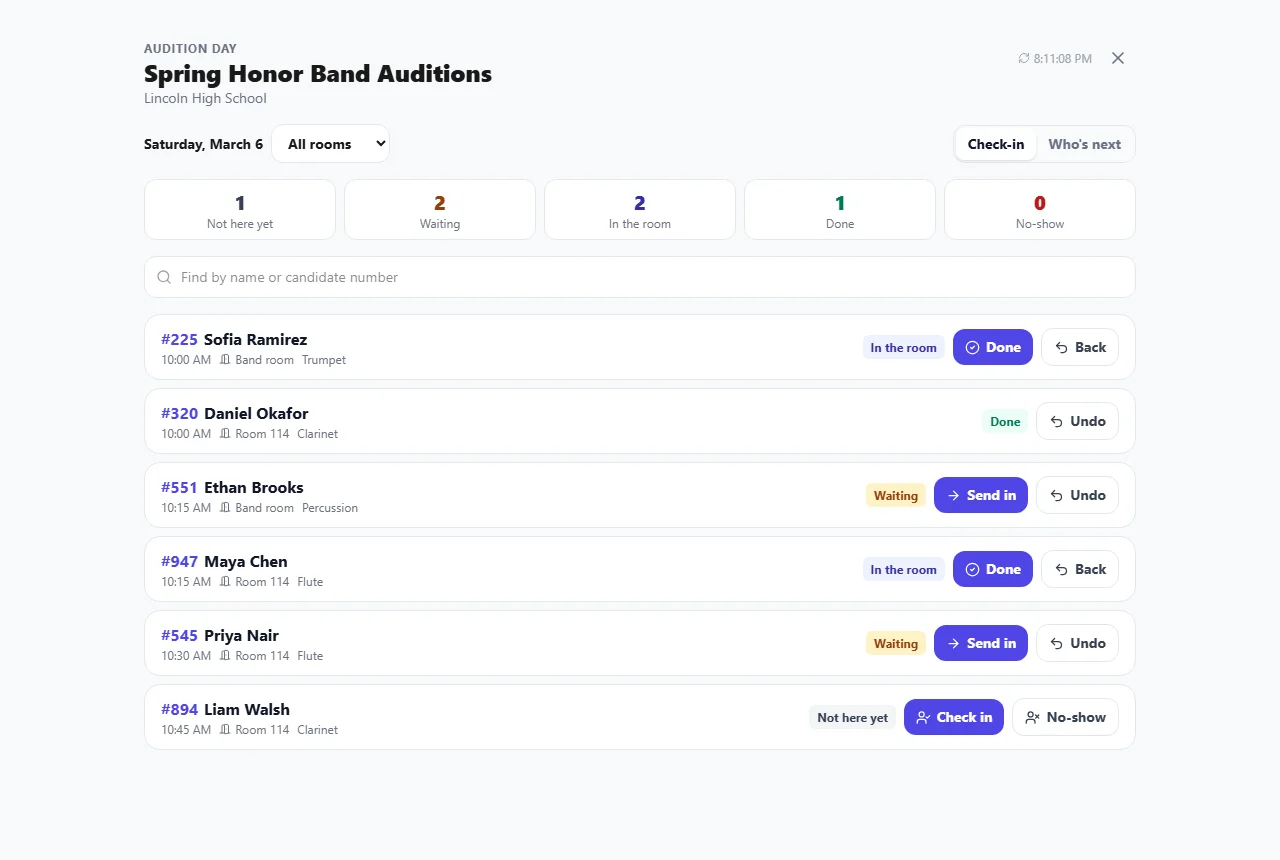
Each participant's candidate number is their audition number for the day. It's the same number judges see when judging is anonymous, so the door, the room and the score sheets all match.
3Send people in, room by room
Switch to Who's next to see each room: who's in the room now, and who's next up. Next up means checked in and waiting, in the order of their slot times. When a room is ready, click Send in next. When the audition is over, click Done.
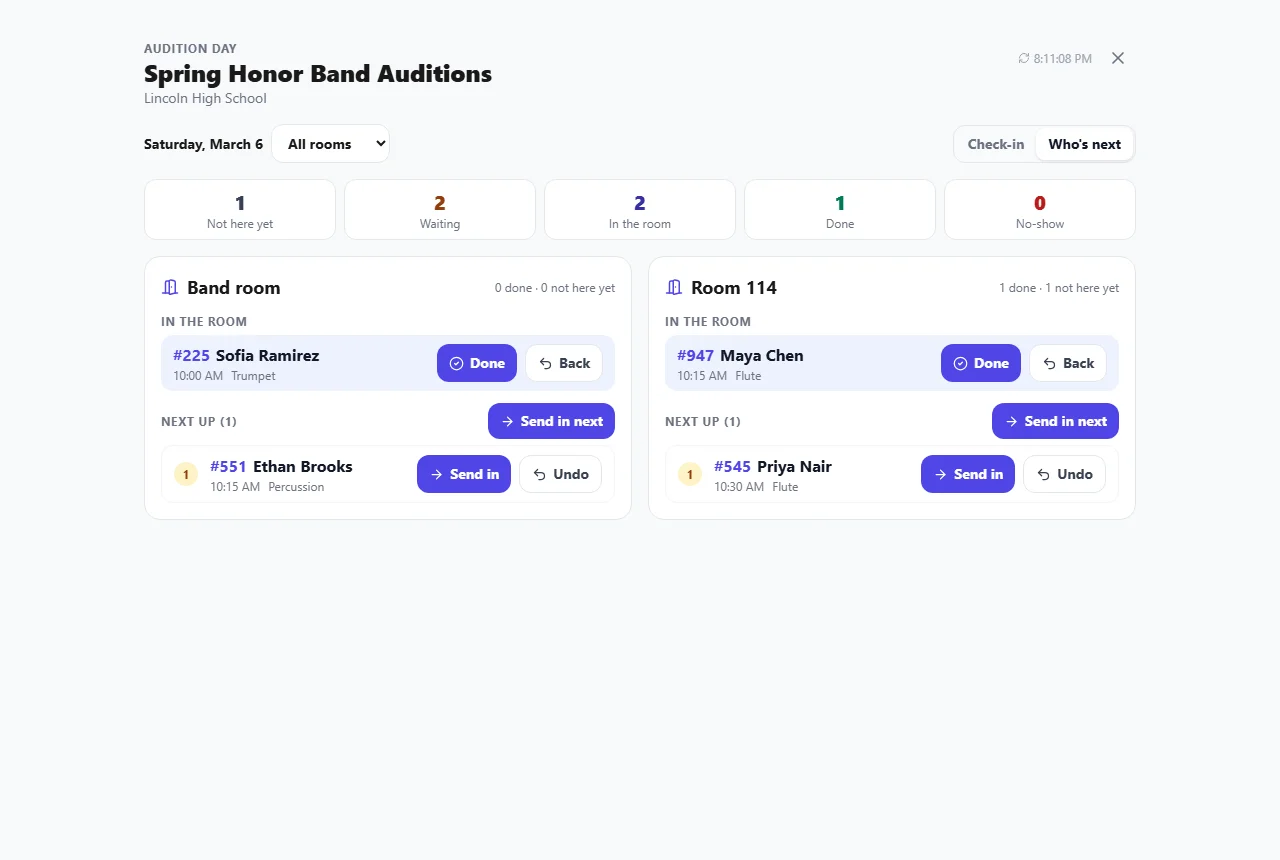
Every step can be undone: Back returns someone to the waiting list, and Undo reverses a check-in, a no-show or a done. The screen picks up changes made on other devices every few seconds, so the door and each room stay in step.
The Schedule report fills in each person's check-in time, and shows the room when slots have one. See Reports.
4Share a check-in link with volunteers
Volunteers at the door, or a monitor outside each room, don't need an account. In the Audition Day panel, click Make a check-in link, then Copy it and send it to them. It opens the same check-in screen, and it works well on a phone.
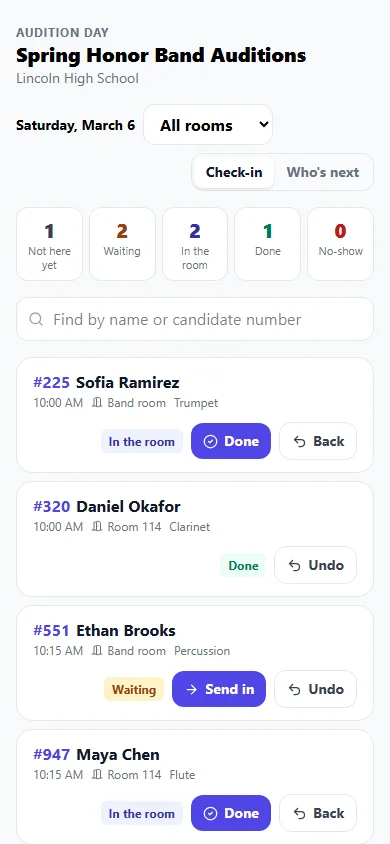
The link shows names, candidate numbers, sections, times and rooms. It never shows email addresses, phone numbers or scores.
Anyone with the link can use it. When the day is over, click Turn off. If the link gets shared too widely, click New link. The old link stops working straight away.
5What judges see
While they score, judges see a small card showing who's in their panel's room and who's next. Clicking a name finds that person in their list. Judges whose panels have no room see every room. With anonymous judging, judges see only candidate numbers.
6Keep a waitlist when slots are full
In the audition's settings (Edit), turn on Waitlist when time slots are full. Once there's no slot left that a participant could book, they can join the waitlist from their dashboard.
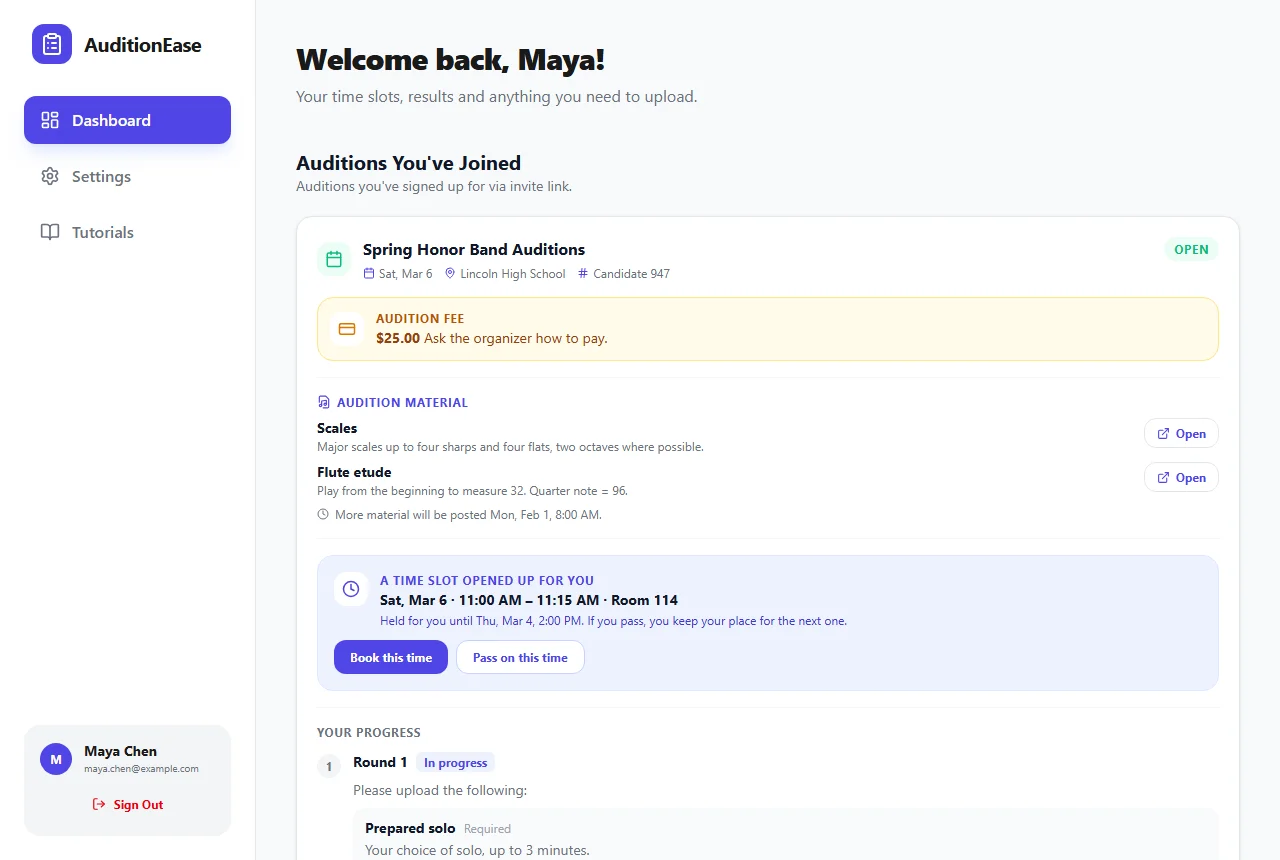
When a slot opens up, the first person waiting whose section suits that room is emailed. A slot opens up when someone cancels, when you clear or reopen a slot, or when you add new times. The slot is held for that person for 24 hours, or until an hour before it starts if that's sooner. They can:
- Book it, which takes them off the waitlist.
- Pass on it, keeping their place for the next slot. The one they passed on goes to the next person.
- Do nothing. When the hold runs out, the slot goes to the next person and they leave the waitlist.
The Audition Day panel lists everyone waiting, in order, along with any slot being held for them. To give someone a slot yourself, assign it in the schedule. That takes them off the waitlist. Slots starting in less than two hours aren't offered to the waitlist, so handle those at the door.