1Add material
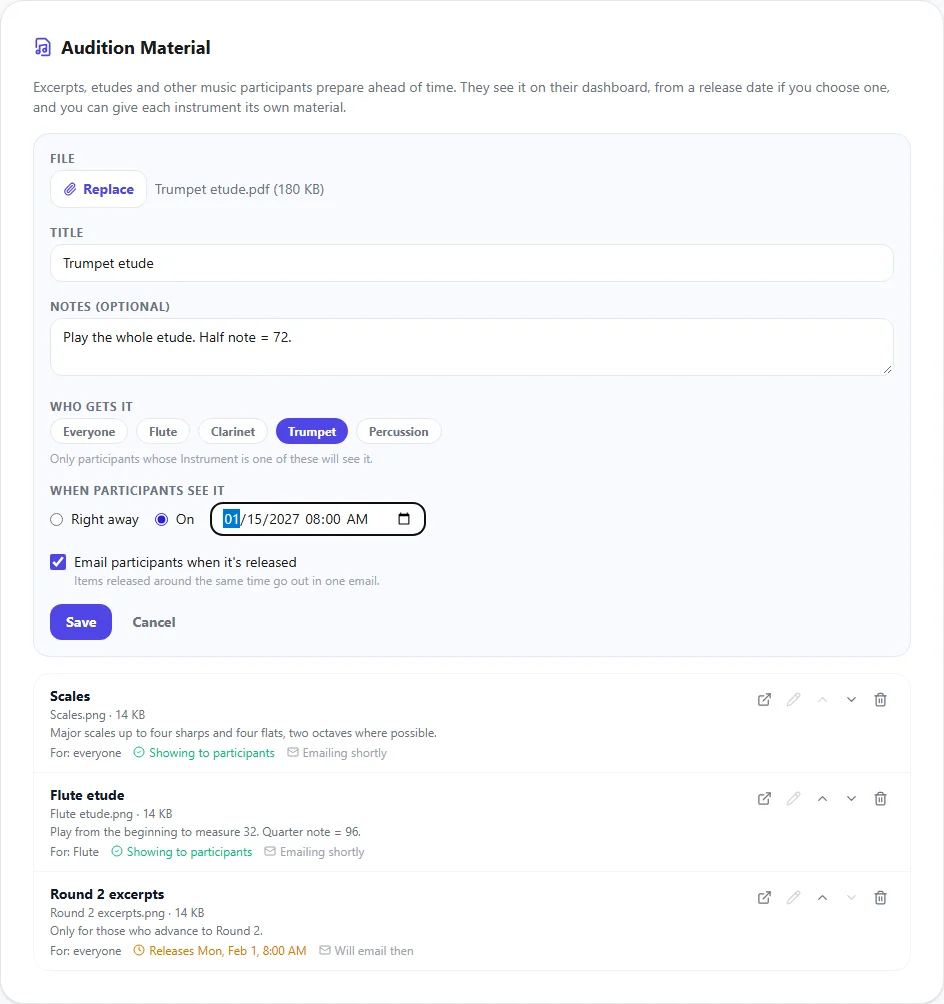
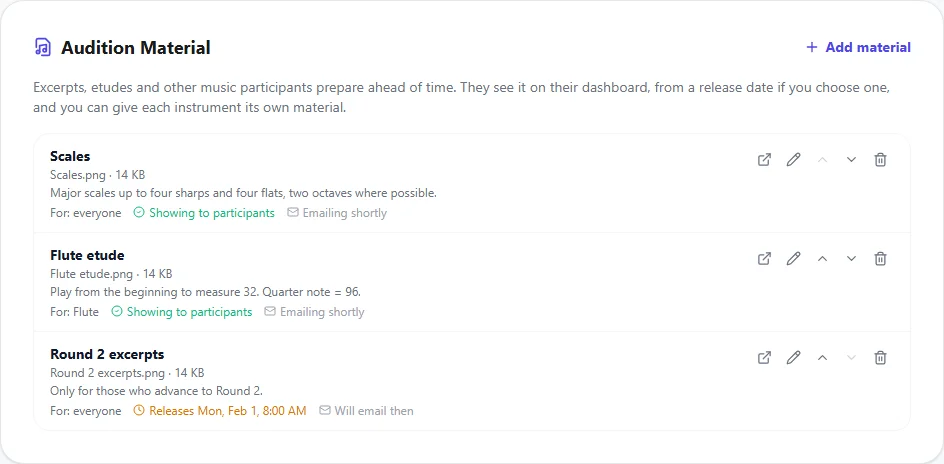
Open the audition from Auditions. Below the schedule, the Audition Material panel lists everything you've posted. Click Add material, then:
- File: a PDF, an image or an audio file, such as an accompaniment track, up to 50 MB.
- Title: what participants see, such as "Etude No. 3". It's filled in from the file name, and you can change it.
- Notes (optional): instructions such as which measures to play, or the tempo.
Click Save. Add one item for each file. An etude, its accompaniment recording and a page of notes would be three items.
2Give each section its own material
If the audition has sections, such as instrument or voice part, Who gets it lists them. Leave it on Everyone, or pick one or more sections. Only participants whose answer matches one of them will see that item, so flutes get the flute etude and trumpets get the trumpet etude.
To use sections, choose a section field in the audition's Edit form. See Custom sign-up fields.
Participants who haven't answered the section question only see material meant for everyone.
3Choose when it's released
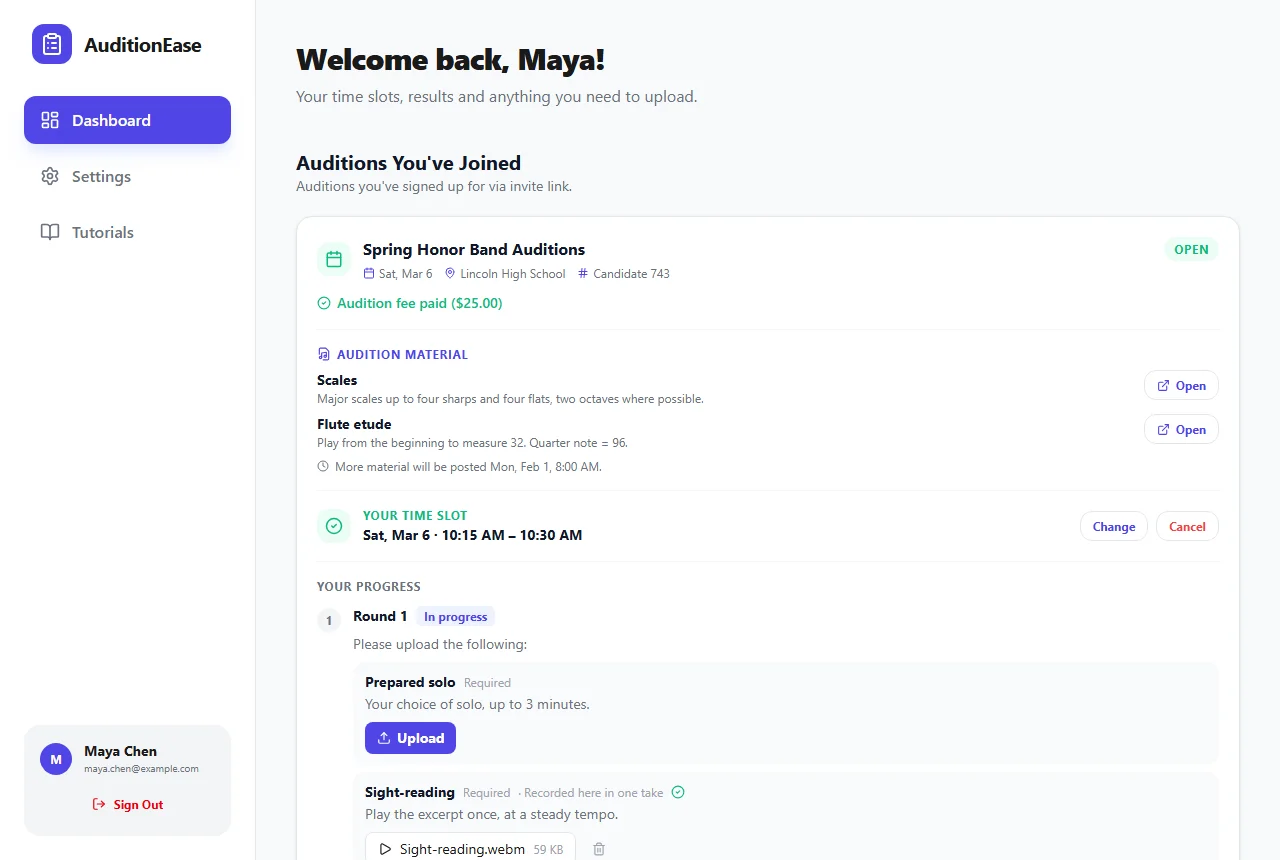
Under When participants see it, choose Right away, or choose On and pick a date and time. Until then, participants can't see or open it. They only see that more material is coming, and when.
With Email participants when it's released ticked, everyone it's meant for gets an email when it's released, listing what's new. Items released around the same time go out in one email.
The release time is in your own timezone, as set on your computer. Participants see it in theirs.
4What participants see
On their dashboard, each audition lists its Audition material. Participants click Open (or Listen for audio) to view or download it.
This is for music participants prepare ahead of time. For sight-reading that stays hidden until a participant starts recording, see Recording & sight-reading.
5Change, reorder or remove material
- Click the pencil to change an item's title, notes, sections or release date, or to replace its file. Moving the release to a later date sends the email again then.
- Use the arrows to change the order participants see.
- Click the bin to remove an item. Participants can no longer see or open it.
- Click the arrow-out-of-box icon to open the file yourself.
Copying an audition doesn't copy its material, since the music usually changes from year to year. Add the new material to the copy.