1Setting up a multi-school audition
Most of the setup is the same as for any audition. In this order:
- Check your plan. Every student counts as a participant. The free Studio plan allows 10 per audition, Ensemble 200, and Institution has no limit. To invite outside judges, your plan must be Ensemble or Institution. Judges sign in free with their email and never need a plan of their own. See Account, plans & storage.
- Add the sign-up fields you need, such as Instrument and Grade. Make Instrument (or voice part) a single-choice dropdown. You don't need a School field; the audition asks for the school itself. See Custom sign-up fields.
- Create the audition and choose Instrument as its Sections field. Sections let you set limits per instrument for each school, advance the top players in each section, and seat ensembles. See Create an audition.
- Set the fee, and connect Stripe if schools will pay by card. See Audition fees.
- Set up Round 1: how it's scored and what students upload or record. Post any audition material for each instrument. See Rounds & scoring.
- Add your judges, and judge panels if each room hears different instruments. See Judges & blind judging.
- Add the schools and bring in their directors, as described below.
- Make time slots if students audition in person. Directors can book them for their students. See Time slots & scheduling.
- Share the invite link too, if students may also sign up themselves. See Students signing up themselves.
Running the same event every year? Copy this year's audition with Details and settings, and next year's starts with the same fields, fee, schools and directors.
2List the schools
Open the audition from Auditions. Near the bottom, the Schools panel lists every school. Click Add a school and enter its name. You can also set limits:
- Most students: how many the school can enter in all. Leave it empty for no limit.
- Most students per section: if the audition has a section field, such as Instrument, how many the school can enter in each one. For example, 3 flutes and 4 clarinets. Sections you leave empty have no limit.
Each school shows how many students it has, against its limits, and how many haven't paid the audition fee yet. Click the pencil to rename a school or change its limits. Lowering a limit doesn't take anyone out; it only stops more students being added.
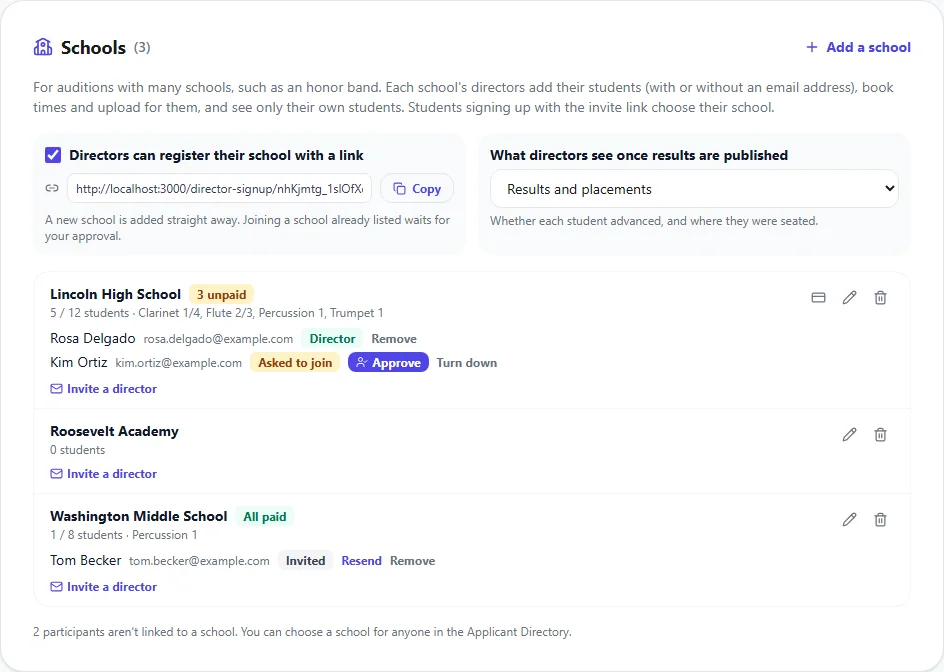
You can go over a school's limits yourself: in the Applicant Directory, open anyone and choose their school. Limits only apply to directors and to students signing up.
3Invite directors, or share a sign-up link
There are two ways to bring in directors, and you can use both.
Invite them by email. Under a school, click Invite a director, enter their email address and click Send invitation. The email has a link that works for 7 days. When they open it, they enter their name and go straight to their school's page. If the link runs out, click Resend. A school can have more than one director.
Share a sign-up link. Tick Directors can register their school with a link and click Copy. Send the link to directors, for example in your festival announcement. Each director checks their email address with a code, then:
- registers a school that isn't listed yet, and can start adding students straight away; or
- chooses a school that's already listed. They show as Asked to join, and can't see or add any students until you click Approve. We email you when someone asks.
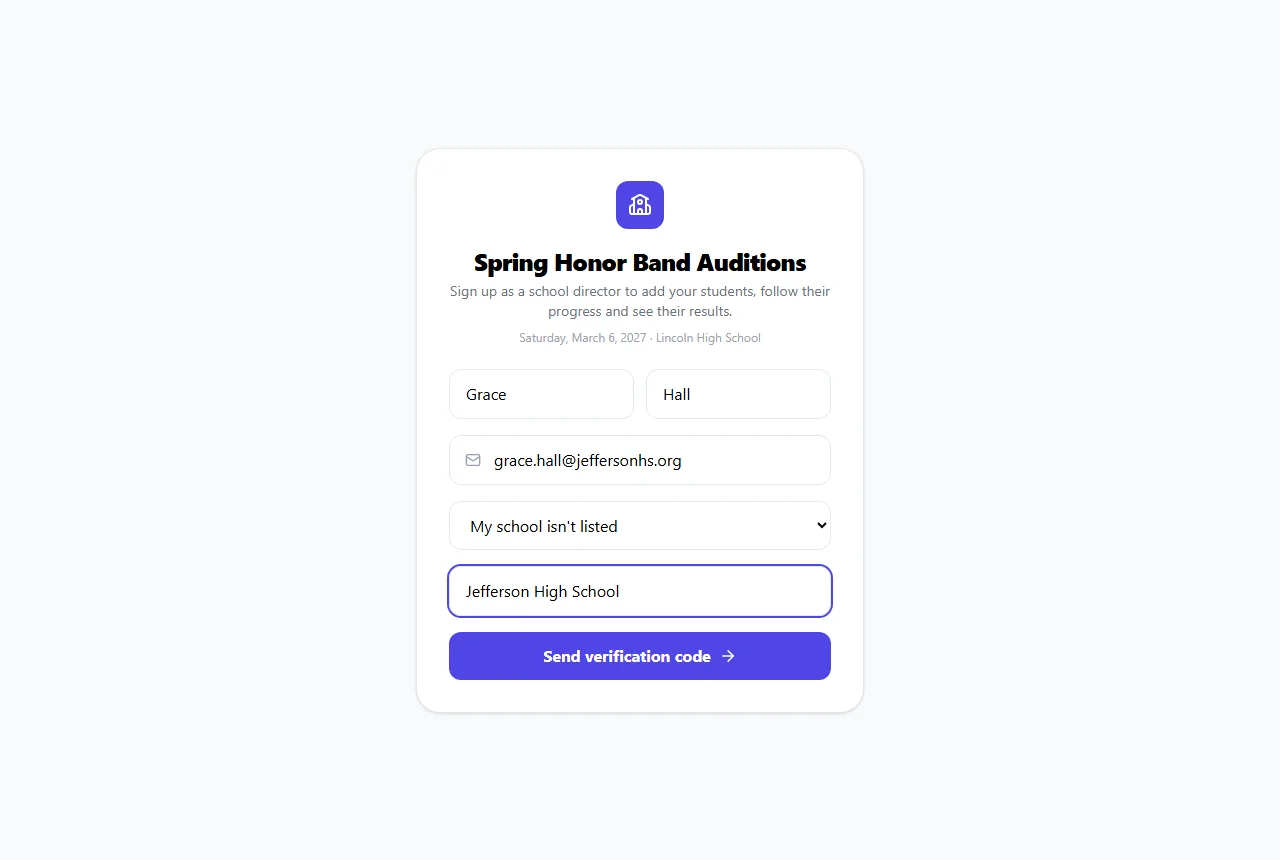
Untick the box to turn the link off. Turning it on again makes a new link, so the old one stops working. To remove a director, cancel an invitation or turn down a request, click Remove or Turn down next to them.
4The director's school page
Directors sign in like anyone else. Their dashboard lists their schools under Your Schools.
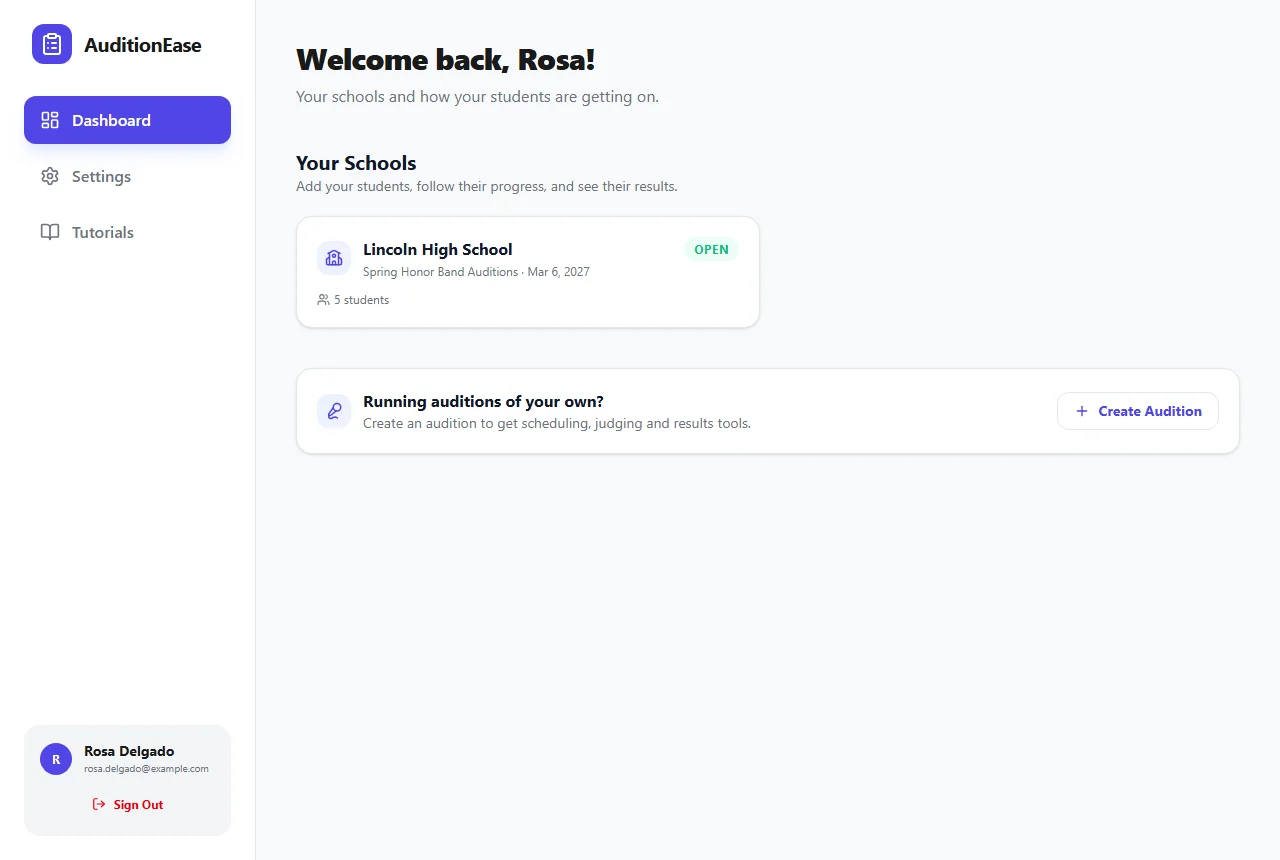
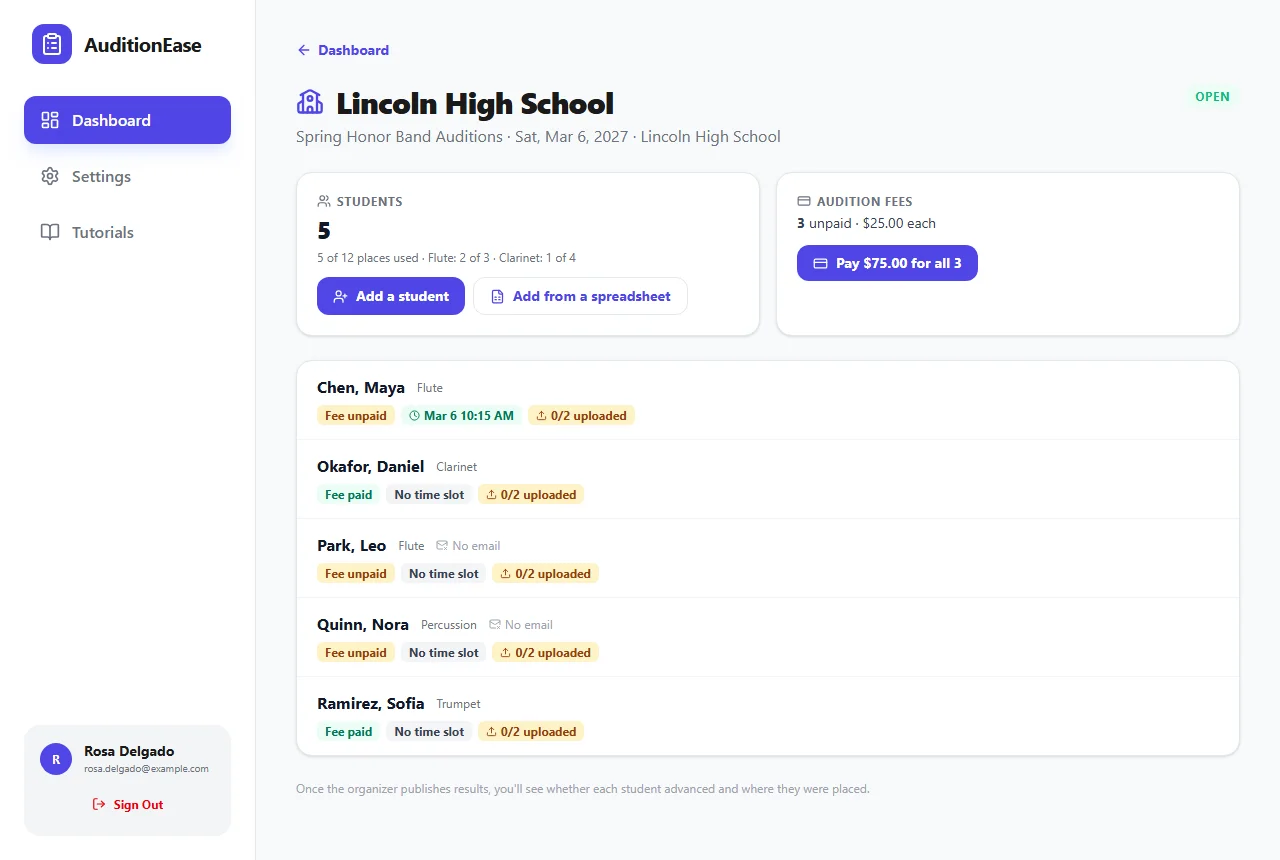
Opening a school shows every student at a glance:
- missing details, such as an instrument they haven't chosen yet;
- whether their fee is paid;
- their time slot;
- how many of the required recordings are uploaded for the round that's open;
- any accommodation request, and how you answered;
- their result, once you publish results.
The top of the page shows how many of the school's places are used, overall and for each section with a limit.
5Add students
While the audition is open, directors click Add a student, or Add from a spreadsheet to add a whole list from a .csv or .xlsx file. For a spreadsheet, they match each column to a name, email or sign-up field. Common column names such as Student Name or Instrument are matched for them.
Students are added in order, as far as the school's limits and your plan's participant limit allow. Anyone who doesn't fit is listed with the reason, for example Lincoln High School can enter up to 3 Flute students. If the audition is full on your plan, you're told how many were turned away, the same way as for people signing up with your invite link (see When an audition fills up). Someone already in the audition is skipped; you can move them into the school yourself. Students without an email address are matched by name, so uploading the same spreadsheet again (for example, once you've made room) only adds the ones who weren't added before. Two different students at one school with exactly the same name need something to tell them apart, such as a middle initial.
Students with an email address can be emailed how to sign in. They can then check their details, book a time and upload recordings themselves, and their director can still do all of it for them.
6Students without an email address
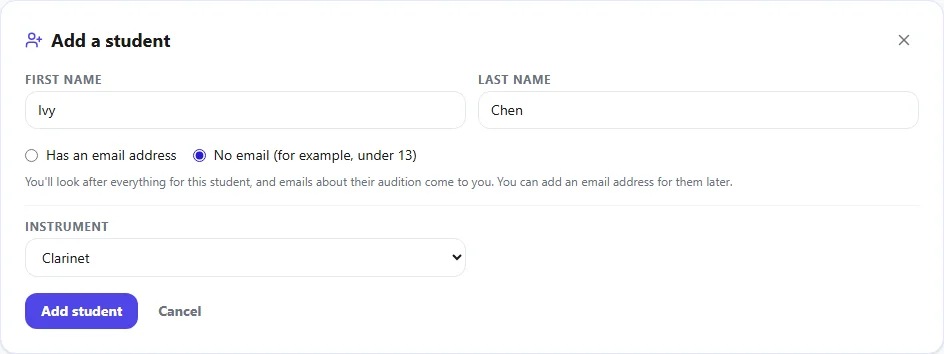
Younger students often don't have an email address, and shouldn't need an account. Directors can choose No email when adding them, or leave the email column empty in a spreadsheet. Then:
- the student can't sign in, and nothing about them is sent to them;
- every email about their audition goes to their school's directors instead, marked with the student's name: reminders, messages you send to a round, results, payment links and so on;
- their director does everything for them, from the school page.
In your Applicant Directory they show as No email. If a student later needs to sign in themselves, their director opens them and clicks Add email and send sign-in.
7Look after a student
Clicking a student opens their details and their audition, as the student would see it. From there, a director can:
- edit their name and sign-up answers. Changing someone's section has to fit the school's limit for that section;
- book or change their time slot, or join the waitlist for them;
- upload their recordings;
- ask for an accommodation, and see your answer;
- open the audition material released for their section;
- copy a payment link for a parent;
- take them out of the audition, as long as they haven't paid and haven't been scored. After that, ask the organizer.
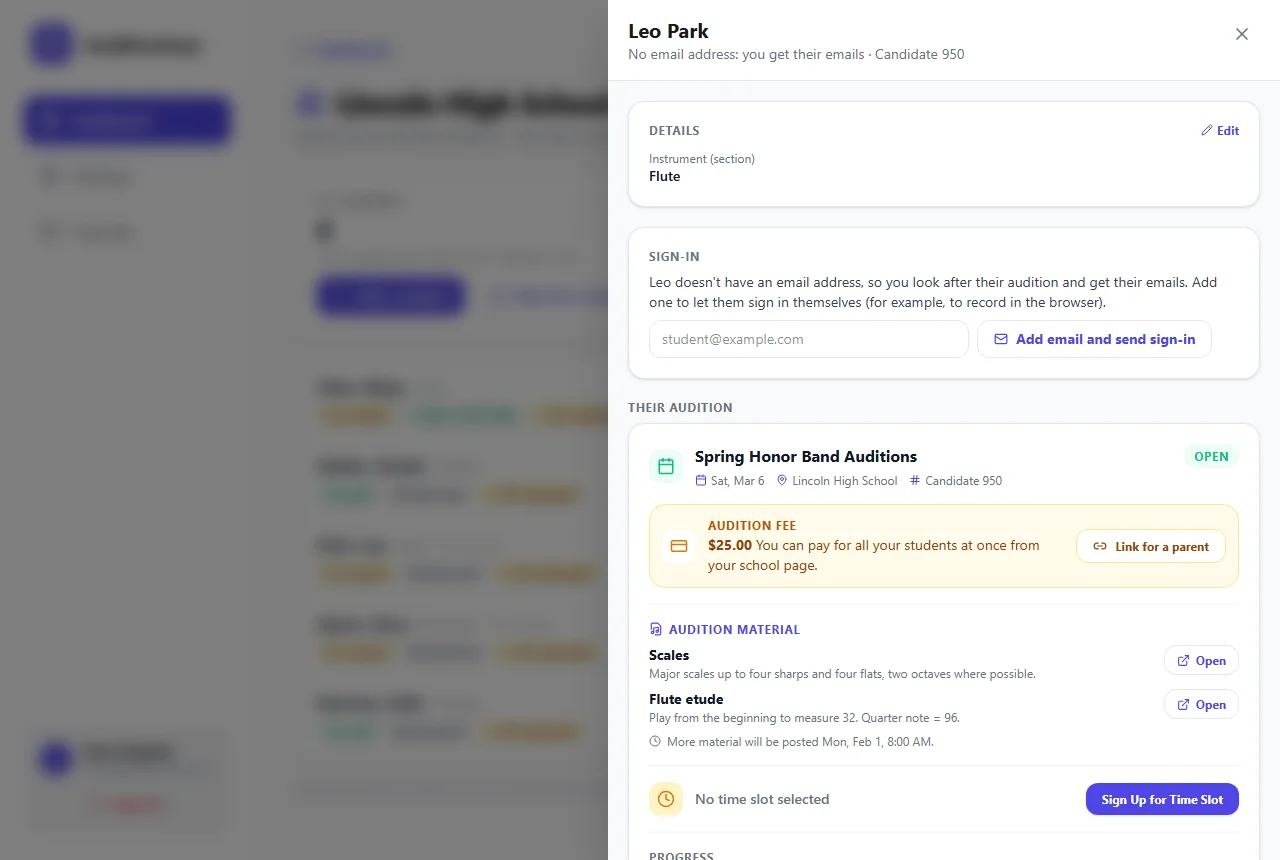
Recordings made in the browser ("record here", such as sight-reading) have to be the student's own take, so only the student can make them, from their own sign-in. A student without an email address needs one added first. See Recording & sight-reading.
8Fees for a whole school
If the audition has a fee and you take card payments, directors see how many of their students haven't paid, and a button to pay them all at once, for example Pay $75.00 for all 3. It's one card payment into your Stripe account, recorded against each student. See Audition fees.
Schools often pay by cheque or purchase order instead. In the Schools panel, click the card icon next to a school to mark all of its unpaid students as paid, with a note such as PO 4471.
9Results
Directors see results only after you publish them, and only for their own students. Under What directors see once results are published, choose:
- Results and placements: whether each student advanced, and where they were seated.
- Also ranks, scores and judges' comments: as well, each student's rank, score and the judges' comments, without judges' names.
This is separate from what students see on their own dashboards, which you set in the audition's Edit form. See Advancing & results.
10Students signing up themselves
Once an audition has schools, the sign-up form from your invite link asks students for their school, with My school isn't listed at the end. Choosing a school puts them on that school's page, and counts towards its limits. If the school (or their section at it) is full, they're asked to contact their director or you. See Joining an audition.
11Who sees what
- Directors see and act for their own school's students only. They never see other schools' students, judges' names, your reports, the Rounds page or the audition's settings.
- A director waiting for approval sees nothing about the school until you approve them.
- Judges don't see which school anyone is from.
- You see every school and student. Reports have a School field you can add as a column or filter by.
Copying an audition with Details and settings copies its schools, their limits and their directors, so next year's festival is ready for them. Pending invitations and the sign-up link aren't copied. Removing a school keeps its students in the audition, without a school.