1Export your applicants
Most audition and registration systems have a way to export your data, usually as a CSV or Excel file. Look for an Export, Download or Reports option on the page that lists your applicants or submissions. Some systems let you choose which columns to include first. If you can't find it, ask the system's support team for a spreadsheet of your registrations.
Include every column you want to keep: at least email and name, plus things like instrument or voice part, school, grade and director. Responses collected with an online form or kept in a spreadsheet can be downloaded as CSV or Excel the same way.
Any file with a header row and one applicant per row will work.
2Create your audition
Create the audition your applicants are for. You don't need to set up sign-up fields first. The upload can create them from your file's columns.
3Upload the file
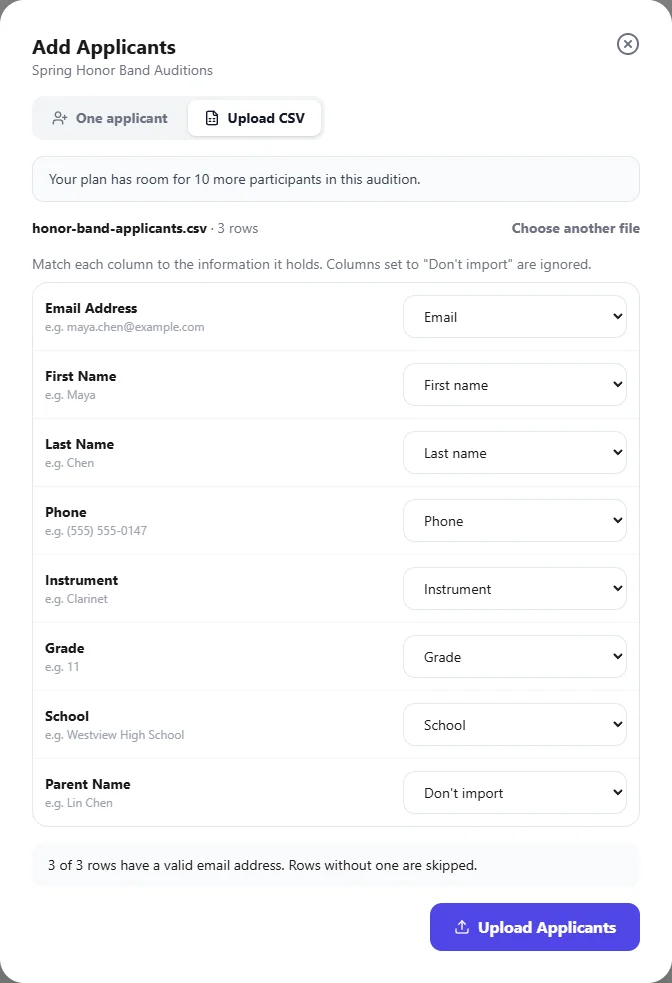
In Applicants, select the audition, click Add Applicants and choose the Upload a spreadsheet tab. Pick your exported .xlsx or .csv file.
- Columns are matched for you where they can be, including common names from other services such as Student Email, Applicant Name or Voice Part.
- If the file has one name column, choose Full name (split into first and last).
- Click Create fields for unmatched columns to turn the remaining columns into sign-up fields. Each field's type is guessed from its values; for example, a column of instruments becomes a dropdown with each instrument as a choice. Check the names and types, and set any column you don't need to Don't import.
- If a column goes into an existing dropdown and has values that aren't choices yet, tick the box to add them as choices.
Then click Upload Applicants. See Upload applicants from a spreadsheet for how rows and values are handled.
Each applicant gets an AuditionEase account for their email. They can sign in with that email, with no password, to check their details and book a time slot. Let them know you've moved, and send them the audition's invite link from Emails.
4Bring your judges
Go to Settings › Judges and click Add several judges at once. Paste their email addresses, or choose a file such as a judge list exported from your old service. Every email address in it is found for you. See Judges.
5What stays behind
- Recordings: most services only let you download them one at a time. Download any you need to keep before your old account closes. For the new season, applicants upload fresh recordings here. See Rounds & scoring.
- Past scores and results: keep a copy of your old service's score reports for your records. Each season starts with fresh scoring in AuditionEase.